Wednesday, October 13, 2010

How to remove System Defragmenter (Uninstall Guide)

Don't Copy From This Blog...

Protected by Copyscape Plagiarism Detection
System Defragmenter is a fake defragmentation and system optimization program that deliberately reports non-existent hard drive errors, junk files, Windows registry errors, missing or outdated drivers and other fake problems on your computer. It only pretends to scan your hard drive for problems. It simply lists predetermined errors and that's all. It should be noted that System Defragmenter reports basically the same fake errors on different computers, so obviously you shouldn’t trust it. After the fake scan, you will be prompted to pay for a full version of the program to fix these non-existent hard drive and registry errors. It goes without saying that you shouldn’t purchase System Defragmenter. Don't throw your money away. It does not worth a dime. If you are reading this article then your computer is probably infected with System Defragmenter. Thankfully, we've got the removal instructions to help you to remove System Defragmenter from your computer for free using legitimate anti-malware software. Please follow the removal instructions below.


(Thanks to rogueamp)

Probably the most annoying thing about SystemDefragmenter is that this program blocks nearly all executables on your computer. When you attempt to run any of them it will claim that Exe file is corrupted and display the following message:
System Error!
Exe file is corrupted and can't be run. Hard drive scan required.
Scan Hard Drive


However, if you attempt to run a program enough times it will eventually work. But that's very annoying. Furthermore, the fake program will display many fake error messages and pop-ups from the Windows taskbar. It may claim that RAM temperature is critically high and that there are many critical hard drive and registry errors that should be fixed immediately. Here's a list of the fake problems it detects on your computer:
  • Drive C initializing error
  • Bad sectors on hard drive or damaged file allocation table - Critical Error
  • Read time of hard drive clusters less than 500 ms - Critical Error
  • Hard drive does not respond to system commands - Critical Error
  • Requested registry access is not allowed. Registry defragmentation required
  • Registry Error - Critical Error
And here's a list of some of the fake alerts you may see coming from the Windows taskbar:
Critical Error
RAM memory usage is critically high. RAM memory failure.

Critical Error
Windows can't find hard disk space. Hard drive error
Critical Error
Hard Drive not found. Missing hard drive.
System Defragmenter
Restart in Safe Mode required
Restart the computer in Safe Mode to fix detected problems
Restart your computer in Safe Mode, and then run
the Defragmenter tool. Starting Defragmenter in Safe Mode
help to prevent system damage and data loss. Please
do not start other applications until the process has complited
Of course, there are more such fake alerts. System Defragmenter is promoted through the use of fake online scanners and bogus/infected web pages. It's not a legitimate program and it doesn't allow you to use your computer properly. Without a doubt, you should remove System Defragmenter from your computer as soon as possible. Please don't purchase. If you have already bought this malware then contact your credit card company and dispute the charges. Then please follow System Defragmenter removal instructions given below. You can remove it either manually or using free legitimate anti-malware software. Last, but not least, if you have any questions or additional information about the rogue program, please leave a comment. Good luck and be safe online!


System Defragmenter removal instructions using HijackThis or Process Explorer (in Normal mode):

First of all, run your web browser (Internet Explorer, Firefox, Chrome or any other). The virus will block it, but just keep trying to launch it and eventually it's going to let you.

1. Download iexplore.exe (NOTE: iexplore.exe file is renamed HijackThis tool from TrendMicro).
Launch the iexplore.exe and click "Do a system scan only" button.
If you can't open iexplore.exe file then download explorer.scr and run it.

2. Search for such entries in the scan results:
O4 - HKCU\..\Run: [exe.exe] %Temp%\exe.exe
O4 - HKCU\..\Run: [254586] %Temp%\[254586].exe

The process name will be different in your case [SET OF RANDOM NUMBERS].exe, located in:
C:\Documents and Settings\[User Name]\Local Settings\Temp\ for Windows XP
C:\Users\[User Name]\AppData\Local\Temp\ for Windows Vista & 7
Select all similar entries and click once on the "Fix checked" button. Close HijackThis tool.

OR you may download Process Explorer and end Antivirus Action process:
  • exe.exe
  • [SET OF RANDOM NUMBERS].exe, i.e. 254586.exe
3. Download free anti-malware software from the list below and run a full system scan.
NOTE: in some cases the rogue program may block anti-malware software. Before saving the selected program onto your computer, you may have to rename the installer to iexplore.exe or winlogon.exe With all of these tools, if running Windows 7 or Vista they MUST be run as administrator. Launch the program and follow the prompts. Don't forget to update the installed program before scanning.

4. New threats appear every day. In order to protect your PC from such (new) infections we strongly recommend you to use ESET Smart Security.


System Defragmenter removal instructions (in Safe Mode with Networking):

1. Reboot your computer is "Safe Mode with Networking". As the computer is booting tap the "F8 key" continuously which should bring up the "Windows Advanced Options Menu" as shown below. Use your arrow keys to move to "Safe Mode with Networking" and press Enter key. Read more detailed instructions here: http://www.computerhope.com/issues/chsafe.htm


NOTE: Login as the same user you were previously logged in with in the normal Windows mode.

2. Download free anti-malware software from the list below and run a full system scan.
NOTE: in some cases the rogue program may block anti-malware software. Before saving the selected program onto your computer, you may have to rename the installer to iexplore.exe or winlogon.exe With all of these tools, if running Windows 7 or Vista they MUST be run as administrator. Launch the program and follow the prompts. Don't forget to update the installed program before scanning.

3. New threats appear every day. In order to protect your PC from such (new) infections we strongly recommend you to use ESET Smart Security.


System Defragmenter associated files and registry values:

Files:

For Windows XP users:
  • C:\Documents and Settings\[User Name]\Local Settings\Temp\[SET OF RANDOM NUMBERS]
  • C:\Documents and Settings\[User Name]\Local Settings\Temp\[SET OF RANDOM NUMBERS]\[SET OF RANDOM NUMBERS].exe
  • C:\Documents and Settings\[User Name]\Local Settings\Temp\[SET OF RANDOM NUMBERS]\exe.exe
  • C:\Documents and Settings\[User Name]\Local Settings\Temp\[SET OF RANDOM NUMBERS]\exe.log
  • C:\Documents and Settings\[User Name]\Local Settings\Temp\maindll.dll
  • C:\Documents and Settings\[User Name]\Desktop\System Defragmenter.lnk
  • C:\Documents and Settings\[User Name]\Start Menu\Programs\System Defragmenter
  • C:\Documents and Settings\[User Name]\Start Menu\Programs\System Defragmenter\System Defragmenter.lnk
For Windows Vista & Windows 7 users:
  • C:\Users\[User Name]\AppData\Local\Temp\[SET OF RANDOM NUMBERS]
  • C:\Users\[User Name]\AppData\Local\Temp\[SET OF RANDOM NUMBERS]\[SET OF RANDOM NUMBERS].exe
  • C:\Users\[User Name]\AppData\Local\Temp\[SET OF RANDOM NUMBERS]\exe.exe
  • C:\Users\[User Name]\AppData\Local\Temp\[SET OF RANDOM NUMBERS]\exe.log
  • C:\Users\[User Name]\AppData\Local\Temp\maindll.dll
  • C:\Users\[User Name]\Desktop\System Defragmenter.lnk
  • C:\Users\[User Name]\Start Menu\Programs\System Defragmenter
  • C:\Users\[User Name]\Start Menu\Programs\System Defragmenter\System Defragmenter.lnk
Registry values:
  • HKEY_CURRENT_USER\Software\Microsoft\Windows\CurrentVersion\Run "[SET OF RANDOM CHARACTERS]"
  • HKEY_CURRENT_USER\Software\Microsoft\Windows\CurrentVersion\Run "exe.exe"
Share the knowledge:

Saturday, October 9, 2010

How to remove Smart Engine malware (Uninstall Guide)

Don't Copy From This Blog...

Protected by Copyscape Plagiarism Detection
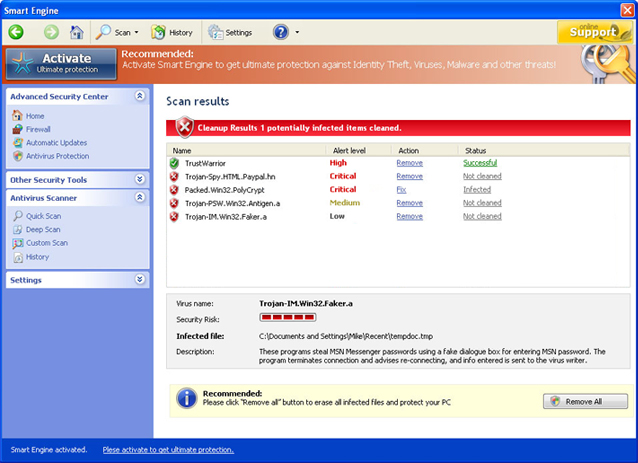
Smart Engine is a rogue anti-virus program that deliberately reports false system security threats on the computer. It's a clone of My Security Shield. It masquerades as legitimate security software and claims that your computer is infected with malware. The rogue program only pretends to scan your computer for malicious software. Smart Engine is a scam, don't install/purchase it. This fake anti-virus program is promoted mostly through the use of Trojans, fake online anti-malware scanners and malicious websites. If your computer is infected with this virus, please follow the removal instructions below to remove Smart Engine from your computer for free using legitimate anti-malware software.


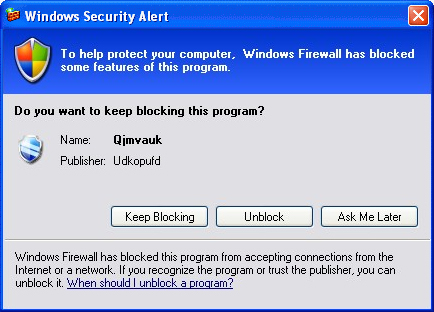
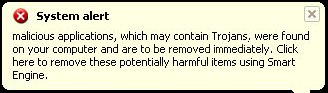
Once Smart Engine is installed, it will claim that your computer is heavily infected witl all sorts of malware. Furthermore, it will constantly display fake security warnings and pop ups that attempt to further scare you into thinking your PC is infected with Trojans, spyware, worms and other viruses. These warnings should be ignored as they are false as well. Here's how one of many fake Smart Engine alerts reads:
Windows Security Alert
To help ptotect your computer, Windows Firewall has blocked
some features of this program.

System Alert
malicious applications, which may contain Trojans, were found on your computer and are to be removed immediately. Click here to remove these potentially harmful items using Smart Engine.


The bad news is that Smart Engine blocks legitimate programs and system utilities. It modifies Windows hosts file and hijacker web browsers. You will have to use certain tools and methods to disable this virus and then download malware removal software.

It goes without saying that SmartEngine was created with only one purpose; to scare you into thinking that your computer is infected so that you will purchase Smart Engine. Please note that this fake program won't remove any infections from your computer. By no means should you purchase this program. And if you have already bought it then please contact your credit card company and dispute the charges. Then please follow the removal instructions below. Last, but not least, if you have any questions, please leave a comment. Good luck and be safe online!


Smart Engine removal instructions using HijackThis or Process Explorer (in Normal mode):

1. Launch Internet Explorer. In Internet Explorer go to: Tools->Internet Options->Connections tab. Click Lan Settings button and uncheck the checkbox labeled Use a proxy server for your LAN. Click OK.


2. Download Process Explorer.
3. Rename procexp.exe to iexplore.exe and run it. Look for similar processes in the list and end it:
  • SM19b_3912.exe
  • SmartEngine.exe
OR download iexplore.exe (NOTE: iexplore.exe file is renamed HijackThis tool from TrendMicro).
Launch the iexplore.exe and click "Do a system scan only" button.
If you can't open iexplore.exe file then download explorer.scr and run it. Search for similar entries in the scan results:

R1 - HKCU\Software\Microsoft\Windows\CurrentVersion\Internet Settings,ProxyServer = http=127.0.0.1:25520
O4 - HKCU\..\Run: [Smart Engine] "C:\Documents and Settings\All Users\Application Data\19cdab\SM19b_3912.exe" /s /d
Select all similar entries and click once on the "Fix checked" button. Close HijackThis tool.

4. Download free anti-malware software from the list below and run a full system scan.
NOTE: in some cases the rogue program may block anti-malware software. Before saving the selected program onto your computer, you may have to rename the installer to iexplore.exe or winlogon.exe With all of these tools, if running Windows 7 or Vista they MUST be run as administrator. Launch the program and follow the prompts. Don't forget to update the installed program before scanning.

5. New threats appear every day. In order to protect your PC from such (new) infections we strongly recommend you to use ESET Smart Security.


Smart Engine removal instructions (in Safe Mode with Networking):

1. Reboot your computer is "Safe Mode with Networking". As the computer is booting tap the "F8 key" continuously which should bring up the "Windows Advanced Options Menu" as shown below. Use your arrow keys to move to "Safe Mode with Networking" and press Enter key. Read more detailed instructions here: http://www.computerhope.com/issues/chsafe.htm


NOTE: Login as the same user you were previously logged in with in the normal Windows mode.

2. Launch Internet Explorer. In Internet Explorer go to: Tools->Internet Options->Connections tab.
Click Lan Settings button and uncheck the checkbox labeled Use a proxy server for your LAN. Click OK.


3. Download free anti-malware software from the list below and run a full system scan.
NOTE: in some cases the rogue program may block anti-malware software. Before saving the selected program onto your computer, you may have to rename the installer to iexplore.exe or winlogon.exe With all of these tools, if running Windows 7 or Vista they MUST be run as administrator. Launch the program and follow the prompts. Don't forget to update the installed program before scanning.

4. New threats appear every day. In order to protect your PC from such (new) infections we strongly recommend you to use ESET Smart Security.


Smart Engine associated files and registry values:

Files:
  • C:\Documents and Settings\All Users\Application Data\19cdab\
  • C:\Documents and Settings\All Users\Application Data\345d567\853.mof
  • C:\Documents and Settings\All Users\Application Data\345d567\SmartEngine.exe
  • C:\Documents and Settings\All Users\Application Data\345d567\SM19b_3912.exe
  • C:\Documents and Settings\All Users\Application Data\345d567\SME.ico
  • C:\Documents and Settings\All Users\Application Data\345d567\[SET OF RANDOM CHARACTERS].dll
  • C:\Documents and Settings\All Users\Application Data\345d567\[SET OF RANDOM CHARACTERS].ocx
  • C:\Documents and Settings\All Users\Application Data\19cdab\MSSSys\
  • C:\Documents and Settings\All Users\Application Data\SMEYFE
  • %UserProfile%\Application Data\Smart Engine\
  • %UserProfile%\Application Data\Smart Engine\cookies.sqlite
  • %UserProfile%\Application Data\Smart Engine\Instructions.ini

%UserProfile% refers to:
C:\Documents and Settings\ (for Windows 2000/XP)
C:\Users\[User Name]\AppData (for Windows Vista & Windows 7)

Registry values:
  • HKEY_CURRENT_USER\Software\3
  • HKEY_CLASSES_ROOT\CLSID\{3F2BBC05-40DF-11D2-9455-00104BC936FF}
  • HKEY_CLASSES_ROOT\SMae0_2129.DocHostUIHandler
  • HKEY_USERS\.DEFAULT\Software\Microsoft\Internet Explorer\SearchScopes "URL" = "http://findgala.com/?&uid=2129&q={searchTerms}"
  • HKEY_CURRENT_USER\Software\Classes\Software\Microsoft\Internet Explorer\SearchScopes "URL" = "http://findgala.com/?&uid=2129&q={searchTerms}"
  • HKEY_CURRENT_USER\Software\Microsoft\Internet Explorer "PRS" = "http://127.0.0.1:27777/?inj=%ORIGINAL%"
  • HKEY_CURRENT_USER\Software\Microsoft\Internet Explorer\Download "RunInvalidSignatures = "1"
  • HKEY_CURRENT_USER\Software\Microsoft\Windows\CurrentVersion\Internet Settings "ProxyServer" = "http=127.0.0.1:25437"
  • HKEY_CURRENT_USER\Software\Microsoft\Windows\CurrentVersion\Internet Settings\5.0\User Agent\Post Platform "Version/10.02129"
  • HKEY_CURRENT_USER\Software\Microsoft\Windows\CurrentVersion\Policies\Explorer "DisallowRun" = "1"
  • HKEY_CURRENT_USER\Software\Microsoft\Windows\CurrentVersion\Run "Smart Engine"
  • HKEY_CLASSES_ROOT\Software\Microsoft\Internet Explorer\SearchScopes "URL" = "http://findgala.com/?&uid=2129&q={searchTerms}"
  • HKEY_CURRENT_USER\Software\Microsoft\Internet Explorer\Download "CheckExeSignatures" = "no"
  • HKEY_CURRENT_USER\Software\Microsoft\Windows\CurrentVersion\Internet Settings "ProxyEnable" = "1"
Share this information with other people:

Thursday, October 7, 2010

How to remove Antivirus Action malware (Uninstall Guide)

Don't Copy From This Blog...

Protected by Copyscape Plagiarism Detection
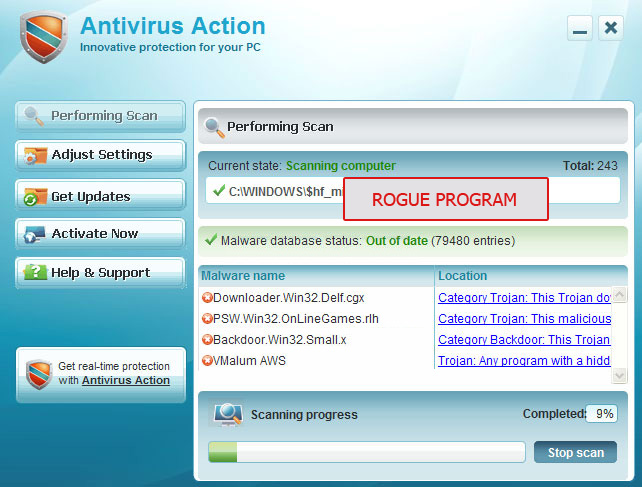
Antivirus Action is a rogue security program which pretends to be legitimate anti-virus software with the goal of deceiving users into paying registration fees to remove malware from their computers. It's a ripoff rogue which claims that your computer is infected with spyware, adware, Trojans and other malicious software. Antivirus Action reports predetermined infections, it doesn't even scan your computer. This rogue program is distributed through the use of fake online anti-malware scanners, infected web pages and other malware. Usually, it masquerades as a video codec of flash player update. It can come bundled with other malicious software as well. The thieves also use social engineering, spamming and other misleading methods to promote their bogus software. If your computer is infected with this rogue program then please follow the removal instructions below to remove Antivirus Action and associated malware from your computer for free using legitimate anti-malware software.


(Thanks to rogueamp)

Antivirus Action is from the same family as Antivirus IS and Security Suite and Antivirus Scan. Once installed, it will pretend to scan your computer for malware and display fake security warnings. The bad news is that AntivirusAction will block nearly all programs on your computer. When I attempted to start Windows calculator, the rogue program terminated it and displayed the following message:
Security Warning
Application cannot be executed. The file calc.exe is infected. Do you want to activate your antivirus software now.


It displays the same fake alert for all the other programs on your computer. It blocks such Windows system tools as Task manager or Registry editor or even system restore. And, of course it block anti-virus and anti-spyware programs. But don't worry, it's a false message, your programs are not infected. Antivirus Action just wants to scare you into thinking that your computer has security problem so that you will then purchase the program.

What is more, this bogus program will set up a local proxy server on your computer to reroute Internet traffic. It will display a false message about malicious websites that contain exploits that could launch malicious code on your computer. The fake message reads:
Internet Explorer warning - visiting this site may harm your computer! Most likely causes:
The website contains exploits that can launch a malicious code on your computer
Suspicious network activity detected
There might be an active spyware running on your computer
It will display other fake Windows security alerts and notifications about critical infections too. In order to remove Antivirus Action you will probably have to reboot your computer in safe mode with networking and scan your computer with Malwarebytes Anti-malware, SUPERAntispyware or some other free anti-malware programs. Full details on how to reboot your computer in safe mode with networking and remove this malware from your computer are given below. Please note, that in some cases Antivirus Action comes bundled with TDSS rootkit. You should scan your computer with TDSSKiller utility after you remove the rogue program. For more information please read TDSS, Alureon, Tidserv, TDL3 removal instructions. Last, but not least, this rogue may infect system restore points, so it would be a good idea to purge all old system restore points and create a new one after you remove Antivirus Action.

It goes without saying that you shouldn't purchase this rogue programs. It gives a false sense of security and deliberately reports false system security threats. However, if you have already bought it then please contact your credit card company and dispute the charges while explaining that the program is fake. If you have any questions or additional information about Antivirus Action, please leave a comment. You should warn all your friends about this rogue programs as well. Good luck and be safe online!


Antivirus Action removal instructions (in Safe Mode with Networking):

1. Reboot your computer is "Safe Mode with Networking". As the computer is booting tap the "F8 key" continuously which should bring up the "Windows Advanced Options Menu" as shown below. Use your arrow keys to move to "Safe Mode with Networking" and press Enter key. Read more detailed instructions here: http://www.computerhope.com/issues/chsafe.htm


NOTE: Login as the same user you were previously logged in with in the normal Windows mode.

2. Launch Internet Explorer. In Internet Explorer go to: Tools->Internet Options->Connections tab.
Click Lan Settings button and uncheck the checkbox labeled Use a proxy server for your LAN. Click OK.


3. Download free anti-malware software from the list below and run a full system scan.
NOTE: in some cases the rogue program may block anti-malware software. Before saving the selected program onto your computer, you may have to rename the installer to iexplore.exe or winlogon.exe With all of these tools, if running Windows 7 or Vista they MUST be run as administrator. Launch the program and follow the prompts. Don't forget to update the installed program before scanning.

4. New threats appear every day. In order to protect your PC from such (new) infections we strongly recommend you to use ESET Smart Security.


Antivirus Action removal instructions using HijackThis (in Normal mode):

1. Download iexplore.exe (NOTE: iexplore.exe file is renamed HijackThis tool from TrendMicro).
Launch the iexplore.exe and click "Do a system scan only" button.
If you can't open iexplore.exe file then download explorer.scr and run it.

2. Search for such entry in the scan results:
O4 - HKCU\..\Run: [wzdporfhs] %Temp%\hxhdkesjd\qorhkvbyhsn.exe

The process name will be different in your case [SET OF RANDOM CHARACTERS]yhsn.exe, located in:
C:\Documents and Settings\[User Name]\Local Settings\Temp\ for Windows XP
C:\Users\[User Name]\AppData\Local\Temp\ for Windows Vista & 7
Select all similar entries and click once on the "Fix checked" button. Close HijackThis tool.

OR you may download Process Explorer and end Antivirus Action process:
  • [SET OF RANDOM CHARACTERS]yhsn.exe
3. Download free anti-malware software from the list below and run a full system scan.
NOTE: in some cases the rogue program may block anti-malware software. Before saving the selected program onto your computer, you may have to rename the installer to iexplore.exe or winlogon.exe With all of these tools, if running Windows 7 or Vista they MUST be run as administrator. Launch the program and follow the prompts. Don't forget to update the installed program before scanning.

4. New threats appear every day. In order to protect your PC from such (new) infections we strongly recommend you to use ESET Smart Security.


Antivirus Action associated files and registry values:

Files:

For Windows XP users:
  • C:\Documents and Settings\[User Name]\Local Settings\Temp\[SET OF RANDOM CHARACTERS]
  • C:\Documents and Settings\[User Name]\Local Settings\Temp\[SET OF RANDOM CHARACTERS]\[SET OF RANDOM CHARACTERS]yhsn.exe
For Windows Vista & 7 users:
  • C:\Users\[User Name]\AppData\Local\Temp\[SET OF RANDOM CHARACTERS]
  • C:\Users\[User Name]\AppData\Local\Temp\[SET OF RANDOM CHARACTERS]\[SET OF RANDOM CHARACTERS]yhsn.exe
Registry values:
  • HKEY_CURRENT_USER\Software\[SET OF RANDOM CHARACTERS]
  • HKEY_CURRENT_USER\Software\Microsoft\Internet Explorer\PhishingFilter "Enabled" = "0"
  • HKEY_CURRENT_USER\Software\Microsoft\Windows\CurrentVersion\Internet Settings "ProxyOverride" = ""
  • HKEY_CURRENT_USER\Software\Microsoft\Windows\CurrentVersion\Internet Settings "ProxyServer" = "http=127.0.0.1:33921"
  • HKEY_CURRENT_USER\Software\Microsoft\Windows\CurrentVersion\Internet Settings "ProxyEnable" = "1"
  • HKEY_LOCAL_MACHINE\SOFTWARE\Microsoft\Windows\CurrentVersion\Run "[SET OF RANDOM CHARACTERS]yhsn.exe"
  • HKEY_CURRENT_USER\Software\Microsoft\Windows\CurrentVersion\Run "[SET OF RANDOM CHARACTERS]yhsn.exe"
Share this information with other people:

Monday, October 4, 2010

How to remove Antivirus Studio 2010 malware (Uninstall Instructions)

Don't Copy From This Blog...

Protected by Copyscape Plagiarism Detection
Antivirus Studio 2010 is a fake anti-virus program that deliberately reports false system security threats on your computer. It claims that your computer is infected with spyware, adware, Trojans, worms and other malware without any proof. It just pretends to scan your computer for malicious software and displays predetermined infections. Some of the fake threats that you will encounter if your computer is infected with this malicious software:
  • RealAlert-Di
  • Worm:Win32/Rimecud.B
  • Generic.dx!472a10e2ebd9
  • Win64.BIT.Looker
  • Sft.dez.Wien
  • Screen.Grab.J


It may report nearly 400 infections on a single machine. Then you will be prompted to pay for a full license of the program in order to remove the threats. Unfortunately, it won't remove any of them simply because they don't even exist. If you choose to purchase Antivirus Studio 2010, you will lose your money and you will get a false sense of security in return. If you won't remove Antivirus Studio 2010, it may download additional malware onto your computer, i.e. Trojans, keyloggers and etc. So, if you find that your computer is infected with Antivirus Studio 2010, remove it as soon as possible. Please follow the removal instructions given below.


(Thanks to rogueamp)

AntivirusStudio2010 is a rogue security program, not a virus. It won't delete your files, so don't worry. But it's very annoying. While this fake program is running, it will display numerous fake security warnings and notifications about various viruses that may steal your sensitive information or delete your files. And what annoys my the most is this "New virus found" sound. Yes, this rogue comes with warning sounds. It may even play some junk through your speakers. Some of the fake security alerts are:
Antivirus Studio 2010
WARNING! [Number] threats detected
Detected malicious programs can damage your computer and compromise your privacy.
It's strongly recommended to remove them immediately!

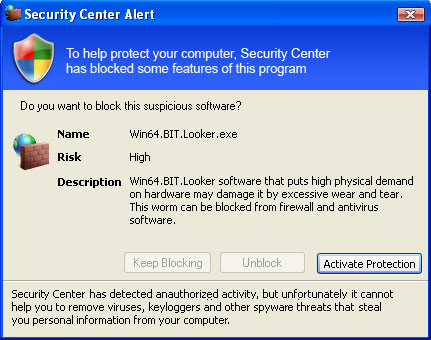
Security Center Alert
To help protect your computer, Security Center
has blocked some features of this program
Name: Win64.BIT.Looker.exe

Security Center Alert
To help protect your computer, Security Center
has blocked some features of this program
Name: Screen.Grab.J.exe


Antivirus Studio 2010 has its own Security Center which claims that the virus is going to send your license key to somebody. A funny thing is that all the 127 addresses are reserved for localhost (your computer). So, it won't be going anywhere. Besides, that's not your license key anyway. I'm pretty sure it's fake.
Unauthorized remote connection!
Your system is making an unauthorized personal data transfer to remote computer!
Warning! Unauthorized personal data transfer Is detected! It may be your personal credit card details, logins and passwords, browsing habits or information about files you have downloaded.


What is more, the rogue program will block some programs on your computer claiming that they are infected.
Microsoft Windows
Program [file name] is infected with virus Generic Dropper.js. Continue running this program may be dangerous to your computer and personal data. Running this program can lead to permanent data loss and program instability. Would you like to disinfect this program with antivirus?


Last, but not least, it will hijack your web browser and randomly display warnings messages about insecure Internet browsing and infected websites.
Reported Insecure Browsing: Navigation Blocked
Insecure Internet Activity. Threat of virus attack
Due to insecure Internet browsing your PC can easily get infected with viruses, worms, and trojans without your knowledge, and that can lead to system slowdown, freezes and crashes. Also insecure Internet activity can result in revealing your personal information.
AntivirusStudio2010 has its own secure transaction browser. It also displays modified Task Manager with a new collumn indicating whether the process is infected ot not. It states that AntiVirus Studio 2010.exe, which is the main process of this rogue program is in fected as well. That's strange.

Antivirus Studio 2010 is from the same family as Desktop Security 2010 malware.
Website relates to Antivirus Studio 2010: antivirusstudioorg2010.com, antivirusstudio.com (please don't visit these websites).

As you can see, Antivirus Studio 2010 is a scam and absolutely needless software. If you have already purchased it then contact your credit card company and dispute the charges. Then please follow the removal instructions below to remove Antivirus Studio 2010 from your computer for free using legitimate anti-malware software. If you have any questions or additional information about Antivirus Studio 2010 please leave a comment. Good luck and be safe online!


Antivirus Studio 2010 removal instructions (in Safe Mode with Networking):

1. Reboot your computer is "Safe Mode with Networking". As the computer is booting tap the "F8 key" continuously which should bring up the "Windows Advanced Options Menu" as shown below. Use your arrow keys to move to "Safe Mode with Networking" and press Enter key. Read more detailed instructions here: http://www.computerhope.com/issues/chsafe.htm


NOTE: Login as the same user you were previously logged in with in the normal Windows mode.

2. Download free anti-malware software from the list below and run a full system scan.
NOTE: in some cases the rogue program may block anti-malware software. Before saving the selected program onto your computer, you may have to rename the installer to iexplore.exe or winlogon.exe With all of these tools, if running Windows 7 or Vista they MUST be run as administrator. Launch the program and follow the prompts. Don't forget to update the installed program before scanning.

3. New threats appear every day. In order to protect your PC from such (new) infections we strongly recommend you to use ESET Smart Security.


Antivirus Studio 2010 removal instructions using HijackThis (in Normal mode):

1. Download iexplore.exe (NOTE: iexplore.exe file is renamed HijackThis tool from TrendMicro).
Launch the iexplore.exe and click "Do a system scan only" button.
If you can't open iexplore.exe file then download explorer.scr and run it.

2. Search for such entry in the scan results:
O4 - HKCU\..\Run: [AntiVirus Studio 2010] "%UserProfile%\Application Data\AntiVirus Studio 2010\AntiVirus Studio 2010.exe" 
O4 - HKCU\..\Run: [SecurityCenter] %UserProfile%\Application Data\AntiVirus Studio 2010\securitycenter.exe
O4 - HKCU\..\Run: [SecurityHelper] %UserProfile%\Application Data\AntiVirus Studio 2010\securityhelper.exe
Select all similar entries and click once on the "Fix checked" button. Close HijackThis tool.

OR you may download Process Explorer and end Antivirus Studio 2010 processes:
  • AntiVirus Studio 2010.exe 
  • securitycenter.exe 
  • securityhelper.exe 
3. Download free anti-malware software from the list below and run a full system scan.
NOTE: in some cases the rogue program may block anti-malware software. Before saving the selected program onto your computer, you may have to rename the installer to iexplore.exe or winlogon.exe With all of these tools, if running Windows 7 or Vista they MUST be run as administrator. Launch the program and follow the prompts. Don't forget to update the installed program before scanning.

4. New threats appear every day. In order to protect your PC from such (new) infections we strongly recommend you to use ESET Smart Security.


Antivirus Studio 2010 associated files and registry values:


Files:
  • %AppData%\AntiVirus Studio 2010\AntiVirus Studio 2010.exe 
  • %AppData%\AntiVirus Studio 2010\securitycenter.exe 
  • %AppData%\AntiVirus Studio 2010\securityhelper.exe 
  • %AppData%\AntiVirus Studio 2010\taskmgr.dll 
  • %Temp%\02c9c3c35bdx5.exe 
  • %Temp%\17dkf.exe 
  • %Temp%\472a10e2ebxd9.exe 
  • %Temp%\56493.exe 
  • %Temp%\8gmsed-bd.exe 
  • %Temp%\ae0965a7157cd.exe 
  • %Temp%\al3erfa3.exe 
  • %Temp%\alerfa.exe 
  • %Temp%\backd-efq.exe 
  • %Temp%\bzqa43d.exe 
  • %Temp%\cocksucker.exe 
  • %Temp%\cosock.exe 
  • %Temp%\cunifuc.exe 
  • %Temp%\dc_3.exe 
  • %Temp%\dd10x10.exe 
  • %Temp%\ddhelp.exe 
  • %Temp%\ddoll3342.exe 
  • %Temp%\dkfjd93.exe 
  • %Temp%\ds7hw.exe 
  • %Temp%\eelnvd13.exe 
  • %Temp%\eephilpe.exe 
  • %Temp%\exppdf_w.exe 
  • %Temp%\fe.exe
  • %Temp%\format.exe
  • %Temp%\gedx_ae09.exe 
  • %Temp%\gpupz2a.exe 
  • %Temp%\hardwh.exe 
  • %Temp%\hhbboll_2.exe 
  • %Temp%\hiphop.exe 
  • %Temp%\hodeme.exe 
  • %Temp%\htfad4.exe 
  • %Temp%\hvipws9.exe 
  • %Temp%\jdhellwo3.exe
  • %Temp%\jkfuckfu.exe 
  • %Temp%\jofcdks.exe 
  • %Temp%\kilslmd.exex 
  • %Temp%\kjdh_gf_jjdhgd.exe 
  • %Temp%\kock.exe 
  • %Temp%\lols.exe 
  • %Temp%\lorsk.exe 
  • %Temp%\ploper.exe 
  • %Temp%\ppddfcfux.exxe 
  • %Temp%\pswwg3c.exe 
  • %Temp%\qwedvor.exe 
  • %Temp%\qwklrvjhqlkj.exe 
  • %Temp%\r0life.exe 
  • %Temp%\rator.exe 
  • %Temp%\rtfme.exe 
  • %Temp%\safe.exe
  • %Temp%\snowif.exe 
  • %Temp%\sycre.exe 
  • %Temp%\test.exe
  • %Temp%\timem.exe 
  • %Temp%\winlogoff.exe
  • %Temp%\wqefqw7e.exe
  • %Temp%\wrcud12.exe 
  • %Temp%\wrfwe_di.exe
  • %Temp%\_2.tmp 
%AppData% refers to:
C:\Documents and Settings\[UserName]\Application Data (for Windows 2000/XP)
C:\Users\[UserName]\AppData (for Windows Vista & Windows 7)

%Temp% refers to:
C:\Documents and Settings\[UserName]\Local Settings\Temp (for Windows 2000/XP)
C:\Users\[UserName]\AppData\Local\Temp (for Windows Vista & Windows 7)

Registry values:
  • HKEY_CURRENT_USER\Software\Microsoft\Windows\CurrentVersion\Internet Settings\User Agent
  • HKEY_CURRENT_USER\Software\Microsoft\Windows\CurrentVersion\Internet Settings\User Agent\Post Platform
  • HKEY_CURRENT_USER\Software\Microsoft\Windows\CurrentVersion\Uninstall\AntiVirus Studio 2010
  • HKEY_CURRENT_USER\Software\AntiVirus Studio 2010
  • HKEY_CURRENT_USER\Software\Microsoft\Windows\CurrentVersion\Run "wkdfrporthd2t"
  • HKEY_CURRENT_USER\Software\Microsoft\Windows\CurrentVersion\Run "AntiVirus Studio 2010"
  • HKEY_CURRENT_USER\Software\Microsoft\Windows\CurrentVersion\Run "SecurityCenter"
  • HKEY_CURRENT_USER\Software\Microsoft\Windows\Shell BagNumber = "93"
Share this information with other people:

Friday, October 1, 2010

Remove Antimalware Doctor Protection Center (Uninstall Guide)

Don't Copy From This Blog...

Protected by Copyscape Plagiarism Detection
Antimalware Doctor Protection Center is a fake pop up window that impersonates the legitimate Microsoft Security Center. It claims that you should activate Antimalware Doctor in order to protect your computer against malicious software. It also claims that all three main Windows security settings: firewall, automatic updates and anti-virus protection are turned off. Antimalware Doctor Protection Center as well as Antimalware Doctor is nothing more but a scam. If you choose to pay for this bogus program you will simple lose your money. What is more, you credit card information can be soled to cyber criminals. So, please don't purchase it. If you have already paid for for Antimalware Doctor then please contact your credit card company and dispute the charges. Antimalware Doctor Protection Center is not a standalone malware. It's a part of Antimalware Doctor scam. This fake security center won't go away if you won't remove Antimalware Doctor from your computer. Here's an excellent step by step guide on how to remove Antimalware Doctor malware from your computer for free using legitimate anti-malware programs. If you have any questions or additional information about this malicious software please leave a comment. Good luck and be safe online!

A screen shot of Antimalware Doctor Protection Center:


Share the knowledge:

 
//PART 2