Showing posts with label Rogue programs. Show all posts

Thursday, August 15, 2013

How to Get Rid of Antiviral Factory 2013 Malware

Don't Copy From This Blog...

Protected by Copyscape Plagiarism Detection
Most of us are at least a little aware of the dangers caused by malicious software but what if there was a form of malware that purported to be safe and to protect you from harm when in actual fact it was the very thing that was infecting your PC and inflicting damage on your computer or your bank account? It all sounds very underhand doesn’t it, but that’s exactly what rogue security software called Antiviral Factory 2013 does.

Let’s take a closer look at the issue because in some situations, this one included, ignorance is most definitely NOT bliss.

Antiviral Factory 2013 can be very dangerous and if you’re not completely sure what you’re looking for if you wish to install security software on your PC or laptop, you may well end up downloading and paying for something that is either useless – or worse – malicious. And even more galling is the thought that you’ve been conned and are merely being used to line the pockets of unscrupulous cyber criminals.


As more and more of us are getting more computer savvy it is easy to fall into the trap of thinking that we know what we’re doing online and what we’re downloading but that may not be the case.

Antiviral Factory 2013 works by convincing you that your computer is riddled with viruses and that it has lots of different forms of malware or unwanted software installed on it.

It usually finds its way on to your machine either after you have unwittingly visited a malicious web site or it will exploit some vulnerable lapse in your PC’s existing security. You will then see a pop up window which will normally look very professional or will have even been designed to emulate a reputable anti-virus software brand. The pop up box will ask you if you want to run a scan on your computer and guess what happens if you click ‘yes’? After pretending to have scanned your machine the fake software will return results telling you that you have dozens of potentially very dangerous issues on your system. Now that’s a surprise!


You are probably already one step ahead of me at this point and have already guessed that if you want the software to ‘remedy the problem’ you will need to pay for it. Not only will entering your credit card details into the software’s system mean that you are in effect paying for absolutely nothing, but you’re also handing over sensitive information to people whose aim is to extort money out of innocent web users. Antiviral Factory 2013 isn’t cheap either; often retailing for somewhere in the region of $50 to $100 per time. But when you’re faced with a realistic looking warning from what you believe to be a computer program that is trying to help you, and you believe that your online security, files, documents and data are at risk, doesn’t it seem so much easier just to get rid of the threat there and then by clicking the ‘pay now’ button.

In order to get rid of Antiviral Factory 2013 malware, please follow the removal instructions below. Even though you can remove the core files of this malware manually, I highly recommend you scanning the system with anti-malware software. Very often, this rogue security program comes bundled with Trojans and rootkits. If you won't remove these, you may end up with even worse situation than this. If you have any questions or suggestions, please leave a comment below. Your thoughts are always welcome. Good luck and be safe online!

Written by Michael Kaur, http://spywareremovalx.blogspot.com


Method 1: Antiviral Factory 2013 removal guide using activation key:

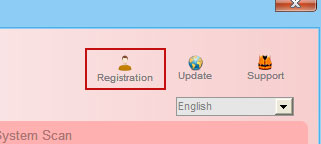
1. Open Antiviral Factory 2013. Click the "Registration" button.


Enter the Antiviral Factory 2013 activation key given below and click "Activate" to activate the rogue antivirus program. Don't worry, this is completely legal since it's not genuine software.

AA39754E-715219CE
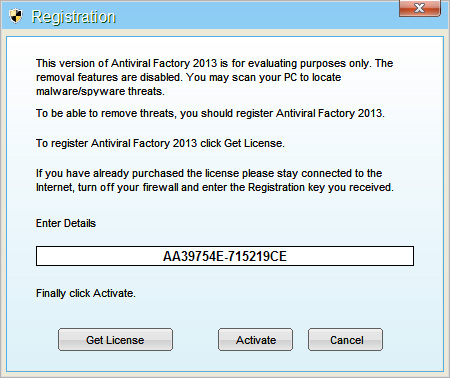


Once this is done, you are free to install recommended anti-malware software and remove Antiviral Factory 2013 malware from your computer.

2. Download recommended anti-malware software (direct download) and run a full system scan to remove this malware from your computer.


NOTE: if you can't run anti-malware software, rename the installer to winlogon.exe and try again.


Method 2: Antiviral Factory 2013 removal in Safe Mode with Networking:

1. Reboot your computer is "Safe Mode with Networking". As the computer is booting tap the "F8 key" continuously which should bring up the "Windows Advanced Options Menu" as shown below. Use your arrow keys to move to "Safe Mode with Networking" and press Enter key.
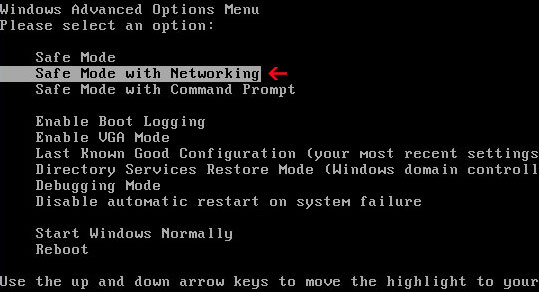

NOTE: Login as the same user you were previously logged in with in the normal Windows mode.

2. Download recommended anti-malware software (direct download) and run a full system scan to remove this malware from your computer.


NOTE: if you can't run anti-malware software, rename the installer to iexplore.exe and try again.


Method 3: Antiviral Factory 2013 manual removal guide:

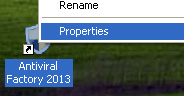
1. First of all, go to your Desktop and right click the Antiviral Factory 2013.lnk shortcut file and select Properties.


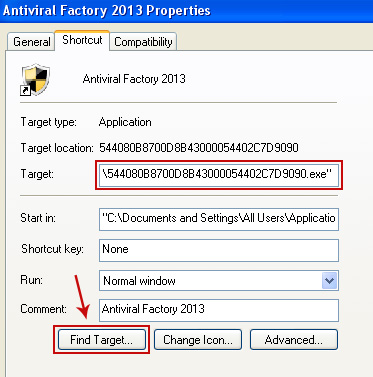
2. Select Shortcut tab. Find the location of Antiviral Factory 2013 executable file (target location). It should be a randomly named file. Simply click the Find Target button.


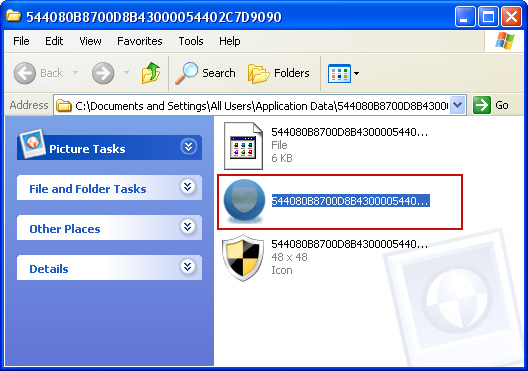
3. Browser to the executable file. Rename it, for instance to virus.exe. Restart Windows.


4. Download recommended anti-malware software (direct download) and run a full system scan to remove this malware from your computer.


NOTE: if you can't run anti-malware software, rename the installer to winlogon.exe and try again.

    Monday, August 12, 2013

    How to Get Rid of PC Defender 360

    Don't Copy From This Blog...

    Protected by Copyscape Plagiarism Detection
    The main aim of PC Defender 360 is to trick you into believing that it is something that will benefit you by keeping you safe and secure when you’re online however nothing could be further from the truth. Unlike genuine security software, PC Defender 360 is completely fake and give you scant, or in the majority of cases, no protection whatsoever. What it will do, however, is to generate alerts in the form of pop-up windows which attempt to coerce you into handing over your hard earned cash for a product which is virtually useless.


    PC Defender 360 is also often called ‘scareware’ – and for good reason. This rogue security program deceives you into thinking it is the real deal and instead of you purchasing something which you believe is going to protect your computer, you may actually be wasting your money, handing over your credit card details to a less than honest third party and simply walking right in to the trap that these cyber criminals have laid for you.

    So why should you be aware of PC Defender 360? You might think the chances of you being a target are minimal but I'm sorry to say that no computer user is exempt and not only that but the number of rogue security software scams are on a slight increase.

    So what can you do to protect yourself, your computer and your bank account and how can you prevent yourself from falling for a scam? First of all do not fall for their scare tactics. If you do see pop-up windows extolling sinister sounding warnings, for example PC Defender 360 Firewall Alert, when you’re browsing the web immediately be on your guard.


    One other thing to look out for is that the makers of PC Defender 360 try and trick you into thinking they’re genuine by making their pop-up messages look just like those of real providers.

    What is more, this rogue security program changes Windows registry keys, so that you won't be able to use your web browser, anti-virus and even Paint. Pretty much every application on your computer will be blocked claiming that it's infected and may harm your machine. But we all know that this is a big fat lie.

     If you can't remove it from your computer, please follow the removal guide below. I wrote a few possible solutions and I'm pretty sure at least one of them will work for you. Please note that this infection is not the same for everyone. PC Defender 360 is often bundled with other malware, so there's a good chance that you have a combination of a rogue program and rootkit, or rogue program and password stealing trojan. These combos are very popular, that's why you should scan your computer with recommended anti-malware software. If you have any questions, please leave a comment below. Good luck and be safe online!

    Written by Michael Kaur, http://spywareremovalx.blogspot.com


    Method 1: Manual activation and PC Defender 360 removal:

    1. Open PC Defender 360 and select Registration or simply choose to remove threats and manually activate the rogue antivirus program. Enter the following key and click Activate.

    ?O?Z?L?W?I?T?F?Q?C?N?Y?K?V?H?S?E


    2. Then download recommended anti-malware software (direct download) and run a full system scan to remove this rogue security program and related malware from your computer.


    Method 2: Get rid of PC Defender 360 in Safe Mode with Networking:

    1. Please reboot your computer is "Safe Mode with Networking". As the computer is booting tap the "F8 key" continuously which should bring up the "Windows Advanced Options Menu" as shown below. Use your arrow keys to move to "Safe Mode with Networking" and press Enter key.


    NOTE: Login as the same user you were previously logged in with in the normal Windows mode.

    2. Then download recommended anti-malware software (direct download) and run a full system scan to remove the rogue program from your computer.


    Method 3: Manual PC Defender 360 removal instructions:

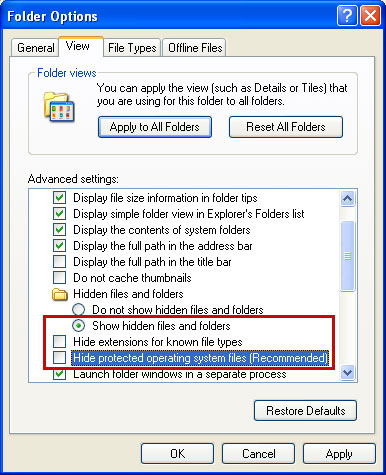
    Make sure that you can see hidden and operating system protected files in Windows. For more in formation, please read Show Hidden Files and Folders in Windows.

    Under the Hidden files and folders section, click Show hidden files and folders, and remove the checkmarks from the checkboxes labeled:
    • Hide extensions for know file types
    • Hide protected operating system files
    Click OK to save the changes.


    1. Right click on the "PC Defender 360" icon, click Properties in the drop-down menu, then click the Shortcut tab.


    In the Target box there is a path to the malicious file. You can simply click the Target button to open the target folder.


    In my case the malicious file was located in: C:\Documents and Settings\All Users\Application Data\ifdstore folder.

    2. The malicious file was called pcdefender.exe, but I'm sure that the file name will be different in your case.


    Rename pcdefender.exe to virus.exe and click Yes to confirm file rename. Restart your computer!


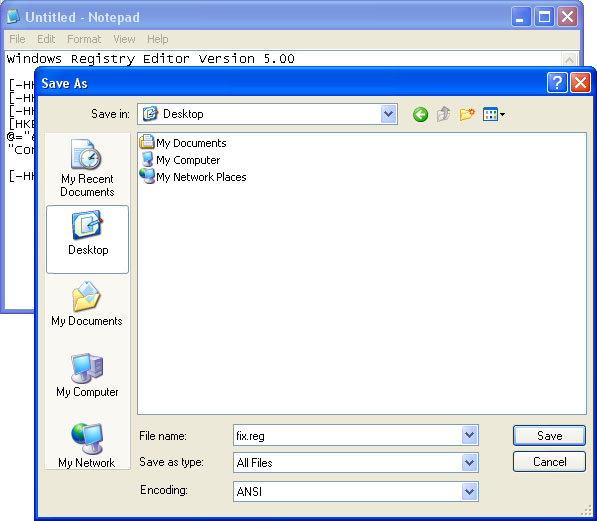
    3. After a restart, copy all the text in bold below and paste to Notepad.

    Windows Registry Editor Version 5.00

    [HKEY_CLASSES_ROOT\.exe]
    @="exefile"
    "Content Type"="application/x-msdownload"

    4. Save file as fix.reg to your Desktop. NOTE: (Save as type: All files)


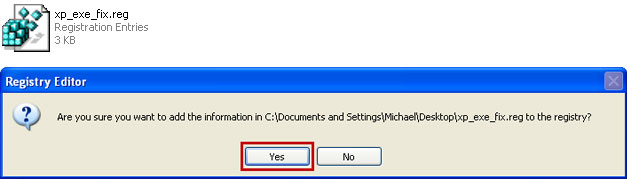
    5. Double-click on fix.reg file to run it. Click "Yes" for Registry Editor prompt window. Then click OK.

    6. Open your web browser. Download FixExec utility an run it.

    7. Download recommended anti-malware software (direct download) and run a full system scan to fully remove this malware from your computer.

    Saturday, July 13, 2013

    Remove "Antivirus System" malware, removal instructions

    Don't Copy From This Blog...

    Protected by Copyscape Plagiarism Detection
    In this article we’re going to take a look at a new rogue security program called "Antivirus System" and what effect it can have on your computer. If your computer is infected with this malware, please follow the removal instructions below.

    Antivirus System is a form of malicious software and is a type of internet fraud that manipulates you into paying money to have your computer scanned for viruses which it will then claim to delete. The thing with this rogue security software is that not only is it not checking your computer for viruses or dangerous malware – it is actually installing them on your computer instead! There was a rogue antivirus program with the same name two years ago. It was called Antivirus System 2011 and it belonged to completely different malware family than then current one - Antivirus System 2013.


    For the main part Antivirus System malware relies on social engineering and it will find its way on to your computer by finding a loop hole in your PC’s security system. One way of doing this is by telling you via a pop-up message that your computer has been infected with a virus, or is running extremely slowly and it will attempt to convince you to buy and install its ‘anti-virus software’ – which of course is fake. This is also known as scareware – a name which is pretty self-explanatory!

    The majority of these scareware have a Trojan horse component. Other ways the Trojan horse may sneak its way onto your computer is via software that has been shared on a peer-to-peer file sharing website or through an online malicious software scanning service.

    There are others rogue security software programs that are ‘drive-by downloads’ which means that they have installed themselves on your computer by way of a web browser, PDF viewer or through an email client. Again, the malware finds and exploits holes in their security.

    The distributors of malicious software jumped on the SEO bandwagon by using illegitimate methods to ensure that their malicious links appear at the top of the page when someone searches for a certain topic. These URLs will be infected and the unlucky user who clicks on them will be directed to a website and then told that their computer is infected. It is then that the "Antivirus System" makers will push a trial of their product and try and get you to click on it and thus install their malware.

    When you’ve installed the malware the ever-so-helpful rogue security software will normally then try and tempt you into purchasing the ‘full’ version of their program or other software that you ‘need’. They will usually do this by telling you your computer is seriously infected with malware (the irony!) or that you have illegal adult content stored on your PC. They might also show you an animated screen which simulates your system crashing. What is more, it will block pretty much everything on your computer, including web browsers and anti-malware software of course. It stays active in Safe Mode too.

    Antivirus System Firewall Alert
    chrome.exe is infected with Trojan-Clicker.JS.Agent.op


    Another fake security alert claiming that your computer is infected with Trojan.JS.Fraud.ba.


    Antivirus System purchase page. I have to admit that this time cyber crooks made a really good looking payment page. They even added CNET, AV-Test logos and mentioned that Softpedia, Chip.de and commentcamarche.net rated "Antivirus System" as a full 5-start "Excellent" software download.


    So how can you prevent Antivirus System malware from infecting your computer and conning you out of your hard earned cash? Number one; install a reputable genuine anti-malware software program on your PC and ensure it runs regularly. This is the best defense you can have against all types of malware.

    It is also wise to be as vigilant as possible when using your computer so familiarize yourself with your anti-virus software provider’s name, logo and the look of their pop-ups so that in the event you do get a pop up box you’ll know whether it’s from your genuine provider or from an imposter.

    To remove Antivirus System from your computer, please follow the removal instructions below. After successful removal you will probably have to fix certain system files because this malware usually messes with Windows files pretty badly. But don't worry everything can be fix rather easily using the right tool. If you have any questions, please leave a comment below. Good luck and be safe online!

    Written by Michael Kaur, http://spywareremovalx.blogspot.com


    Method 1: Antivirus System removal instructions in Safe Mode with Networking:

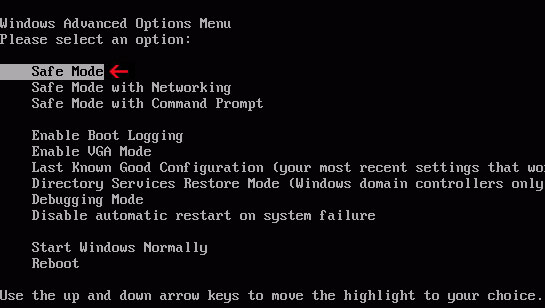
    1. Please reboot your computer is "Safe Mode with Networking". As the computer is booting tap the "F8 key" continuously which should bring up the "Windows Advanced Options Menu" as shown below. Use your arrow keys to move to "Safe Mode with Networking" and press Enter key.


    NOTE: Login as the same user you were previously logged in with in the normal Windows mode.

    2. Then download recommended anti-malware software (direct download) and run a full system scan to remove the rogue program from your computer.


    Method 2: Manual Antivirus System malware removal instructions:

    Make sure that you can see hidden and operating system protected files in Windows. For more in formation, please read Show Hidden Files and Folders in Windows.

    Under the Hidden files and folders section, click Show hidden files and folders, and remove the checkmarks from the checkboxes labeled:
    • Hide extensions for know file types
    • Hide protected operating system files
    Click OK to save the changes.


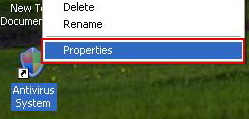
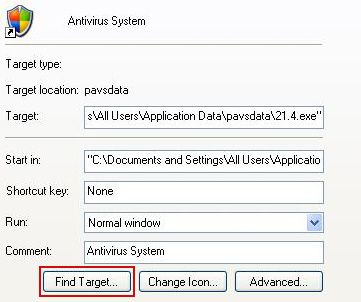
    1. Right click on the "Antivirus System" icon, click Properties in the drop-down menu, then click the Shortcut tab.


    In the Target box there is a path to the malicious file. You can simply click the Target button to open the target folder.


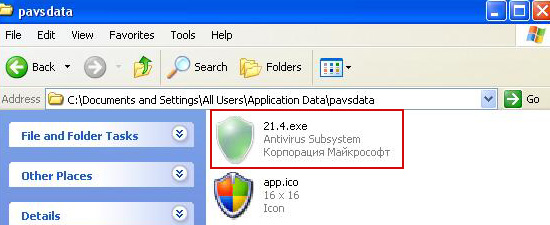
    In my case the malicious file was located in: C:\Documents and Settings\All Users\Application Data\pavsdata folder.

    2. The malicious file was called 21.4.exe, but I'm sure that the file name will be different in your case.


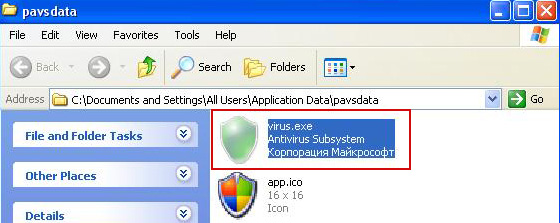
    Rename 21.4.exe to virus.exe and click Yes to confirm file rename. Restart your computer!


    3. After a restart, copy all the text in bold below and paste to Notepad.

    Windows Registry Editor Version 5.00

    [HKEY_CLASSES_ROOT\.exe]
    @="exefile"
    "Content Type"="application/x-msdownload"

    4. Save file as fix.reg to your Desktop. NOTE: (Save as type: All files)


    5. Double-click on fix.reg file to run it. Click "Yes" for Registry Editor prompt window. Then click OK.

    6. Open your web browser. Download FixExec utility an run it.

    7. Download recommended anti-malware software (direct download) and run a full system scan to fully remove this malware from your computer.

    Friday, May 31, 2013

    System Doctor 2014 Virus Removal Guide

    Don't Copy From This Blog...

    Protected by Copyscape Plagiarism Detection
    System Doctor 2014 malware is a very serious problem and one that can have huge knock on effects on everything from your files to your online bank account. Read on as we tell you a little more about this rogue security software and the things you need to look out for so that you can protect yourself against it.

    Every computer should have a decent anti-virus or security software program installed and hackers know this, which is why unscrupulous computer programmers have marked it out as a lucrative business and one which they can exploit for their own gain. Generally speaking there are three ways they can do this. Let’s take a look at what they are:

    One: by profiting from the sale of rogue security software that simply doesn’t work.

    Two: by selling fake security software that contains malware that has been programmed to steal your personal data so they can commit identity theft or plunder your bank account, System Doctor 2014 is a great example.


    Three: by selling rogue security software that contains malware that has been programmed to steal your personal data so they can sell your personal details, bank account information or credit card numbers on to a third party.

    It’s a win win situation for these cyber criminals as they are not only getting paid for an ineffective program which took them little or no effort to create but many of them are stealing your personal information too.

    And if you are a victim not only are you paying for a useless program and leaving yourself vulnerable to bank account fraud or identity theft, but the malware can also do serious damage to your computer’s operating system by infecting it with a virus which can lock down your system, destroy your web connectivity or corrupt your files. Not to mention that it display very annoying security center alerts claiming that your computer is infected.


    So how does this fake antivirus program work? Firstly, the malware will be called something that is very similar to genuine security software in an attempt to get you to download it. This of course is an obvious ploy but how many of us know all the names of real security software brands anyway? System Doctor 2014 credible sounding, right? Wrong: it's a rogue security application.

    The cyber criminals are clever marketers too and will further attempt to fool you and entice you in to buying their program by offering you ‘free’ or ‘trial’ versions of the software or by advertising ‘free upgrades’.

    They may also target you with fake pop-up windows that warn you that your computer is infected with a virus or is running slowly because you have unnecessary files stored on your hard drive – and they’ll tell you that by clicking on the window you’ll be able to clean your computer.

    Another sneaky way of attempting to get you to download their fake security software is by manipulating search engine results pages so that their own infected website appears as the top result. The majority of us click on the first search result so for a rogue malware programmer this is highly effective. Once you click on the link you’ll be redirected to a home page which will tell you that your computer has a virus – oh but help is as hand because they just so happen to have a free trial for their (rogue!) security software right there.

    Another thing to look out for is spam email from so-called software security companies who will send you the bargain of a lifetime – if you just click on the link that they’ve sent you.

    So apart from being alert, how else do you protect yourself and make sure you don’t become a victim of one of these scams? Firstly having a genuine security software or anti-virus program installed on your computer is an absolute must. If you’re not sure which names to look out for and are now paranoid about being duped speak to a friend who knows a little more about computers, ask in your local PC store or read online PC magazines to get an idea of what to look for. However it’s not enough just to have security software installed; you also need to make sure that it is up to date and has the latest patches.

    Put simply, if you have an outdated anti-virus or worse you don’t have ANY security software installed – do it right now! If you have encountered this malware, please follow the System Doctor 2014 removal guide below. If you have any questions, please leave a comment below. Good luck and be safe online!

    Written by Michael Kaur, http://spywareremovalx.blogspot.com


    System Doctor 2014 removal instructions in Safe Mode with Networking:

    1. Please reboot your computer is "Safe Mode with Networking". As the computer is booting tap the "F8 key" continuously which should bring up the "Windows Advanced Options Menu" as shown below. Use your arrow keys to move to "Safe Mode with Networking" and press Enter key.


    NOTE: Login as the same user you were previously logged in with in the normal Windows mode.

    2. Open Internet Explorer and download TDSSKiller. Run the utility and click Start Scan to anti-rootkit scan.

    3. Then download recommended anti-malware software (direct download) and run a full system scan to remove the rogue program from your computer.


    Manual System Doctor 2014 removal instructions:

    1. Power off and restart your computer. As the computer is booting tap the "F8 key" continuously which should bring up the "Windows Advanced Options Menu" as shown below. Use your arrow keys to move to "Safe Mode" and press Enter key.


    NOTE: Login as the same user you were previously logged in with in the normal Windows mode.

    2. Right click on the "System Doctor 2014" icon, click Properties in the drop-down menu, then click the Shortcut tab.


    In the Target box there is a path to the malicious file. You can simply click the Target button to open the target folder.


    NOTE: by default, Application Data folder is hidden. Malware files are hidden as well. To see hidden files and folders, please read Show Hidden Files and Folders in Windows.

    Under the Hidden files and folders section, click Show hidden files and folders, and remove the checkmark from the checkbox labeled:

    - Hide extensions for known file types
    - Hide protected operating system files

    Click OK to save the changes. Now you will be able to see all files and folders in the Application Data/Program Data directory.

    3. Remove malicious files.

    File location, Windows XP:
    C:\Documents and Settings\[UserName]\Application Data\[RandomFolder]\[random].exe

    File location, Windows Vista/7:
    C:\Users\UserName\AppData\Roaming\[RandomFolder]\[random].exe


    Delete the entire folder or at least the main executable file which in my case was RLViNf4K.

    4. Restart your computer. The malware should be inactive after the restart.

    5. Open Internet Explorer and download TDSSKiller. This malware usually (but not always) comes bundled with TDSS rootkit. Removing this rootkit from your computer is very important (if exists). Run TDSSKiller and remove the rootkit.

    6. Download recommended anti-malware software (direct download) and run a full system scan to remove System Doctor 2014 virus from your computer.


    System Doctor 2014 associated files and registry values:

    Files:
    • C:\Users\UserName\AppData\Roaming\[RandomFolder]\[random].exe (Win Vista/7)
    • C:\Documents and Settings\[UserName]\Application Data\[RandomFolder]\[random].exe (Win XP)
    Registry values:
    • HKEY_CURRENT_USER\Software\Microsoft\Windows\CurrentVersion\Run "[random]"
    Share this information with other people:

    Tuesday, May 28, 2013

    Remove "Internet Security 2014" Malware (Uninstall Guide)

    Don't Copy From This Blog...

    Protected by Copyscape Plagiarism Detection
    Internet Security 2014 is software which purports to discover and clean viruses, spyware and malware from your computer’s system. Since it's a rogue antivirus, it doesn’t actually do that. But it does look like something Windows would install. It either doesn’t work or it actually infects your computer with the very thing it is pretending to protect you against! This scan will also start straight away when logged into Windows.

    So how can you tell the difference between genuine antivirus software and malicious fake antivirus software? And what should you do if you suspect that your computer has been infected? Read on and we’ll take a look at how even if you are sceptical you can still fall victim to the scammers.


    Have you ever been surfing the web when suddenly a pop-up window or alert appears on your screen either telling you that you have unnecessary items on your PC that are slowing it down, or even more worrying, that you’ve been infected with a virus? This alert may look like it comes from your antivirus software provider or it may come from one you’re not aware of – but regardless it looks real and anyway, why should you think otherwise?

    However, even if you are suspicious or even if you think, ‘I’ll deal with that later’ you may be tempted to click the little ‘x’ in the right hand corner of the pop-up to get rid of it. But stop – don’t because even ‘getting rid’ of the pop-up can cause untold trouble and computer issues. You may have now started seeing pop-up adverts all over your screen, maybe your screen has frozen, perhaps you can’t access your programs or documents. What has happened is that your whole computer has been disabled.

    Some hackers do this purely because they can – we can only assume it’s their version of having ‘fun’, however the majority of hackers are running a scam and want to trick you into buying fake antivirus, in this case Internet Security 2014 designed to protect. Again, you’re happily browsing the internet or busy working when, hello again , our friend the virus warning alert pops up. Just as before, it may look like it’s come from your own antivirus company or it may be one you don’t recognise. You might be tempted to let it scan and clean your system for you but what it will actually be doing is simply showing you a fake scanning screen – the result of which will be to pronounce that, yes, you have been infected by Win32/Blaster.Worm and hundreds of other viruses.


    What you will then see is a window from Internet Security 2014 who will attempt to frighten you into paying to have your computer ‘cleaned’ by asking if you want them to get rid of the virus or if you want to continue working on your infected computer. Of course, most of us will panic and hand over our credit card details. So now we’ve got two issues: one is that we’re paying for something that wasn’t a problem in the first place and, two, we’re handing over sensitive information to a scammer.

    And it gets worse because some fake antivirus software even installs rootkits onto your computer so that it can log your key strokes and/or take screen shots so that your passwords, log-ins, credit card details and other private data is collected. The hackers will then use this information to plunder your bank account, spend on your credit card or commit identity theft. Alternatively they may sell the information on to a third party. Recently, scammers started to use Sirefef malware to block genuine malware removal programs.

    A rogue virus alert comes from a program called Internet Security 2014, which is malware that takes over the control of your computer. So how do you stop yourself downloading rogue software unwittingly? The first rule is not to open any email attachment or click a link in an email that comes from someone you don’t know. No matter how enticing the title, do not be tempted. You might think it’s a harmless link that just wants to direct you to a website that’s selling something but it could actually be a way of installing malware on your computer. And definitely don’t click on pop-ups advertising antivirus software!

    Last, but not least, the fake antivirus program blocks web browsers and Windows utilities, even Notepad to protect itself from being removed. It simply annouces that your web browser or any other program ins infected with Win32.Blaster.Worm. As an additional protection module Sirefef may be used making the infection even more complicated to fix. To remove Internet Security 2014 malware from your computer, please follow the removal guide below. If you have any questions, please leave a comment below. Good luck and be safe online!

    Written by Michael Kaur, http://spywareremovalx.blogspot.com


    Manual activation and Internet Security 2014 removal:

    1. Choose to remove threats and manually activate the rogue antivirus program. Enter one of the following codes:

    Y68REW-T76FD1-U3VCF5A
    Y86REW-T75FD5-U9VBF4A
    Y76REW-T65FD5-U7VBF5A
    Y86REW-T75FD5-9VB4A
    SL55J-T54YHJ61-YHG88

    (and fake email) to activate Internet Security 2014.


    2. Then download recommended anti-malware software (direct download) and run a full system scan to remove this malware from your computer.


    Internet Security 2014 removal instructions in Safe Mode with Networking:

    1. Please reboot your computer is "Safe Mode with Networking". As the computer is booting tap the "F8 key" continuously which should bring up the "Windows Advanced Options Menu" as shown below. Use your arrow keys to move to "Safe Mode with Networking" and press Enter key.


    NOTE: Login as the same user you were previously logged in with in the normal Windows mode.

    2. Open Internet Explorer and download TDSSKiller. Run the utility and click Start Scan to anti-rootkit scan.

    3. Then recommended anti-malware software (direct download) and run a full system scan to remove the rogue virus from your computer.


    Manual Internet Security 2014 removal instructions:

    1. Right click on the "Internet Security 2014" icon, click Properties in the drop-down menu, then click the Shortcut tab.


    In the Target box there is a path to the malicious file.


    NOTE: by default, Application Data folder is hidden. Malware files are hidden as well. To see hidden files and folders, please read Show Hidden Files and Folders in Windows.

    Under the Hidden files and folders section, click Show hidden files and folders, and remove the checkmark from the checkbox labeled:

    - Hide extensions for known file types
    - Hide protected operating system files

    Click OK to save the changes. Now you will be able to see all files and folders in the Application Data/Program Data directory.

    3. Rename malicious process.

    File location, Windows XP:
    C:\Documents and Settings\All Users\Application Data\amsecure.exe

    File location, Windows Vista/7:
    C:\ProgramData\amsecure.exe


    Rename amsecure to virus or whatever you like. Example:


    4. Restart your computer. The malware should be inactive after the restart.

    5. Open Internet Explorer and download TDSSKiller. This malware usually (but not always) comes bundled with TDSS rootkit. Removing this rootkit from your computer is very important (if exists). Run TDSSKiller and remove the rootkit.

    6. Download recommended anti-malware software (direct download) and run a full system scan to remove Internet Security 2014 virus from your computer.


    Internet Security 2014 associated files and registry values:

    Files:
    • C:\ProgramData\amsecure.exe (Win Vista/7)
    • C:\Documents and Settings\All Users\Application Data\amsecure.exe (Win XP)
    Registry values:
    • HKEY_CURRENT_USER\Software\Microsoft\Windows\CurrentVersion\Run "Internet Security 2014"
    Share this information with other people:

    Thursday, April 11, 2013

    XP Security Cleaner Pro Removal, How To Get Rid Of It Completely

    Don't Copy From This Blog...

    Protected by Copyscape Plagiarism Detection
    This page contains step by step removal instructions for the XP Security Cleaner Pro computer virus. These days scareware can still pose a very real and serious threat with victims suffering a great deal of upset and stress as a result. This particular scareware example belongs to infamous Rogue.FakeRean-Braviax malware family. It's not dead yet, cyber crooks register new domains, improve the rogue software and even offer affiliate system for those who would like to distribute this malware.

    So what is XP Security Cleaner Pro, how can you tell if you’ve been affected by it and how can you protect yourself from falling prey to it?


    XP Security Cleaner Pro is a cleverly designed scareware which has been designed to look just like real antivirus software. When the rogue AV is running on your computer, pop up boxes will start appearing on your screen, asking you if you like to have your computer scanned for viruses or telling you that it’s running slowly and needs cleaning.

    It is distributed mostly through hacked websites and fake online virus scanners claiming that your computer is infected with spyware. Social engineering have an important role too.

    Once your computer is infected with this malware, a fake Windows Security Center notification will pop up on your computer screen claiming that your antivirus software is turned off.


    Then a GUI (a graphical user interface) will be launched and will show you a fake scanning procedure allegedly running through your system and finding so-called viruses. Once the false scan is ‘complete’ the software will normally tell you that your PC or laptop is riddled with viruses and has malicious software downloaded. It will then usually display a window asking you whether you want to continue using your computer without protection or if you would like the software to get rid of ‘the viruses’ for you. DO NOT pay for rogue antivirus products! Never.

    Unfortunately, the majority of us will probably decide to get rid of all those nasty viruses that we now think are affecting our PC and we’ll click the corresponding button. Next we’ll be told that to do this we’ll need to pay for the service and be asked to enter our credit card details. Again, it's one thing when you have to pay for genuine security software that will remove found threats and protect your PC from other malware but XP Security Cleaner Pro virus is not one of them. So, once again, DO NOT pay for it.

    Placing our faith in our new antivirus software friend, we’ll enter our credit card details and just like that we’ll not only be charged for having had our computer fake-scanned and absolutely no viruses or malware removed but we’ll also be leaving ourselves wide open to identity theft. And that’s not all: XP Security Cleaner Pro may also log how many keys we’re hitting on our keyboards, actually install further malicious software packages and viruses, corrupt documents and even steal our personal files - which naturally further exacerbates the identity theft issue. I've testes at least ten or maybe even more different variants of this rogue security program and what I've noticed is that it rarely comes separately from other malware, mostly rootkits and generic Trojans.
    Just like any other fake AV out there, it displays fake security alerts to further scare you into believing that your computer is infected. Less computer savvy users can hardly see the diference because cyber crooks use well designed fake notifications that look like a real thing. Here are a few examples:

    XP Security Cleaner Pro Firewall Alert
    Chrome is infected with Trojan-BNK.Win32.Keylogger.gen.


    Virus infection!
    System Security was found to be compromised. Your computer is now infected. Attention, irreversible changes may occur. Private data may get stolen. Click here now for an instant anti-virus scan.


    So how can we protect ourselves against rogue antiviruses and what do we need to look out for? One of the most important things you can do in the fight against fake AV is to already have reputable antivirus software running on your machine. If you don’t already have it installed, check online for honest providers of AV and download a suitable one. There are many free versions so you don’t even have to pay if you want a basic package. From my experience however, free antivirus program rarely protect from such infections. You should really consider purchasing a decent and reliable antimalware product.

    Now you’ve got antivirus protection make sure you familiarize yourself with your provider’s name, their logo and also the way they design their pop-up boxes. If you do get a pop up box from a different company claiming that your system is slow or needs cleaning, it is very likely to be a rogue imposter. Another thing to set alarm bells ringing is credit card payment screens. If you’re using a genuine antivirus software company and your download is up to date or you’re on a basic free package, they will not be asking you to make payment for the basic function of scanning and cleaning your PC or laptop. The rule of thumb is to not enter your credit card or other personal information anywhere that you are not 100% sure is completely safe.

    If you have entered your credit card number and have any kind of doubts about the company you’ve just paid, get in touch with your bank or credit card company as soon as possible and ask them to run through the transactions made on that day. However be aware that just because nothing else has been charged to your card yet, you are not completely safe and you should ask for a new card to be issued and then destroy your current one as the criminals behind the fraudulent software may have collected your details with a view to selling them on to a third party.

    To get rid of XP Security Cleaner Pro and related malware please use the guide below. If you have any questions, feel free to ask. Simply leave a comment below. Good luck and be safe online!

    Written by Michael Kaur, http://spywareremovalx.blogspot.com


    Method 1: XP Security Cleaner Pro removal using activation key:

    1. Use any of the keys listed below to register this infection and stop the fake security alerts.

    9443-077673-5028
    3425-814615-3990
    2233-298080-3424
    1147-175591-6550

    Just click the Registration button (top right corner of the fake scanner).


    Select Manual Activation.


    Enter XP Security Cleaner Pro activation key and then select Activate Now. Don't worry, this is completely legal. If the activation keys do not work anymore, please follow the alternate removal instructions below.


    Once this is done, you are free to install recommended anti-malware software and run a full system scan to remove the rogue program from your computer completely.

    2. Download recommended anti-malware software (direct download) and run a full system scan to remove this virus from your computer.


    Method 2: XP Security Cleaner Pro removal instructions in Safe Mode with Networking:

    1. Reboot your computer is "Safe Mode with Networking". As the computer is booting tap the "F8 key" continuously which should bring up the "Windows Advanced Options Menu" as shown below. Use your arrow keys to move to "Safe Mode with Networking" and press Enter key.


    NOTE: Login as the same user you were previously logged in with in the normal Windows mode.

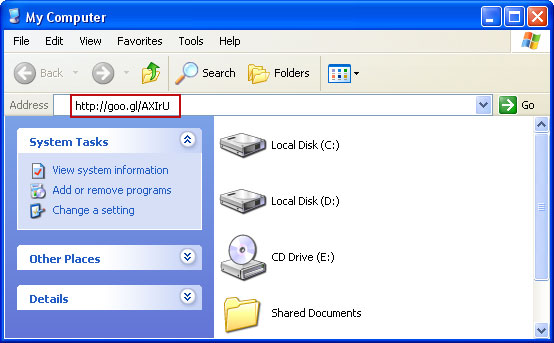
    2. Open Internet Explorer. In the Address bar type: http://goo.gl/AXIrU (this is a download link for FixNCR.reg) and click hit Enter or click Go to download the file.


    3. Save FixNCR.reg to your Desktop. Double-click on FixNCR.reg to run it. Click "Yes" for Registry Editor prompt window. Click OK.


    4. Download recommended anti-malware software (direct download) and run a full system scan to remove this virus from your computer.


    NOTE: don't forget to update anti-malware software before scanning your computer.

     
    //PART 2