Friday, November 12, 2010

How to remove Internet Security Suite (Uninstall Guide)

Don't Copy From This Blog...

Protected by Copyscape Plagiarism Detection
Internet Security Suite is a fake security program that pretends to scan the computer for malicious software and reports false system security threats. Once installed, the rogue program will report that your computer is infected with all sorts of malware, e.g. trojans, worms, spyware and other viruses. Internet Security Suite will try to frighten you into paying for a full version of the program. Do not fall victim to this rogue application. You should remove it from your computer as soon as possible. We've got the removal instructions to help you to remove Internet Security Suite from your computer for free using legitimate anti-malware software. Please follow the removal instructions below.

A screen shot of the Internet Security Suite malware
This rogue program is from the same family as Smart Engine. It's a typical rip-off rogue. Internet Security Suite is promoted mostly through the use of fake online scanners, infected websites and other malicious software. The bad guys also use various other misleading methods to distribute their bogus software, e.g. social engineering and spam emails. If you somehow ended up with this rogue program then you will be greeted with the misleading Internet Security Suite screen every time you login to Windows. Typically, such rogue programs are not very dangerous. They cannot delete your files or steal sensitive information. However, Internet Security Suite and other similar rogues can come bundled with Trojans and rootkits. You may even become a part of a botnet. That's why you should remove Internet Security Suite and any related malware from your computer using reputable anti-malware software.

While Internet Security Suite is running, it will display fake security alerts and notifications from your Windows taskbar. The rogue program will claim that your computer is infected with trojans and that your sensitive information can be stolen.


Please ignore such fake alerts. Just like the false scan results, these fake security alerts were made to scare you into thinking that your computer is infected when the only real infection is Internet Security Suite itself. What is more, the rogue will block some executables and may even hijack Internet Explorer. It goes without saying that you should get rid of Internet Security Suite. Most importantly, do not purchase it. If you have already bought this rogue program then please contact your credit card company, dispute the charges and cancel your credit card. Then please follow Internet Security Suite removal instructions below. When the rogue program is gone, please install reliable anti-virus software to protect your computer against malicious software. We recommend ESET NOD32. If you have any questions or additional information about Internet Security Suite, please leave a comment. Good luck and be safe online!


Internet Security Suite removal instructions using Process Explorer (in Normal mode):

1. Launch Internet Explorer. In Internet Explorer go to: Tools->Internet Options->Connections tab. Click Lan Settings button and uncheck the checkbox labeled Use a proxy server for your LAN. Click OK.


2. Download Process Explorer.
3. Rename procexp.exe (Process Explorer) to winlogon.exe and run it. Stop the Internet Security process(es).

4. Download free anti-malware software from the list below and run a full system scan.
NOTE: in some cases the rogue program may block anti-malware software. Before saving the selected program onto your computer, you may have to rename the installer to iexplore.exe or winlogon.exe With all of these tools, if running Windows 7 or Vista they MUST be run as administrator. Launch the program and follow the prompts. Don't forget to update the installed program before scanning.

5. New threats appear every day. In order to protect your PC from such (new) infections we strongly recommend you to use ESET NOD32 Antivirus 4.


Internet Security Suite removal instructions (in Safe Mode with Networking):

1. Reboot your computer is "Safe Mode with Networking". As the computer is booting tap the "F8 key" continuously which should bring up the "Windows Advanced Options Menu" as shown below. Use your arrow keys to move to "Safe Mode with Networking" and press Enter key. Read more detailed instructions here: http://www.computerhope.com/issues/chsafe.htm
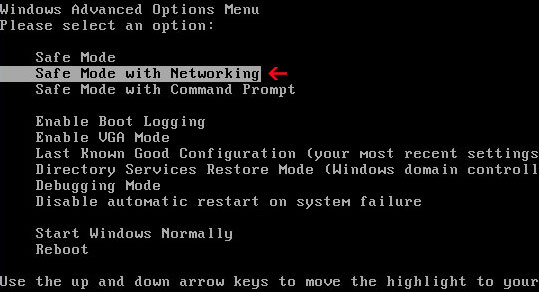

NOTE: Login as the same user you were previously logged in with in the normal Windows mode.

2. Launch Internet Explorer. In Internet Explorer go to: Tools->Internet Options->Connections tab.
Click Lan Settings button and uncheck the checkbox labeled Use a proxy server for your LAN. Click OK.


3. Download free anti-malware software from the list below and run a full system scan.
NOTE: in some cases the rogue program may block anti-malware software. Before saving the selected program onto your computer, you may have to rename the installer to iexplore.exe or winlogon.exe With all of these tools, if running Windows 7 or Vista they MUST be run as administrator. Launch the program and follow the prompts. Don't forget to update the installed program before scanning.

4. New threats appear every day. In order to protect your PC from such (new) infections we strongly recommend you to use ESET NOD32 Antivirus 4.


Share this information with other people:

Thursday, November 11, 2010

How to remove AV8SCAN (Uninstall Guide)

Don't Copy From This Blog...

Protected by Copyscape Plagiarism Detection
AV8SCAN is a fake popup/scanner which claims that your computer is infected with trojans, worms and other malicious software. Usually, a window titled AV8SCAN pups up without your permission and pretends to scan your computer for malware. This fake scanner is related to the rogue anti-virus program called Antivirus8. Make sure you do not download anything from AV8SCAN or similar web pages. The fake scanner impersonates the "My Computer" window in Windows OS. Actually, all the other fake scanners use this technique to make users believe that their computers are being scanned. Do not fall victim to this scam. However, if you somehow ended up with a rogue anti-virus program then you should scan your computer with legitimate anti-malware software, e.g. MalwareBytes' Anti-Malware, SUPERAntispyware, Spybot S&D or Hitman Pro. AV8SCAN leads to the rogue program called Antivirus8. If you got infected with this rogue program the please follow the Antivirus8 removal instructions. Last, but not least, if you have any questions or additional information about this threat, please leave a comment. Good luck and be safe online!

A screen shot of the fake AV8SCAN window

Monday, November 8, 2010

How to remove Security Inspector 2010 (Uninstall Guide)

Don't Copy From This Blog...

Protected by Copyscape Plagiarism Detection
Security Inspector 2010 is yet another fake anti-spyware program. This one is a clone of the Antivirus Studio 2010 rogue. If you somehow ended up with this rogue program then you will notice that it's really annoying. You will get a lot of pop ups and fake security warnings that might scare you into buying Security Inspector 2010, so you have to resist it. You also might notice that your internet is blocked and that you get error messages for some executables. The rogue program will claim that these executables are infected with spyware or some other malicious software. Once Security Inspector 2010 is installed, it will pretend to scan your computer for malware. And, of course, it will find a bunch of infections that your real anti-virus software didn't detect somehow. Strange, isn't it? Well, not really. Security Inspector 2010 will always find malware because it has a single purpose to scare you into thinking that your computer is infected and to make you buy the rogue program. Do not fall victim to this bogus software. Due to it being incredibly annoying and invasive, you will want to remove this malware from your computer as quickly as possible. Thankfully, we've got the removal instructions to help you to remove the Security Inspector 2010 for free. Please follow the removal instructions below.

Security Inspector 2010 GUI
Some users install such rogue programs as SecurityInspector2010 without even knowing that it's a virus. Such rogue programs masquerade as flash player, video codec or system updates. You can also get such rogue program from fake online anti-malware scanners and misleading/infected websites. If your computer is a part of a botnet then there is a good chance that you will get a rogue program onto your computer as well. That's why you should update Windows and other software regularly. And, of course, you should use solid anti-virus software, e.g. ESET NOD32. The home page of Security Inspector 2010 is securityinspector2010.com. You shouldn't download anything from it.

A screenshot of Security Inspector 2010
While Security Inspector 2010 is running, it will constantly display fake security alerts about serious security problems. Examples of some of the fake security alerts you will see:
Warning!
Your computer is being used as spamming machine. You can get sued for spam.
Your computer WILL BE DISCONNECTED FORM INTERNET BECAUSE SPAMMING OTHER PCs
Your computer might be at risk
Antivirus detects viruses, worms, and Trojan horses. They can (and do) destroy data, format your hard disk or can destroy the BIOS. By destroying the BIOS many times you end up buying a new motherboard or if the bios chip is removable then that chip would need replacing.


Security Inspector 2010 will also hijack Internet Explorer and randomly display warnings instead the actual web page that you requested. The text of the web browser alert is:
Reported Insecure Browsing: Navigation Blocked
Insecure Internet Activity. Threat of virus attack
Due to insecure Internet browsing your PC can easily get infected with viruses, worms, and trojans without your knowledge, and that can lead to system slowdown, freezes and crashes. Also insecure Internet activity can result in revealing your personal information.
As you can see, Security Inspector 2010 is a scam. Do not buy it. If you have already purchased this bogus program then you should contact your credit card company, dispute the charges and cancel your credit card. Then you should remove Security Inspector 2010 and any related malware from your computer using legitimate anti-malware software listed below. If you have any questions or additional information about this malware, please leave a comment. Good luck and be safe online!


Security Inspector 2010 removal instructions (in Safe Mode with Networking):

1. Reboot your computer is "Safe Mode with Networking". As the computer is booting tap the "F8 key" continuously which should bring up the "Windows Advanced Options Menu" as shown below. Use your arrow keys to move to "Safe Mode with Networking" and press Enter key. Read more detailed instructions here: http://www.computerhope.com/issues/chsafe.htm


NOTE: Login as the same user you were previously logged in with in the normal Windows mode.

2. Download free anti-malware software from the list below and run a full system scan.
NOTE: in some cases the rogue program may block anti-malware software. Before saving the selected program onto your computer, you may have to rename the installer to iexplore.exe or winlogon.exe With all of these tools, if running Windows 7 or Vista they MUST be run as administrator. Launch the program and follow the prompts. Don't forget to update the installed program before scanning.

3. New threats appear every day. In order to protect your PC from such (new) infections we strongly recommend you to use ESET Smart Security.


Security Inspector 2010 removal instructions using HijackThis or Process Explorer (in Normal mode):

1. Download iexplore.exe (NOTE: iexplore.exe file is renamed HijackThis tool from TrendMicro).
Launch the iexplore.exe and click "Do a system scan only" button.
If you can't open iexplore.exe file then download explorer.scr and run it.

2. Search for such entry in the scan results:
O4 - HKCU\..\Run: [3wrdkpwsr2lr] C:\Documents and Settings\[User Name]\Desktop\securetystudio\securetystudio.exe
O4 - HKCU\..\Run: [Security Inspector 2010] "C:\Documents and Settings\[User Name]\Application Data\Security Inspector 2010\Security_Inspector_2010.exe" /STARTUP
Select all similar entries and click once on the "Fix checked" button. Close HijackThis tool.

OR you may download Process Explorer and end Security Inspector 2010 processeses:
  • Security_Inspector_2010.exe
  • securetystudio.exe
3. Download free anti-malware software from the list below and run a full system scan.
NOTE: in some cases the rogue program may block anti-malware software. Before saving the selected program onto your computer, you may have to rename the installer to iexplore.exe or winlogon.exe With all of these tools, if running Windows 7 or Vista they MUST be run as administrator. Launch the program and follow the prompts. Don't forget to update the installed program before scanning.

4. New threats appear every day. In order to protect your PC from such (new) infections we strongly recommend you to use ESET Smart Security.


Security Inspector 2010 associated files and registry values:

Files:
  • %Temp%\_3.tmp
  • %UserProfile%\Application Data\Microsoft\Internet Explorer\Quick Launch\Security Inspector 2010.lnk
  • %UserProfile%\Application Data\Security Inspector 2010\
  • %UserProfile%\Application Data\Security Inspector 2010\Security_Inspector_2010.exe
  • %UserProfile%\Application Data\Security Inspector 2010\securitycenter.exe
  • %UserProfile%\Application Data\Security Inspector 2010\securityhelper.exe
  • %UserProfile%\Application Data\Security Inspector 2010\taskmgr.dll
  • %UserProfile%\Start Menu\Programs\Security Inspector 2010\
  • %UserProfile%\Start Menu\Programs\Security Inspector 2010\Activate Security Inspector 2010.lnk
  • %UserProfile%\Start Menu\Programs\Security Inspector 2010\Help Security Inspector 2010.lnk
  • %UserProfile%\Start Menu\Programs\Security Inspector 2010\How to Activate Security Inspector 2010.lnk
%UserProfile% refers to:
C:\Documents and Settings\[UserName]\ (in Windows 2000/XP)
C:\Users\[UserName]\ (in Windows Vista & Windows 7)

%Temp% refers to:
C:\Documents and Settings\[UserName]\Local Settings\Temp (for Windows 2000/XP)
C:\Users\[UserName]\AppData\Local\Temp (for Windows Vista & Windows 7)

Registry values:
  • HKEY_CURRENT_USER\Software\Microsoft\Windows\CurrentVersion\Uninstall\Security Inspector 2010
  • HKEY_CURRENT_USER\Software\Security Inspector 2010
  • HKEY_CURRENT_USER\Software\Microsoft\Windows\CurrentVersion\Run "3wrdkpwsr2lr"
  • HKEY_CURRENT_USER\Software\Microsoft\Windows\CurrentVersion\Run "Security Inspector 2010"
Share this information with other people:

Sunday, November 7, 2010

How to remove Security Essentials 2011 (Uninstall Guide)

Don't Copy From This Blog...

Protected by Copyscape Plagiarism Detection
Security Essentials 2011 is a rogue anti-virus program. It claims that your computer is infected with all sorts of malware, e.g. trojans, exploits, worms, dialers, spyware, adware and other malicious software. This rogue has a single purpose to scare you into thinking that your computer has security problems. Do not fall victim to Security Essentials 2011. It asks to pay for a full version of the program to remove non-existent infections from the computer. In other words, Security Essentials 2011 is a scam. If you somehow ended up with this rogue program then please get rid of it as soon as possible. We've got the removal instructions to help you to remove Security Essentials 2011 malware. Please follow the removal instructions below.


(Thanks to rogueamp)

Security Essentials 2011 is a clone of the Security Essentials 2010 rogue. Once the rogue program is installed it tries to interfere with boot up. When you restart your computer you will most likely be presented with the fake Windows Advanced Security Center screen as shown below saying that the system is not able to start its work properly.


It will make you wait 100 seconds, that's very annoying. You can choose to wait or instead of waiting click on the Ctrl + Alt + Delete button at the same time to bring up the Windows Task Manager. click on the Processes tab and end the process called SE2010.exe. Now click on the File menu and select New Task (Run...) from the menu. Type explorer.exe into the Open: field and press the OK button. After a minute or so you should be back at your Windows desktop. Security Essentials 2011 will also display fake security alerts and notifications from your Windows taskbar about serious security problems. It may even claim that your confidential information, passwords or credit card number can be stolen. Please ignore such warnings . The rogue program also has this pig squeal sound effect which is also very annoying. I believe it was taken from Kaspersky Antivirus.
System warning!
Continue working in unprotected mode is very dangerous. Viruses can damage your confidential data and work on your computer. Click here to protect your computer.


Security Essentials 2011 will also block certain programs on your computer claiming that they are infected. The fake alert reads:
Critical Error
Running of application is impossible!
A problem has been detected and the application has been shut down to prevent changes to your computer. Running of the [name of the process] is impossible due to the Net-Worm.Win32.Mytob.t activity. Perform the full system scan without delay to solve the issue.


As you can, Security Essentials 2011 is a typical rip-off rogue that nothing to do with real computer security software. Do not purchase this bogus program otherwise you will lose at least $50. If you have already purchase it then you should contact your credit card company and dispute the charges. Then please follow Security Essentials 2011 removal instructions below. If you have any questions or additional information about this malware please leave a comment. Good luck and be safe online!


Security Essentials 2011 removal instructions using Process Explorer (in Normal mode):

1. Open Task Manager or download Process Explorer and end Security Essentials 2011 process:
  • SE2010.exe
2. Download free anti-malware software from the list below and run a full system scan.
NOTE: in some cases the rogue program may block anti-malware software. Before saving the selected program onto your computer, you may have to rename the installer to iexplore.exe or winlogon.exe With all of these tools, if running Windows 7 or Vista they MUST be run as administrator. Launch the program and follow the prompts. Don't forget to update the installed program before scanning.

3. New threats appear every day. In order to protect your PC from such (new) infections we strongly recommend you to use ESET Smart Security.


Security Essentials 2011 removal instructions (in Safe Mode with Networking):

1. Reboot your computer is "Safe Mode with Networking". As the computer is booting tap the "F8 key" continuously which should bring up the "Windows Advanced Options Menu" as shown below. Use your arrow keys to move to "Safe Mode with Networking" and press Enter key. Read more detailed instructions here: http://www.computerhope.com/issues/chsafe.htm


NOTE: Login as the same user you were previously logged in with in the normal Windows mode.

2. Download free anti-malware software from the list below and run a full system scan.
NOTE: in some cases the rogue program may block anti-malware software. Before saving the selected program onto your computer, you may have to rename the installer to iexplore.exe or winlogon.exe With all of these tools, if running Windows 7 or Vista they MUST be run as administrator. Launch the program and follow the prompts. Don't forget to update the installed program before scanning.

3. New threats appear every day. In order to protect your PC from such (new) infections we strongly recommend you to use ESET Smart Security.


Security Essentials 2011 associated files and registry values:

Files:
  • %UserProfile%\Application Data\Microsoft\Internet Explorer\Quick Launch\Security Essentials 2011.lnk
  • %UserProfile%\Application Data\Security Essentials 2011\
  • %UserProfile%\Application Data\Security Essentials 2011\SE2010.exe
  • %UserProfile%\Application Data\Security Essentials 2011\sejgdls\
  • %UserProfile%\Application Data\Security Essentials 2011\sejgdls\semblgbls.cfg
  • %UserProfile%\Desktop\Security Essentials 2011.lnk
  • %UserProfile%\Start Menu\Security Essentials 2011.lnk
  • C:\Program Files\Securityessentials2010\
%UserProfile% refers to:
C:\Documents and Settings\[UserName]\ (in Windows 2000/XP)
C:\Users\[UserName]\ (in Windows Vista & Windows 7)

Registry values:
  • HKEY_CURRENT_USER\Software\SE2010
  • HKEY_CLASSES_ROOT\CLSID\{3F2BBC05-40DF-11D2-9455-00104BC936FF}
  • HKEY_CLASSES_ROOT\SE2010.DocHostUIHandler
  • HKEY_CURRENT_USER\Software\Microsoft\Windows\CurrentVersion\Run "updatesst"
  • HKEY_CURRENT_USER\Software\Microsoft\Windows NT\CurrentVersion\Winlogon "Shell" = "%UserProfile%\Application Data\Security Essentials 2011\SE2010.exe" /hide"
Share this information with other people:

Friday, November 5, 2010

How to remove Quick Defragmenter (Uninstall Guide)

Don't Copy From This Blog...

Protected by Copyscape Plagiarism Detection
Quick Defragmenter is a rogue computer defragmenter from the same family as HDD Defragmenter and Smart Defragmenter. You shouldn't install it because this fake program deliberately reports a variety of hard drive, registry and memory errors on your computer. The rogue program also displays fake error massages when you attempt to launch programs or delete files. It claims that the program is corrupted or cannot be found. The fake error message reads:

Quick Defragmenter GUI


(Thanks to rogueamp)

If you somehow ended up with Quick Defragmenter then you should remove it from your computer as soon as possible. Do not purchase this bogus program. It prompts the user to pay for a full version of the program to fix the problem. Do not fall victim to this malicious software. If you have already purchased it then you should contact your credit card company and dispute the charges.

Please follow the removal instructions outlined below to remove Quick Defragmenter from your computer for free using legitimate anti-malware software.


Quick Defragmenter removal instructions using HijackThis or Process Explorer (in Normal mode):

1. Download iexplore.exe (NOTE: iexplore.exe file is renamed HijackThis tool from TrendMicro).
Launch the iexplore.exe and click "Do a system scan only" button.
If you can't open iexplore.exe file then download explorer.scr and run it.

2. Search for such entries in the scan results:
O4 - HKCU\..\Run: [SET OF RANDOM CHARACTERS] %Temp%\[SET OF RANDOM CHARACTERS].exe

%Temp% refers to the Windows Temp folder. By default, this is:
C:\Documents and Settings\[User Name]\Local Settings\Temp for Windows 2000/XP,
C:\Users\[User Name]\AppData\Local\Temp for Windows Vista and Windows 7.
Select all similar entries and click once on the "Fix checked" button. Close HijackThis tool.

OR you may download Process Explorer and end Quick Defragmenter process:
  • [SET OF RANDOM CHARACTERS].exe
3. Download free anti-malware software from the list below and run a full system scan.
NOTE: in some cases the rogue program may block anti-malware software. Before saving the selected program onto your computer, you may have to rename the installer to iexplore.exe or winlogon.exe With all of these tools, if running Windows 7 or Vista they MUST be run as administrator. Launch the program and follow the prompts. Don't forget to update the installed program before scanning.

4. New threats appear every day. In order to protect your PC from such (new) infections we strongly recommend you to use ESET Smart Security.


Quick Defragmenter removal instructions (in Safe Mode with Networking):

1. Reboot your computer is "Safe Mode with Networking". As the computer is booting tap the "F8 key" continuously which should bring up the "Windows Advanced Options Menu" as shown below. Use your arrow keys to move to "Safe Mode with Networking" and press Enter key. Read more detailed instructions here: http://www.computerhope.com/issues/chsafe.htm


NOTE: Login as the same user you were previously logged in with in the normal Windows mode.

2. Download free anti-malware software from the list below and run a full system scan.
NOTE: in some cases the rogue program may block anti-malware software. Before saving the selected program onto your computer, you may have to rename the installer to iexplore.exe or winlogon.exe With all of these tools, if running Windows 7 or Vista they MUST be run as administrator. Launch the program and follow the prompts. Don't forget to update the installed program before scanning.

3. New threats appear every day. In order to protect your PC from such (new) infections we strongly recommend you to use ESET Smart Security.


Quick Defragmenter associated files and registry values:

Files:
  • %Temp%\[SET OF RANDOM CHARACTERS]
  • %Temp%\dfrg
  • %Temp%\dfrgr
  • %Temp%\[SET OF RANDOM CHARACTERS].exe
  • %Temp%\[SET OF RANDOM CHARACTERS].dll
  • %UserProfile%\Desktop\Quick Defragmenter.lnk
  • %UserProfile%\Start Menu\Programs\Quick Defragmenter\
  • %UserProfile%\Start Menu\Programs\Quick Defragmenter\Quick Defragmenter.lnk
  • %UserProfile%\Start Menu\Programs\Quick Defragmenter\Uninstall Quick Defragmenter.lnk
%Temp% refers to:
C:\Documents and Settings\[UserName]\Local Settings\Temp (in Windows 2000/XP)
C:\Users\[UserName]\AppData\Local\Temp (in Windows Vista & Windows 7)

%UserProfile% refers to:
C:\Documents and Settings\[UserName]\ (in Windows 2000/XP)
C:\Users\[UserName]\ (in Windows Vista & Windows 7)

Registry values:
  • HKEY_CURRENT_USER\Software\Microsoft\Windows\CurrentVersion\Run "[SET OF RANDOM CHARACTERS].exe"
Share this information with other people:

 
//PART 2