Saturday, July 13, 2013

Remove "Antivirus System" malware, removal instructions

Don't Copy From This Blog...

Protected by Copyscape Plagiarism Detection
In this article we’re going to take a look at a new rogue security program called "Antivirus System" and what effect it can have on your computer. If your computer is infected with this malware, please follow the removal instructions below.

Antivirus System is a form of malicious software and is a type of internet fraud that manipulates you into paying money to have your computer scanned for viruses which it will then claim to delete. The thing with this rogue security software is that not only is it not checking your computer for viruses or dangerous malware – it is actually installing them on your computer instead! There was a rogue antivirus program with the same name two years ago. It was called Antivirus System 2011 and it belonged to completely different malware family than then current one - Antivirus System 2013.


For the main part Antivirus System malware relies on social engineering and it will find its way on to your computer by finding a loop hole in your PC’s security system. One way of doing this is by telling you via a pop-up message that your computer has been infected with a virus, or is running extremely slowly and it will attempt to convince you to buy and install its ‘anti-virus software’ – which of course is fake. This is also known as scareware – a name which is pretty self-explanatory!

The majority of these scareware have a Trojan horse component. Other ways the Trojan horse may sneak its way onto your computer is via software that has been shared on a peer-to-peer file sharing website or through an online malicious software scanning service.

There are others rogue security software programs that are ‘drive-by downloads’ which means that they have installed themselves on your computer by way of a web browser, PDF viewer or through an email client. Again, the malware finds and exploits holes in their security.

The distributors of malicious software jumped on the SEO bandwagon by using illegitimate methods to ensure that their malicious links appear at the top of the page when someone searches for a certain topic. These URLs will be infected and the unlucky user who clicks on them will be directed to a website and then told that their computer is infected. It is then that the "Antivirus System" makers will push a trial of their product and try and get you to click on it and thus install their malware.

When you’ve installed the malware the ever-so-helpful rogue security software will normally then try and tempt you into purchasing the ‘full’ version of their program or other software that you ‘need’. They will usually do this by telling you your computer is seriously infected with malware (the irony!) or that you have illegal adult content stored on your PC. They might also show you an animated screen which simulates your system crashing. What is more, it will block pretty much everything on your computer, including web browsers and anti-malware software of course. It stays active in Safe Mode too.

Antivirus System Firewall Alert
chrome.exe is infected with Trojan-Clicker.JS.Agent.op


Another fake security alert claiming that your computer is infected with Trojan.JS.Fraud.ba.


Antivirus System purchase page. I have to admit that this time cyber crooks made a really good looking payment page. They even added CNET, AV-Test logos and mentioned that Softpedia, Chip.de and commentcamarche.net rated "Antivirus System" as a full 5-start "Excellent" software download.


So how can you prevent Antivirus System malware from infecting your computer and conning you out of your hard earned cash? Number one; install a reputable genuine anti-malware software program on your PC and ensure it runs regularly. This is the best defense you can have against all types of malware.

It is also wise to be as vigilant as possible when using your computer so familiarize yourself with your anti-virus software provider’s name, logo and the look of their pop-ups so that in the event you do get a pop up box you’ll know whether it’s from your genuine provider or from an imposter.

To remove Antivirus System from your computer, please follow the removal instructions below. After successful removal you will probably have to fix certain system files because this malware usually messes with Windows files pretty badly. But don't worry everything can be fix rather easily using the right tool. If you have any questions, please leave a comment below. Good luck and be safe online!

Written by Michael Kaur, http://spywareremovalx.blogspot.com


Method 1: Antivirus System removal instructions in Safe Mode with Networking:

1. Please reboot your computer is "Safe Mode with Networking". As the computer is booting tap the "F8 key" continuously which should bring up the "Windows Advanced Options Menu" as shown below. Use your arrow keys to move to "Safe Mode with Networking" and press Enter key.


NOTE: Login as the same user you were previously logged in with in the normal Windows mode.

2. Then download recommended anti-malware software (direct download) and run a full system scan to remove the rogue program from your computer.


Method 2: Manual Antivirus System malware removal instructions:

Make sure that you can see hidden and operating system protected files in Windows. For more in formation, please read Show Hidden Files and Folders in Windows.

Under the Hidden files and folders section, click Show hidden files and folders, and remove the checkmarks from the checkboxes labeled:
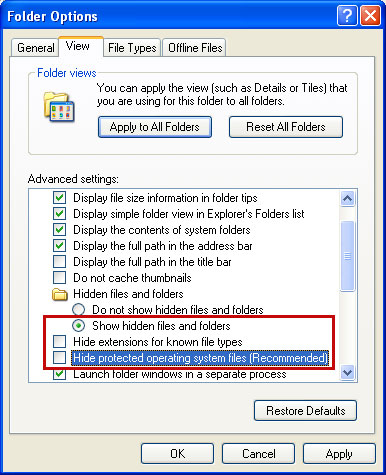
  • Hide extensions for know file types
  • Hide protected operating system files
Click OK to save the changes.


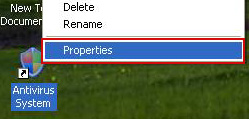
1. Right click on the "Antivirus System" icon, click Properties in the drop-down menu, then click the Shortcut tab.


In the Target box there is a path to the malicious file. You can simply click the Target button to open the target folder.
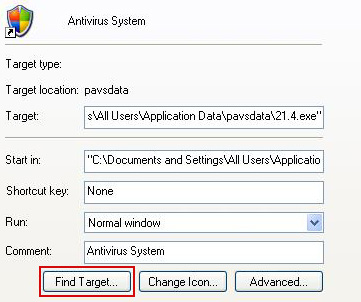


In my case the malicious file was located in: C:\Documents and Settings\All Users\Application Data\pavsdata folder.

2. The malicious file was called 21.4.exe, but I'm sure that the file name will be different in your case.
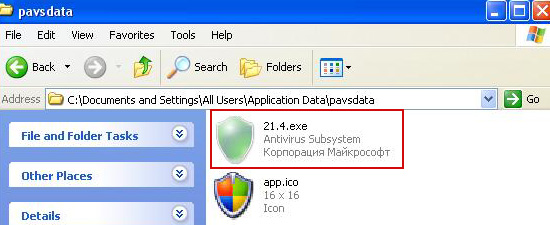


Rename 21.4.exe to virus.exe and click Yes to confirm file rename. Restart your computer!
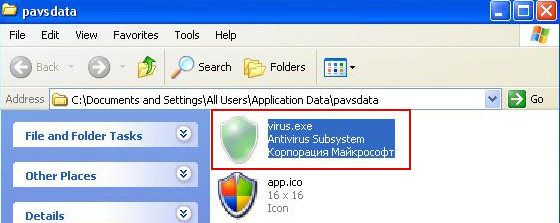


3. After a restart, copy all the text in bold below and paste to Notepad.

Windows Registry Editor Version 5.00

[HKEY_CLASSES_ROOT\.exe]
@="exefile"
"Content Type"="application/x-msdownload"

4. Save file as fix.reg to your Desktop. NOTE: (Save as type: All files)
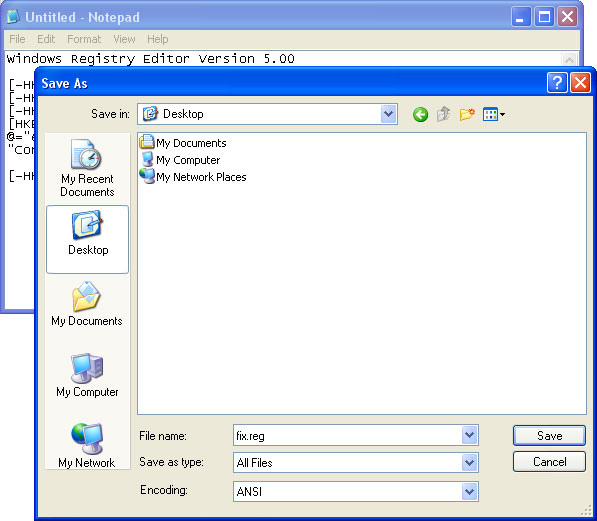

5. Double-click on fix.reg file to run it. Click "Yes" for Registry Editor prompt window. Then click OK.

6. Open your web browser. Download FixExec utility an run it.

7. Download recommended anti-malware software (direct download) and run a full system scan to fully remove this malware from your computer.

Tuesday, July 9, 2013

Remove secure.trusted-serving.com, removal instructions

Don't Copy From This Blog...

Protected by Copyscape Plagiarism Detection
Secure.trusted-serving.com is not technically speaking a computer virus although it does have slightly more up its sleeve than just showing you adverts. Taken by themselves, the adverts alone are an incredible nuisance – you will literally be bombarded with them and will seemingly spend 90% of your time online clicking the little ‘x’ box in the corner of pop-up windows to close them. Not only that but some people may find the advert content offensive: the majority of ads will be for gambling, dubious weight loss pills, potions and ‘miracle’ diets and even for Asian dating sites; some of which contain extremely graphic material.

But it’s not just adverts that you have to worry about as having adware installed on your computer can also slow your internet connection down considerably and in addition to that make your PC run much slower than normal – another real pain in the behind. This is because the secure.trusted-serving.com has been programmed to constantly ‘dial home’ so that it can send back reports about your browsing habits and which websites you visit. Yes, that’s right – those pesky little pop-up adverts are not just annoying – they’re spying on you too! They monitor your computer usage and then send the data back to ad servers via your own internet connection. This is so that the marketing companies who use adware can then tailor subsequent adverts to your apparent tastes and habits in order to make you click through to their site. This continuous to-ing and fro-ing of data is exactly why your PC will be performing its regular tasks at a fraction of the speed that it normally does.


Furthermore, once infected with this adware, you may notice that back/forward buttons are not working properly. When ever you will click back it will flash and say "http://secure.trusted-serving.com/serve" two or more times. It may even froze your web browser window.

Now let’s take a look at how secure.trusted-serving.com infiltrated your PC in the first place. It is normally bundled with popular freeware applications – this is how the authors of these applications get paid for their work. A marketing company will pay the author of the software to include the adware on these applications so they can target users more specifically.

Put simply, if you download programs or software from the internet you are at risk of also, unwittingly, downloading adware and installing it on your machine. Adware that displays secure.trusted-serving.com/serve pop-ups may be hidden in a music file sharing program, those free games that you see on certain websites or you may have just been misfortunate enough to have visited a website that triggers adware without you knowing it.

It stands to reason that you want to avoid the scourge of adware but how can you protect both your sanity and your PC from it? Firstly you should get into the habit of scanning your computer on a regular basis for threats that are not counted as viruses: such as adware and any of the other types of malware that are lurking out there - spyware for example or Trojan horses.

Secondly, don’t download free shareware unless you’re absolutely sure that you want it – and that you know that you may have to be prepared to then go to the trouble of removing secure.trusted-serving.com from your PC. To remove adware and PUPs that are causing these annoying redirects, please follow the removal instructions below.

Written by Michael Kaur, http://spywareremovalx.blogspot.com


secure.trusted-serving.com removal instructions:

1. First of all, download recommended anti-malware software and run a full system scan. It will detect and remove this adware infection from your computer. You may then follow the manual removal instructions below to remove the leftover traces of this adware. Hopefully you won't have to do that.


2. Remove secure.trusted-serving.com related programs from your computer using the Add/Remove Programs control panel (Windows XP) or Uninstall a program control panel (Windows 7 and Windows 8).

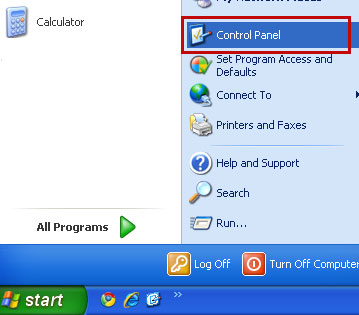
Go to the Start Menu. Select Control Panel → Add/Remove Programs.
If you are using Windows Vista or Windows 7, select Control Panel → Uninstall a Program.


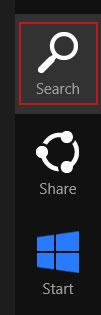
If you are using Windows 8, simply drag your mouse pointer to the right edge of the screen, select Search from the list and search for "control panel".


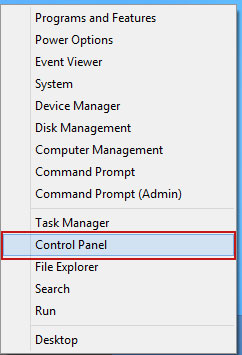
Or you can right-click on a bottom left hot corner (formerly known as the Start button) and select Control panel from there.


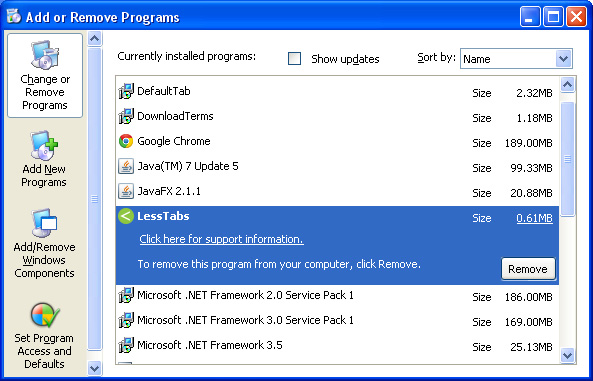
3. When the Add/Remove Programs or the Uninstall a Program screen is displayed, scroll through the list of currently installed programs and remove the following:
  • SingAlong
  • FindLyrics
  • LessTabs
  • DefaultTab
  • Webcake
  • and any other recently installed application


Simply select each application and click Remove. If you are using Windows Vista, Windows 7 or Windows 8, click Uninstall up near the top of that window. When you're done, please close the Control Panel screen.


Remove secure.trusted-serving.com pop-ups from Google Chrome:

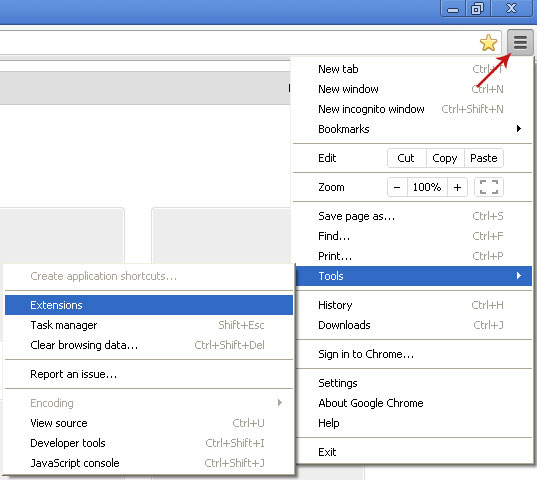
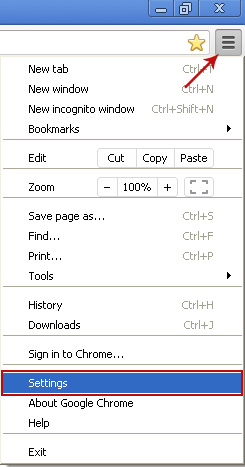
1. Click on Chrome menu button. Go to Tools → Extensions.


2. Click on the trashcan icon to remove the following extensions:


Remove secure.trusted-serving.com pop-ups from Mozilla Firefox:

1. Open Mozilla Firefox. Go to Tools → Add-ons.


2. Select Extensions. Click Remove button to the following extensions. If you can't find the Remove button, then simply click on the Disable button.


Remove secure.trusted-serving.com pop-ups from Internet Explorer:

1. Open Internet Explorer. Go to Tools → Manage Add-ons. If you have the latest version, simply click on the Settings button.


2. Select Toolbars and Extensions. Click Remove/Disable button to remove the browser add-ons listed above.

Remove buildathome.info, removal instructions

Don't Copy From This Blog...

Protected by Copyscape Plagiarism Detection
There are many forms of malicious software but no two malwares are alike and the number of threats to our computers is wide and varied. Even within the same type of malware there can be many different strains – and some of them are worse than others. One of the most annoying problems in recent times is the increasing amount of adware that unscrupulous third parties are installing on your PC – often without your permission and usually without your knowledge. And if you're having problems with buildathome.info pop-ups and embarrassing ads, then your computer is almost certainly infected with adware or PUP (potentially unwanted program.

So what is buildathome.info and why can it cause your computer to embark upon a go-slow? Let’s take a look at the basics. It serves advertisements, that's all. The web page itself isn't malicious but it may redirect you to misleading or malicious website if you click on infected ads. What is more, some ads can be truly embarrassing, for example "Like Asian Women?" dating ads. So, even though the web page isn't malicious it may cause serious problems both malware and social. Besides, it's a clear sign that your computer is infected; otherwise you won't see embarrassing ads. Adware that causes those pop ups, for example "Coupon Companion", will either be running in the background on your computer or working as a plug-in on your web browser. What is more, this adware monitors your computer usage; what websites you visit and so forth, and then uses this knowledge to compile a personal profile on you. Sounds a little scary doesn’t it, but what adware is doing is collecting information about you so that the company behind it can tailor make their advertising especially for you. How thoughtful of them!


But how does this tie in with your computer running like it was manufactured in 1984? Well programs like Coupon Companion can use up a lot of your computer system’s resources which in turn makes your machine super slow as it struggles to handle all the added extras it’s suddenly had installed on it. Adware can also be responsible for inexplicable errors such as your browser or programs crashing all the time.

Buildathome.info is not a virus as such but it can be incredibly annoying and even, in the worst case scenarios, just as dangerous. The problem is that not an awful lot of PC users know much about adware, what it is, what it does and why their computer has suddenly become a real pain to use. It is even more problematic if you use a dial-up modem as adware will keep your modem so preoccupied downloading adverts that it won’t have time to even think about you and the websites you might want to visit!

So why should you care about having adware installed on your computer? Well apart from being a nightmare to use, wasting your time with its excruciatingly slow operating speed and constant crashes, as mentioned, adware’s purpose in life, or rather the people behind the adware, is to target you with so-called ‘relevant’ adverts. These take the form of pop-up windows which in themselves are annoying but it is the consistency with which you are bombarded with them that can cause the real frustration. A lot of the time the ‘targeting’ goes out the window too and as well as seeing adverts that may be loosely related to a website you visit on a frequent basis, say gardening products, you’ll also be inundated with ads of a more unsavory nature such as for gambling websites, dodgy weight loss methods and yes, even adult content websites – some of them containing highly suspicious material.

So how does buildathome.info find its way onto your computer? Well, parents listen up because if you have children you may well find that they are the (unwitting) culprits. A lot of adware comes packaged with those innocent looking freebie games that you download or play on the internet. This isn’t the only way it can be installed though; downloading peer to peer files, clicking on links in spam email and even downloading reputable software can all leave you with adware installed on your machine.

What if you’re not sure if you have it installed on your computer? It is actually quite easy to tell if you have unknowingly downloaded something containing buildathome.info and if you experience any of the following then you may well have a problem:
  • Lots of annoying pop-up adverts (especially ones of a dubious nature)
  • Your browser redirects you to a website of its own choosing and not the one you tried to visit
  • Your browser keeps changing your starting home page or search engine to one you’ve never seen or used before
  • Your computer is running much more slowly than before, keeps crashing or freezing or experiences other ‘weird’ issues
Unfortunately removing buildathome.info from your computer is easier said than done, after all the creators of malware have a reason for wanting you to keep it installed on your PC for as long as possible, and with this in mind they have also made it as difficult as possible to remove them by manually deleting them. In order to get rid of this nuisance, please follow the removal guide below. If you have any questions, please leave a comment below. Good luck and be safe online!

Written by Michael Kaur, http://spywareremovalx.blogspot.com


buildathome.info removal instructions:

1. First of all, download recommended anti-malware software and run a full system scan. It will detect and remove this adware infection from your computer. You may then follow the manual removal instructions below to remove the leftover traces of this adware. Hopefully you won't have to do that.


2. Remove buildathome.info related programs from your computer using the Add/Remove Programs control panel (Windows XP) or Uninstall a program control panel (Windows 7 and Windows 8).

Go to the Start Menu. Select Control Panel → Add/Remove Programs.
If you are using Windows Vista or Windows 7, select Control Panel → Uninstall a Program.


If you are using Windows 8, simply drag your mouse pointer to the right edge of the screen, select Search from the list and search for "control panel".


Or you can right-click on a bottom left hot corner (formerly known as the Start button) and select Control panel from there.


3. When the Add/Remove Programs or the Uninstall a Program screen is displayed, scroll through the list of currently installed programs and remove the following:
  • Coupon Companion
  • FindLyrics
  • Sweetpacks
  • DefaultTab
  • Webcake
  • and any other recently installed application


Simply select each application and click Remove. If you are using Windows Vista, Windows 7 or Windows 8, click Uninstall up near the top of that window. When you're done, please close the Control Panel screen.


Remove buildathome.info pop-ups from Google Chrome:

1. Click on Chrome menu button. Go to Tools → Extensions.


2. Click on the trashcan icon to remove the following extensions:


Remove buildathome.info pop-ups from Mozilla Firefox:

1. Open Mozilla Firefox. Go to Tools → Add-ons.


2. Select Extensions. Click Remove button to the following extensions. If you can't find the Remove button, then simply click on the Disable button.


Remove buildathome.info pop-ups from Internet Explorer:

1. Open Internet Explorer. Go to Tools → Manage Add-ons. If you have the latest version, simply click on the Settings button.


2. Select Toolbars and Extensions. Click Remove/Disable button to remove the browser add-ons listed above.

What is Delta Chrome Toolbar and how to remove it?

Don't Copy From This Blog...

Protected by Copyscape Plagiarism Detection

Delta Chrome Toolbar - by Babylon Ltd.


What is Delta Chrome Toolbar?


Delta Chrome Toolbar is a web browser add-on that usually comes bundled with third party software. Most users do not know where they got it, so it's not surprising at all that overall sentiment is bad. This web browser add-on not only tracks your browsing habits but also changes home page and default search engine provider to delta-search.com. Since it's an ad-supported product, it will display advertisements on your computer. Some ads might be misleading, for example, you may get an ad claiming that your computer is infected or has critical system errors. This is a typical scam designed to trick you into paying for fake Windows optimization software. Other ads might be inappropriate for kids or even embarrassing. More than 90% of users think that Delta Chrome Toolbar should be removed from the system. Besides, this toolbar takes up too much space in Google Chrome pushing the content down. It's not essential for Windows and may cause problems. I recommend you to remove Delta Chrome Toolbar from your computer.


Security Rating: Potentially Dangerous

File name: DeltaTB.exe
Publisher: Babylon Ltd.
File Location Windows XP: C:\Program Files\delta\delta\
File Location Windows 7: C:\Program Files\delta\delta\
Startup file: SYSTEM\CurrentControlSet\Services 'BrowserProtect'

Friday, July 5, 2013

Remove delta-homes.com, removal instructions

Don't Copy From This Blog...

Protected by Copyscape Plagiarism Detection
If you’re reading this it is probably safe to say that delta-homes.com hijacked your web browser. Having your browser overtaken by force can be a real pain and actually leave you feeling quite violated – as well as being really annoyed!

So apart from wanting to wreak vengeance upon the perpetrators of the hijacking, what should you do if you’ve had your browser hijacked by delta-homes.com search engine? Well, due to the proliferation of hijacking, there are also thankfully a wide number of tools to deal with the problem, so let’s take a look at how you can safeguard your browser and what you should do in the event that you have become a victim of this irritating issue.


You’ve heard the saying that prevention is better than cure – well that definitely applies to all forms of malware but the fact is that the likelihood of you being hijacked is directly related to your own internet browsing habits.

You could argue that people who hijack browsers have rather questionable ethics and they also tend to stick to what they know and as such as the type of websites that host attacking programs are normally those that fall under rather dubious categories, however, Delta-home and similar browser hijackers are also distributed via software download websites and even come bundled with other applications.


If you have been unfortunate enough to have had your browser hijacked, regardless of whether or not you’ve visited the types of websites mentioned above (after all, it can happen to the best of us!) what should you do to rectify the problem?

The best scenario if your browser has been hijacked is that you have a repair program installed on your PC, but if you don’t you will probably find the issue harder to tackle as a lot of hijackers, including delta-homes.com, configure their programs so that you are prevented from simply restoring your default browser settings. If this is the case you will need to follow the delta-homes.com removal guide below very carefully.

There are a great number of software programs out there that can do the job although they may differ by which type of browser hijack they can identify. One thing to definitely be aware of however is the growing number of rogue or fake anti-virus and repair programs which are basically just scams that will end up infecting your computer with even more unwanted software – some of which can potentially be extremely dangerous and can corrupt your system, steal your files and even take screen shots of the web pages you are viewing. Others, called keyloggers, can log the keys that you type and they will record and transmit data that you have entered – and yes, that includes your passwords and credit card information.

Some of the reputable repair tools work by running scans on your files and then making them immune to future attacks whilst others let you see which programs are on your system when you log on so that you can decide whether you want to allow them to run or not. This is the best form of defense against malware that has been coded in such a way that it cannot be stopped or removed after it has begun running. So what is your next step? Remove the browser hijack and if you don’t have anti-virus and anti-spyware installed do so now. And if you do already have it? You might want to consider changing it or even adding another program alongside it so that you can be sure that future malware is detected before it does any damage.

Written by Michael Kaur, http://spywareremovalx.blogspot.com


Delta-homes.com removal instructions:

1. First of all, download recommended anti-malware software and run a full system scan. It will detect and remove this browser hijacker from your computer. You may then follow the manual removal instructions below to remove the leftover traces of this infection. Hopefully you won't have to do that.


2. Uninstall delta-homes.com related programs from your computer using the Add/Remove Programs control panel (Windows XP) or Uninstall a program control panel (Windows 7 and Windows 8).

Go to the Start Menu. Select Control Panel → Add/Remove Programs.
If you are using Windows Vista or Windows 7, select Control Panel → Uninstall a Program.


If you are using Windows 8, simply drag your mouse pointer to the right edge of the screen, select Search from the list and search for "control panel".


Or you can right-click on a bottom left hot corner (formerly known as the Start button) and select Control panel from there.


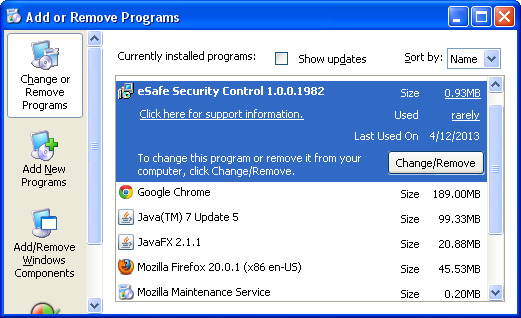
3. When the Add/Remove Programs or the Uninstall a Program screen is displayed, scroll through the list of currently installed programs and remove eSave Security Control, GoPlayer, Desk 365 and any other recently installed application. It won't be listed as delta-homes.com in the currently installed programs list. So, either look for applications mentioned here or try to remember what software you installed recently. It's probably the culprit.


Simply select the application and click Remove. If you are using Windows Vista, Windows 7 or Windows 8, click Uninstall up near the top of that window. When you're done, please close the Control Panel screen.


Remove delta-homes.com from Google Chrome:

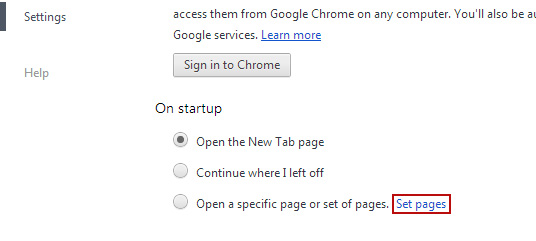
1. Click on Customize and control Google Chrome icon. Select Settings.


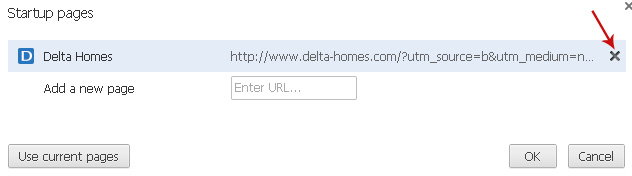
2. Click Set pages under the On startup.


Remove delta-homes.com by clicking the "X" mark as shown in the image below.


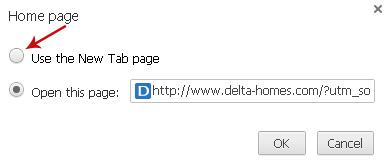
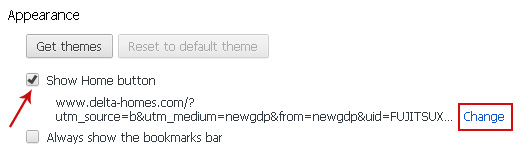
3. Click Show Home button under Appearance. Then click Change.


Select Use the New Tab page and click OK to save changes.


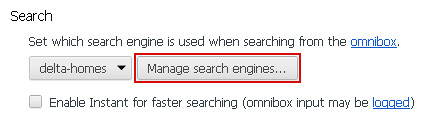
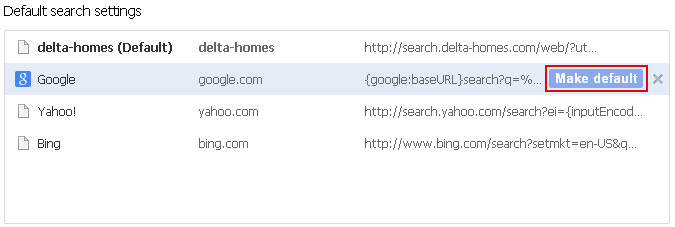
4. Click Manager search engines button under Search.


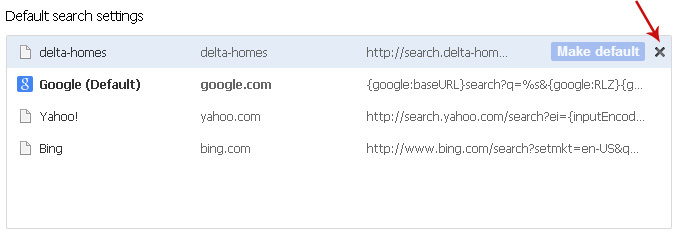
Select Google or any other search engine you like from the list and make it your default search engine provider.


Select delta-homes.com from the list and remove it by clicking the "X" mark as shown in the image below.


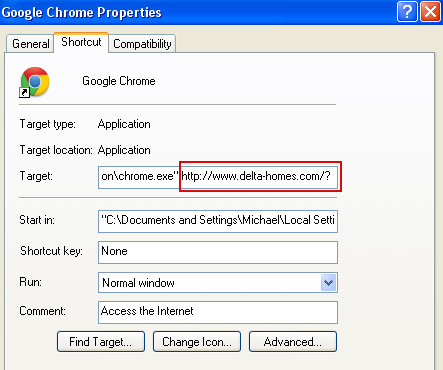
5. Right-click the Google Chrome shortcut you are using to open your web browser and select Properties.

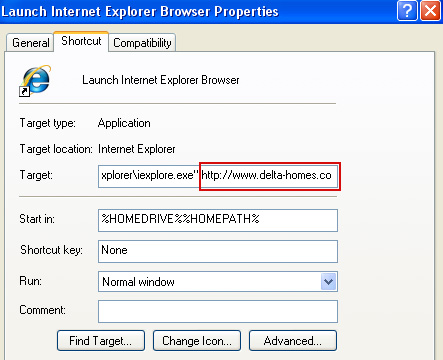
6. Select Shortcut tab and remove "http://www.delta-homes.com...." from the Target field and click OK to save changes. Basically, there should be only the path to Chrome executable file. Nothing more.


Remove delta-homes.com from Mozilla Firefox:

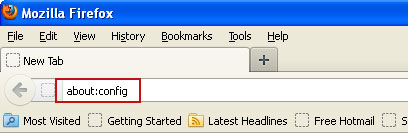
1. In the URL address bar, type about:config and hit Enter.


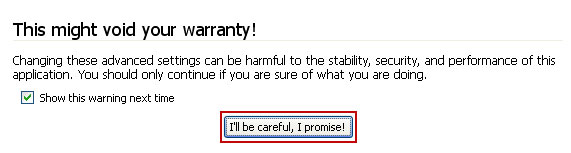
Click I'll be careful, I promise! to continue.


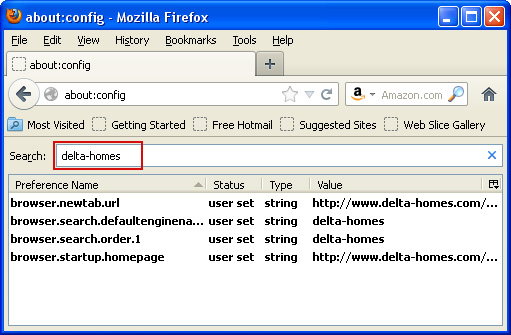
In the search filter at the top, type: delta-homes


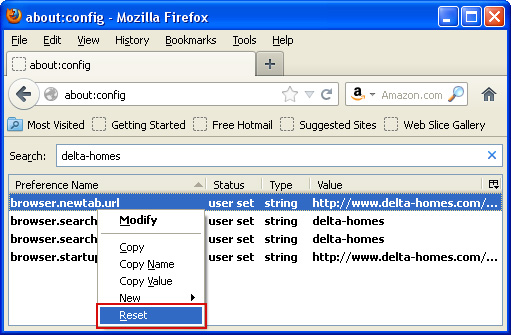
Now, you should see all the preferences that were changed by delta-homes. Right-click on the preference and select Reset to restore default value. Reset all found preferences!


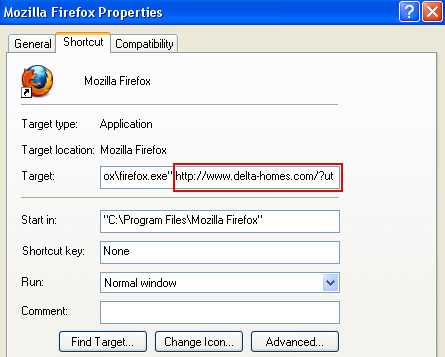
4. Right-click the Mozilla Firefox shortcut you are using to open your web browser and select Properties.

5. Select Shortcut tab and remove "http://www.delta-homes.com...." from the Target field and click OK to save changes. Basically, there should be only the path to Firefox executable file.


Remove delta-homes.com in Internet Explorer:

1. Open Internet Explorer. Go to Tools → Manage Add-ons.


2. Select Search Providers. First of all, choose Live Search search engine and make it your default web search provider (Set as default).

3. Select delta-homes.com and click Remove to remove it. Close the window.

4. Right-click the Internet Explorer shortcut you are using to open your web browser and select Properties.

5. Select Shortcut tab and remove "http://www.delta-homes.com...." from the Target field and click OK to save changes. Basically, there should be only the path to Internet Explorer executable file.


6. Finally, go to Tools → Internet Options and restore your home page to default. That's it!

 
//PART 2