Don't Copy From This Blog...

Win 7 Security Cleaner Pro rogue security software can do a tremendous amount of damage on your computer. Especially when it comes bundled with rootkits, for instance ZeroAccess. It may be also packed with spyware or generic Trojan downloaders that can later download and install pretty much any piece of malicious software on your machine. The rogue security program itself isn't very very dangerous if speaking about technical capabilities of infecting and spreading malicious code but it tries to trick victims into paying for a fake antivirus program in order to remove non-existent virus threats. However, if it comes packed with spyware, and sometimes it really does, this combination is able to steal your passwords, personal information, or even your credit card information. It can hack into your email account and send spam messages using your account, especially true if you're using Outlook. It can corrupt the files saved and installed on your computer, causing your PC system to slow down or even crash. It is even able to infect other computers on a local network. Note: only possible if the rogue program comes bundled with additional malware. The rogue program alone doesn't have such capabilities. One way or another, should definitely remove it from your machine. If you are infected, you're in the right place because this page contains comprehensive instructions on how to remove Win 7 Security Cleaner Pro virus from your computer.

But first of all, do not let yourself become one of the millions of people who fall victim to rogue security software. The most commonly used form of rogue security software is depicting itself as an anti-virus scanner, complete with non-existent virus threats that it claims to be on the computer. Another scheme used by fake antivirus software is to make itself appear as a Windows Security Center, reminding computer users that their antivirus is out of date. Pop-up windows and alerts are the most common scheme used to get computer users to download the software or pay for it. As such, be wary of pop-up windows and alerts warning you that your computer has been infected and instructing you to download the fake software to get rid of the non-existent virus. In this case, Win 7 Security Cleaner Pro actually displays a fake Windows Action center pop-up claiming that your antivirus software is outdated.
Scareware makes them sound legitimate programs to easier trick computer users to trust the contents and download the application or but the so-called "full" version to remove supposedly found infections. You may check this websites for a complete list of the different names of programs used by rogue antivirus software.
Win 7 Security Cleaner Pro is promoted via fake online virus scanners and infected websites. Cyber crooks do not choose sites by categories, they normally infect any website that has bugs and so can be infected hoping that it will drive a significant amount of traffic to fake online scanners. After detecting that a certain web page is actually rogue virus scanner, what do you do next?
Never click on the web page elements, for example "Scan", "Download", etc. Do not click on OK or CANCEL or CLOSE, as the software can easily install itself into your system just by one click. I'm not kidding. Immediately close and quit the web browser if you have sensed that the alert or pop-up is actually rogue software. Another safe way to close the program or pop-up is to use keyboard shortcuts (press Ctrl+Esc). You can also close it by right-clicking on the program in the taskbar and then selecting the close option. Install legitimate security, which can provide real-time protection for your computer. Check on the options and make sure your firewall, anti-malware and antivirus applications are active and fully updated. Remember to keep it up to date!!!
Be sure that you have enabled the phishing protection of your web browser settings. Remember to avoid using file sharing programs to download files such as games, music, shows as most of shared files are infected.
Also, do not click on advertisements, especially on shady websites. Choose the automatic updating option to keep your operating system up to date. Never click on links in email from unknown senders. Read on phishing scams to know what to avoid and how to avoid falling victim to it. Make it a habit of checking the list of rogue security software available online so you could always be on your guard. Avoid visiting unsecured websites, wherein malware may be found.
When installed, Win 7 Security Cleaner Pro pretends to scan your computer for malicious software. Of course, it finds at least twenty possible infections that need you attention and quick actions. The rogue program is designed to scare you into thinking that your computer is infected with unbelievably sophisticated viruses that can delete your files and steal your sensitive information. Of course, that's a complete BS. Do not trust it and do not follow the on screen instructions because if you do then you will probably spend like $100 or so for completely useless antivirus software. And you don't want that, right? :) Oh, and one more thing, Win 7 Security Cleaner Pro blocks genuine malware removal tools. It may also block your web browser and claim that even your local newspaper's website is infected. I mean seriously, it claims that everything is infected, do not do this, don't click there and so on, just buy the freaking full version of this superb antivirus software. What is more, the rogue application displays fake security alerts to further scare you into believing that your machine is infected. Simply ignore them.
However, in case you still encounter troubles removing Win 7 Security Cleaner Pro, please follow the removal instructions below. In short, you can enter one of debugged keys to register the rogue application and then scan your computer with anti-malware software. Why you should register it? When registered, it doesn't block anti-malware software and security related websites. Makes removal a lot easier. If that's not an option for you, you can simply reboot your computer in safe mode with networking and download recommend anti-malware software. It will detect and remove this infection. Finally, you can remove the rogue application manually. For some of you, it actually may be the only working solution.
Do you have any additional information or questions on the Win 7 Security Cleaner Pro virus? Post your comment or question below. Good luck and be safe online!
Method 1: Win 7 Antivirus Pro 2013 removal using debugged activation keys:
1. Use any of the keys listed below to register this malware and stop the fake security alerts.
9443-077673-5028
3425-814615-3990
2233-298080-3424
1147-175591-6550
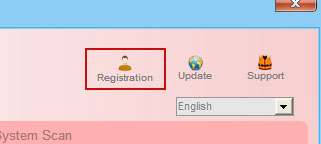
Just click the Registration button (top right corner of the fake scanner), enter the reg key and then select Activate Now. Don't worry, this is completely legal. If the debugged activation keys do not work anymore, please follow the alternate removal instructions below.
Once this is done, you are free to install recommended anti-malware software and run a full system scan to remove Win 7 Security Cleaner Pro from your computer properly.
2. Download recommended anti-malware software (direct download) and run a full system scan to remove this virus from your computer.
Method 2: Win 7 Security Cleaner Pro removal instructions in Safe Mode with Networking:
1. Reboot your computer is "Safe Mode with Networking". As the computer is booting tap the "F8 key" continuously which should bring up the "Windows Advanced Options Menu" as shown below. Use your arrow keys to move to "Safe Mode with Networking" and press Enter key.

NOTE: Login as the same user you were previously logged in with in the normal Windows mode.
2. Open Internet Explorer. In the Address bar type: http://goo.gl/AXIrU (this is a download link for FixNCR.reg) and click hit Enter or click Go to download the file.
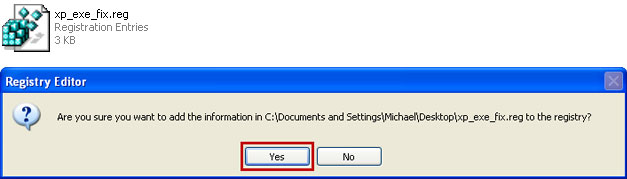
3. Save FixNCR.reg to your Desktop. Double-click on FixNCR.reg to run it. Click "Yes" for Registry Editor prompt window. Click OK.
4. Download recommended anti-malware software (direct download) and run a full system scan to remove this virus from your computer.
NOTE: don't forget to update anti-malware software before scanning your computer.
Method 3: Manual Win 7 Security Cleaner Pro removal instructions:
Make sure that you can see hidden and operating system protected files in Windows. For more in formation, please read Show Hidden Files and Folders in Windows.
Under the Hidden files and folders section, click Show hidden files and folders, and remove the checkmarks from the checkboxes labeled:
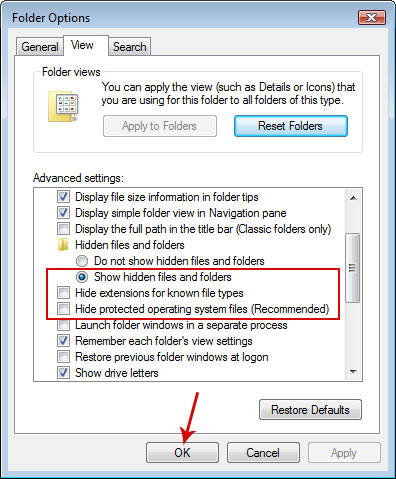
1. Go into C:\Users\[UserName]\AppData\Local\ folder.
For example: C:\Users\Michael\AppData\Local\
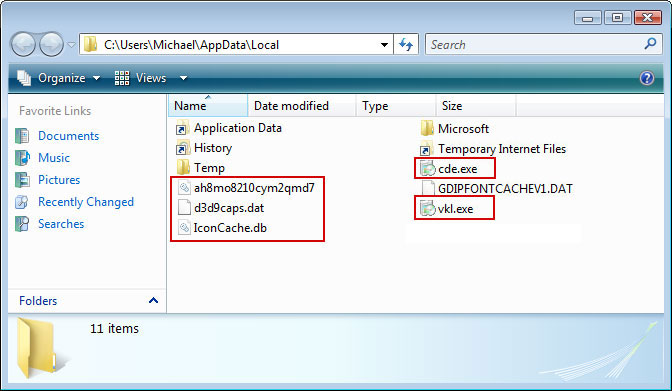
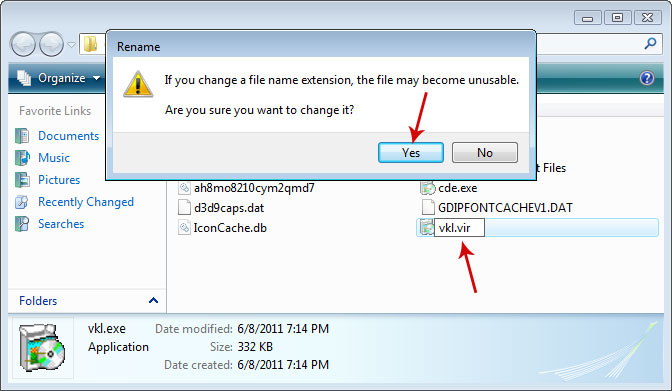
2. Find hidden executable file(s) in this folder. In our case it was called vkl.exe, but I'm sure that the file name will be different in your case. Rename vkl.exe to vkl.vir and click "Yes" to confirm file rename. Then restart your computer.
3. After a restart, copy all the text in bold below and paste to Notepad.
Windows Registry Editor Version 5.00
[HKEY_CLASSES_ROOT\.exe]
@="exefile"
"Content Type"="application/x-msdownload"
4. Save file as fix.reg to your Desktop. NOTE: (Save as type: All files)
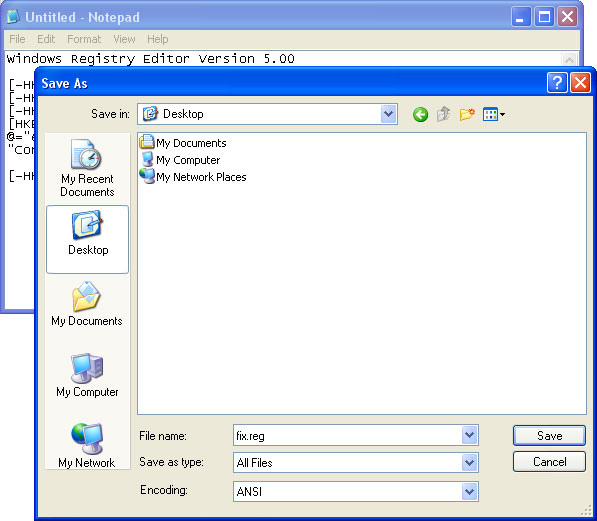
5. Double-click on fix.reg file to run it. Click "Yes" for Registry Editor prompt window. Then click OK.
6. Open Internet Explorer. Download exefix.reg and save it to your Desktop. Double-click on exefix.reg to run it. Click "Yes" for Registry Editor prompt window. Click OK.
7. Download recommended anti-malware software (direct download) and run a full system scan to remove this virus from your computer.
But first of all, do not let yourself become one of the millions of people who fall victim to rogue security software. The most commonly used form of rogue security software is depicting itself as an anti-virus scanner, complete with non-existent virus threats that it claims to be on the computer. Another scheme used by fake antivirus software is to make itself appear as a Windows Security Center, reminding computer users that their antivirus is out of date. Pop-up windows and alerts are the most common scheme used to get computer users to download the software or pay for it. As such, be wary of pop-up windows and alerts warning you that your computer has been infected and instructing you to download the fake software to get rid of the non-existent virus. In this case, Win 7 Security Cleaner Pro actually displays a fake Windows Action center pop-up claiming that your antivirus software is outdated.
Scareware makes them sound legitimate programs to easier trick computer users to trust the contents and download the application or but the so-called "full" version to remove supposedly found infections. You may check this websites for a complete list of the different names of programs used by rogue antivirus software.
Win 7 Security Cleaner Pro is promoted via fake online virus scanners and infected websites. Cyber crooks do not choose sites by categories, they normally infect any website that has bugs and so can be infected hoping that it will drive a significant amount of traffic to fake online scanners. After detecting that a certain web page is actually rogue virus scanner, what do you do next?
Never click on the web page elements, for example "Scan", "Download", etc. Do not click on OK or CANCEL or CLOSE, as the software can easily install itself into your system just by one click. I'm not kidding. Immediately close and quit the web browser if you have sensed that the alert or pop-up is actually rogue software. Another safe way to close the program or pop-up is to use keyboard shortcuts (press Ctrl+Esc). You can also close it by right-clicking on the program in the taskbar and then selecting the close option. Install legitimate security, which can provide real-time protection for your computer. Check on the options and make sure your firewall, anti-malware and antivirus applications are active and fully updated. Remember to keep it up to date!!!
Be sure that you have enabled the phishing protection of your web browser settings. Remember to avoid using file sharing programs to download files such as games, music, shows as most of shared files are infected.
Also, do not click on advertisements, especially on shady websites. Choose the automatic updating option to keep your operating system up to date. Never click on links in email from unknown senders. Read on phishing scams to know what to avoid and how to avoid falling victim to it. Make it a habit of checking the list of rogue security software available online so you could always be on your guard. Avoid visiting unsecured websites, wherein malware may be found.
When installed, Win 7 Security Cleaner Pro pretends to scan your computer for malicious software. Of course, it finds at least twenty possible infections that need you attention and quick actions. The rogue program is designed to scare you into thinking that your computer is infected with unbelievably sophisticated viruses that can delete your files and steal your sensitive information. Of course, that's a complete BS. Do not trust it and do not follow the on screen instructions because if you do then you will probably spend like $100 or so for completely useless antivirus software. And you don't want that, right? :) Oh, and one more thing, Win 7 Security Cleaner Pro blocks genuine malware removal tools. It may also block your web browser and claim that even your local newspaper's website is infected. I mean seriously, it claims that everything is infected, do not do this, don't click there and so on, just buy the freaking full version of this superb antivirus software. What is more, the rogue application displays fake security alerts to further scare you into believing that your machine is infected. Simply ignore them.
Win 7 Security Cleaner Pro Firewall AlertOK, so if your computer is infected with this rogue antivirus program things may become a little tricky. If you can, restore your system. First, turn off your computer. Then turn it on in safe mode. Click the START button and go to Programs. Click Accessories. Then click System Tools and select System Restore. Click on the option ‘Restore computer to an earlier time’ and click ‘Next’. Click on a date prior to the time your computer has been infected by the Win 7 Security Cleaner Pro and then click ‘Next’. This procedure will restore your system and should efficiently get rid of the rogue software. Very important! if you choose to remove the scareware this way, download recommend anti-malware software and run a full system scan even if the rogue application seems to be gone. System restore is not the best way to remove malware but it may be the fastest.
Win 7 Security Cleaner Pro has blocked a program from accessing the internet
Internet Explorer is infected with Trojan-BNK.Win32.Keylogger.gen
Private data can be stolen by third parties, including credit card details and passwords.
However, in case you still encounter troubles removing Win 7 Security Cleaner Pro, please follow the removal instructions below. In short, you can enter one of debugged keys to register the rogue application and then scan your computer with anti-malware software. Why you should register it? When registered, it doesn't block anti-malware software and security related websites. Makes removal a lot easier. If that's not an option for you, you can simply reboot your computer in safe mode with networking and download recommend anti-malware software. It will detect and remove this infection. Finally, you can remove the rogue application manually. For some of you, it actually may be the only working solution.
Do you have any additional information or questions on the Win 7 Security Cleaner Pro virus? Post your comment or question below. Good luck and be safe online!
Method 1: Win 7 Antivirus Pro 2013 removal using debugged activation keys:
1. Use any of the keys listed below to register this malware and stop the fake security alerts.
9443-077673-5028
3425-814615-3990
2233-298080-3424
1147-175591-6550
Just click the Registration button (top right corner of the fake scanner), enter the reg key and then select Activate Now. Don't worry, this is completely legal. If the debugged activation keys do not work anymore, please follow the alternate removal instructions below.
Once this is done, you are free to install recommended anti-malware software and run a full system scan to remove Win 7 Security Cleaner Pro from your computer properly.
2. Download recommended anti-malware software (direct download) and run a full system scan to remove this virus from your computer.
Method 2: Win 7 Security Cleaner Pro removal instructions in Safe Mode with Networking:
1. Reboot your computer is "Safe Mode with Networking". As the computer is booting tap the "F8 key" continuously which should bring up the "Windows Advanced Options Menu" as shown below. Use your arrow keys to move to "Safe Mode with Networking" and press Enter key.
NOTE: Login as the same user you were previously logged in with in the normal Windows mode.
2. Open Internet Explorer. In the Address bar type: http://goo.gl/AXIrU (this is a download link for FixNCR.reg) and click hit Enter or click Go to download the file.
3. Save FixNCR.reg to your Desktop. Double-click on FixNCR.reg to run it. Click "Yes" for Registry Editor prompt window. Click OK.
4. Download recommended anti-malware software (direct download) and run a full system scan to remove this virus from your computer.
NOTE: don't forget to update anti-malware software before scanning your computer.
Method 3: Manual Win 7 Security Cleaner Pro removal instructions:
Make sure that you can see hidden and operating system protected files in Windows. For more in formation, please read Show Hidden Files and Folders in Windows.
Under the Hidden files and folders section, click Show hidden files and folders, and remove the checkmarks from the checkboxes labeled:
- Hide extensions for know file types
- Hide protected operating system files
1. Go into C:\Users\[UserName]\AppData\Local\ folder.
For example: C:\Users\Michael\AppData\Local\
2. Find hidden executable file(s) in this folder. In our case it was called vkl.exe, but I'm sure that the file name will be different in your case. Rename vkl.exe to vkl.vir and click "Yes" to confirm file rename. Then restart your computer.
3. After a restart, copy all the text in bold below and paste to Notepad.
Windows Registry Editor Version 5.00
[HKEY_CLASSES_ROOT\.exe]
@="exefile"
"Content Type"="application/x-msdownload"
4. Save file as fix.reg to your Desktop. NOTE: (Save as type: All files)
5. Double-click on fix.reg file to run it. Click "Yes" for Registry Editor prompt window. Then click OK.
6. Open Internet Explorer. Download exefix.reg and save it to your Desktop. Double-click on exefix.reg to run it. Click "Yes" for Registry Editor prompt window. Click OK.
7. Download recommended anti-malware software (direct download) and run a full system scan to remove this virus from your computer.