Friday, July 27, 2012

Boxore Adware (Uninstall Guide)

Don't Copy From This Blog...

Protected by Copyscape Plagiarism Detection
Today we came across another adware application called Boxore. It's distributed the old-fashioned way: people search for free online movie streaming sites where they could watch their favorite movies and TV shows without actually downloading them. Let's take The Dark Knight Rises as an example which stormed its way to the top of the US box office. There are many websites that allow you to watch this movie online and for free. Sounds good to be true? You betcha!

Most of the time, you either have to buy credits or download their "player" that is supposedly necessary to watch the movie. One of such streaming websites generated an error message claiming that we can't watch the movie because we don't have some fancy codecs installed on our machine. But that's not a problem, they immediately told us to download this free multimedia player called Player Plus which fixes everything right away. So, we did.

Surprisingly, the Player Plus setup wizard was in French even thought we were redirected from a video streaming site in English and the official download page was also in English. As you can see in the image below, we could choose not to install Boxore client and Babylon Toolbar but let's just say we were so excited or maybe inattentive and missed that option.
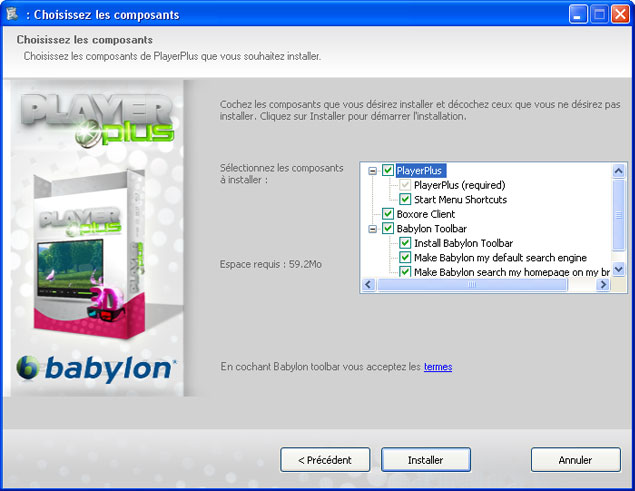


Everything went smoothly, we went back to the streaming site, clicked play button again and for our great disappointment we were able to watch The Dark Knight Rises trailer only, not the full movie. Darn scammers!

So, after all, we ended up with the Babylon toolbar and Boxore adware on our computer. You can read more about Babylon toolbar and Babylon search engine here. Now, let's have a look at Boxore client. There are two main components of this software: boxore.exe (client) and Update.exe (service). Both are set to start up automatically whenever you turn on your computer.

Going through boxore.exe file properties, comments section, quickly reveals what it's all about:
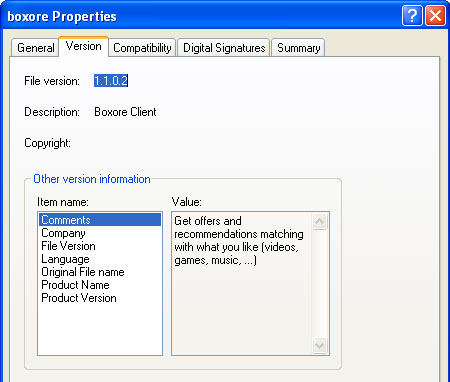
Get offers and recommendations matching with what you like (videos, games, music, ...)


The same information can be found at boxore.com. Furthermore, Boxore adware authors assure that their product is 100% safe, free and anonymous. It doesn't collect any information about the users. Boxore simply scans all the websites you visit searching for keywords that could help them determine what kind of topics you are interested in when browsing the net.

Boxore.exe sends ad requests regularly. If there's no ad available at that moment, it keeps monitoring your browsing habits. But we didn't have to wait very long for the first ad to show up. This advertisement (see the image below) was loaded after twenty or so minutes.
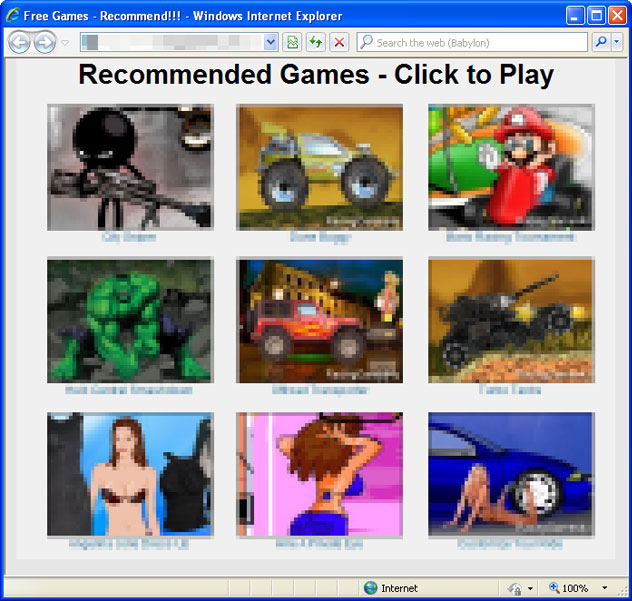


The ad came from openadserving.com. This website is currently ranking among 4000 most popular sites in the world. Even though, this data isn't very reliable we can still assume that Boxore network is serving ads to thousands of users each day.



And finally, one interesting fact about the multimedia player we downloaded: there are actually two versions of the Player Plus. If you download Player Plus from playerplus.com then you will get a clean version of this application. No toolbars, adware, etc. However, if you download Player Plus from a streaming site then you will get the evil version Player Plus X.



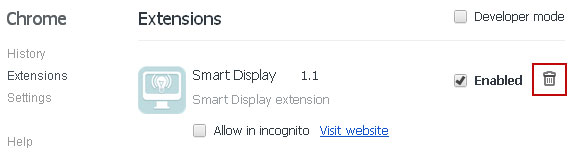
Last but but least, along with the Boxore adware came this Chrome extension called Smart Displat 1.1. We are not sure what it is, and we could find any information about this extension because it was removed from Chrome store. One way or another, this extension should be removed as well.

To remove Boxore adware and associated applications from your computer, please follow the removal instructions below. Good luck!

Source: http://spywareremovalx.blogspot.com


Boxore removal instructions:

1. First of all, download recommended anti-malware software and run a full system scan. It will detect and remove this infection from your computer. You may then follow the manual removal instructions below to remove the leftover traces of this browser hijacker. Hopefully you won't have to do that.


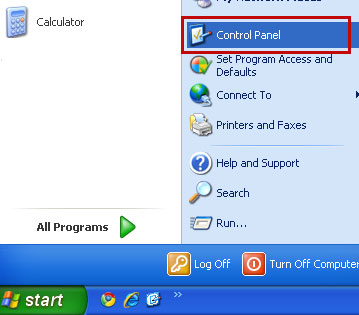
2. Go to the Start Menu. Select Control Panel → Add/Remove Programs.
If you are using Windows Vista or Windows 7, select Control Panel → Uninstall a Program.


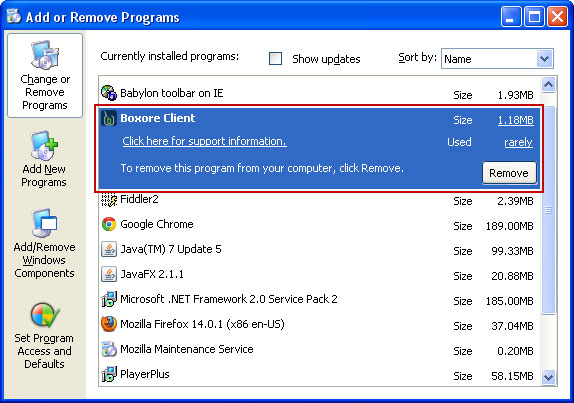
3. Search for Boxore Client in the list. Select the program and click Remove button.

If you are using Windows Vista/7, click Uninstall up near the top of that window.


4. To remove Babylon toolbar and Babylon Search, please follow this removal guide.

5. Remove Smart Display 1.1 extension in Google Chrome.

 Click on Customize and control Google Chrome icon. Go to Tools → Extensions.
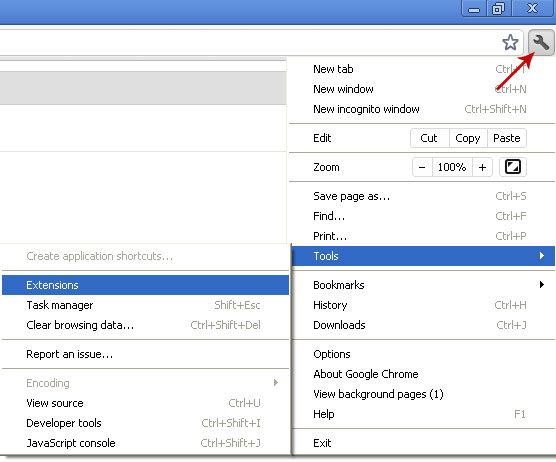


Select Smart Display 1.1 and click on the small recycle bin icon to remove the toolbar.


6. And finally, download recommended anti-malware software and run a full system scan to remove any associated malware or potentially unwanted applications from your computer.


Associated Boxore Adware files and registry values:

Files:
  • C:\Program Files\Boxore
  • C:\Program Files\Boxore\BoxoreClient
  • C:\Program Files\Boxore\BoxoreClient\boxore.exe
  • C:\Program Files\Boxore\BoxoreClient\COPYING
  • C:\Program Files\Boxore\BoxoreClient\index.dat
  • C:\Program Files\Boxore\BoxoreClient\rules.dat
  • C:\Program Files\Boxore\SmartDisplay\SmartExtensions\GoogleChrome\SmartDisplayExtension.crx
Registry values:
  • HKEY_LOCAL_MACHINE\SOFTWARE\Boxore
  • HKEY_LOCAL_MACHINE\SOFTWARE\Boxore\BoxoreClient
  • HKEY_LOCAL_MACHINE\SOFTWARE\Google\Chrome\Extensions\jeaihkehdlhkocphopopahkfjcfcphef
  • HKEY_LOCAL_MACHINE\SOFTWARE\Microsoft\Windows\CurrentVersion\Run "Boxore Client"
Tell your friends:

Wednesday, July 25, 2012

Remove Welcome to Nginx! (Uninstall Guide)

Don't Copy From This Blog...

Protected by Copyscape Plagiarism Detection
Our guess is if you're reading this, you've probably encountered a plain white web page referring to "Welcome to Nginx!" in your web browser. Further post will provide more details about this apparently very common problem and hopefully will help you solve it.

Nginx is rather popular open source web server software. It improves web servers' performance and stability. As a result, websites load faster and generate fewer errors. One out of ten website are delivered by web servers using this software. Needless to say, it’s a useful piece of code.

"Welcome to Nginx!" is basically a diagnostic web page. It indicates that Ngnix software was successfully installed on a web server. NOT your computer!


Normally, it's not a threat. It's nothing more than just a web page. You can encounter it while browsing the net. That's normal. However, if you are being constantly redirecting to Welcome to Nginx! web page then it's about time to raise red flags. This should not happen if your computer and network are clean and safe.

Of course, it's not necessary a malware infection. Sometimes, it's a web browser specific problem. Dumping web browser's cache and browsing history solves the problem quite easily. Toolbars and web browser add-ons may also cause "Welcome to Nginx!" message to appear in your web browser, especially when they have predefined start pages, etc. If it affects multiple browsers, you would like to flush your DNS cache, restore default settings or restart your router. It might actually help, just give it a try.

Typically, when a malicious software infection occurs, it will become obvious to you right away. Suddenly, your computer speed isn't fair. Strange pop-ups, search redirects, shady sites, you name it. But it might not be so obvious when the only sign of malware infection is the Welcome to Nginx! page. That's why most people say they got the Welcome to Nginx! virus. And they are right (sort of).

We can confirm there's malware that modifies Windows Hosts file and redirects users to malicious websites. Normally, this malware displays ads on the infected computer and redirects search results. Sometimes, malware redirects users to websites that encounter temporary outage or are moved to other location. This happens very often for numerous reasons.

First of all, scammers have to change their web servers or hosting providers quite often to keep their business up and running smoothly. Secondly, they might be loading ads from websites they cannot control. In other words, they are affiliates generating false clicks and ad impressions. Of course, there are more reasons, both technical and tactical, but these two are usually the most common. One way or another, you need to remove the Welcome to Nginx! virus from your computer because vividly speaking cyber criminals have a living gent inside your computer and they can do whatever they want to do. For example, they can secretly install spyware modules or use your computer for DDoS attacks. And that's not good.

To fix the Welcome to Nginx! problem and remove any malware that could cause it, please follow the steps in the removal guide below. If you have any questions or need further assistance, please leave a comment below. Good luck and be safe online!


"Welcome to Nginx!" removal instructions:

1. Download recommended anti-malware software (direct download) and run a full system scan to remove this virus and associated malware from your computer.

2. Check Windows HOSTS file.

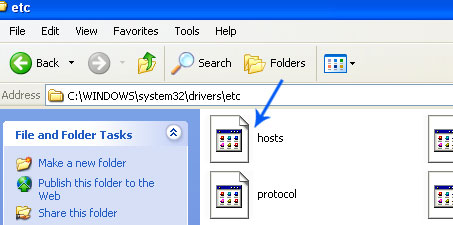
Go to: C:\WINDOWS\system32\drivers\etc.
Double-click "hosts" file to open it. Choose to open with Notepad.


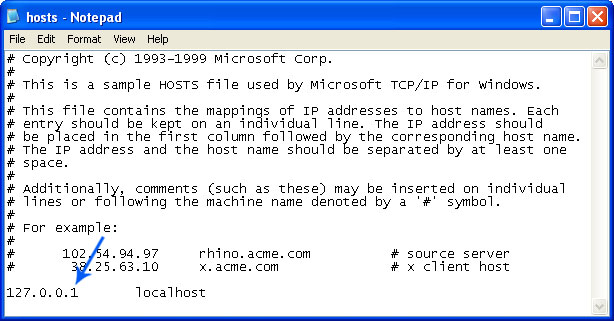
The "hosts" file should look the same as in the image below. There should be only one line: 127.0.0.1 localhost in Windows XP and 127.0.0.1 localhost ::1 in Windows Vista/7. If there are more, then remove them and save changes. Read more about Windows Hosts file here: http://support.microsoft.com/kb/972034


Alternate method: to reset the Hosts file back to the default automatically, download and run Fix it and follow the steps in the Fix it wizard.

3. If the problem persists, please read this web document and follow the steps carefully: http://spywareremovalx.blogspot.com/2010/02/remove-google-redirect-virus.html

Tell your friends:

Tuesday, July 24, 2012

Remove Police Central e-crime Unit Virus (Uninstall Guide)

Don't Copy From This Blog...

Protected by Copyscape Plagiarism Detection
Picture this, you turn on your computer and there's a message from Police Central e-crime Unit accusing you of an internet crime (illegally distributing copyrighted files and pornography) and then it demands money. If you were faced with this fake message then your computer is infected with a virus called ransomware. And you're certainly not alone. These scams are spreading like wild fire and can definitely cause you trouble whether you give your money to the scammers or not.

Similar scams have also been out there claiming to be from FBI and U.S. Justice Department. Whether it would be the Police Central e-crime Unit virus or any other similar scam they all have one thing in common, they lock down your computer and then demand money. If you pay the scammers to unlock your computer, they may actually dot but will most likely continue to use your computer secretly to launch even more virus attacks and internet scams.

So far, we've seen two slightly different variants of Police Central e-crime Unit ransomware. The first variant belongs to the Win32/Weelsof malware family. Basically, it's a Trojan that allows hackers to perform a number of actions on the infected computer. And they certain can launch such fake Police warnings as shown in the image below.


While this one is clearly targeting UK users, scammers have very similar scams ready to be used in other countries as well.

The Weelsof Trojan is a new piece of malware. It was documented earlier this year (June, 2012). Please note that ransomware scam is only one of its payloads. Fortunately, most antivirus programs will detect this ransomware right away but if your computer caches this virus then you need to get a better protection.

The second variant of Police Central e-crime Unit (PCeU) ransomware belongs to the Win32/Reveton malware family. As you can see, the fake waning is slightly different, more sophisticated, claiming to be from Specialist Crime Directorate rather than Metropolitan Police.


They even added a web cam image to give the impression that the victim is under surveillance. Of course, they do not actually activate your web cam even if you have it. Scammers display the same picture on every infected machine. So, don’t worry about that.


Very often, people download and install such scams voluntarily. Malware applications are usually disguised as a software upgrade. People don't know what that is and they think they need it because it looks like they do. Besides, something as simple as opening PDF file can infect computer or allow scammers to download Police Central e-crime Unit virus on your computer. Keep in mind that other software applications are vulnerable too.


Scammers exploit Java and Flash vulnerabilities to load the malicious code on targeted computers. It's very important to keep your machine updated. What is more, cyber criminals use valid software certificates and other possible methods to avoid detection and to infect as many computers as possible.

So, if you got infected with this fake Police Ukash virus, please follow the steps in the removal guide below. Sometimes, users can restart infected computers in Safe Mode. That makes the removal procedure a lot easier. Unfortunately, most of the time this ransomware comes bundled with other malware that locks down the computer completely. In such case, Live CD is the only option. We will show you how to remove Police Central e-crime Unit virus using Kaspersky Rescue Disk. Hopefully, this virus will only cost you time without taking your money too.

If you have any questions about this infection or need help removing it, please leave a comment below. Good luck!

Source: http://spywareremovalx.blogspot.com


Method 1: Police Central e-crime Unit virus removal instructions using System Restore in Safe Mode with Command Prompt:

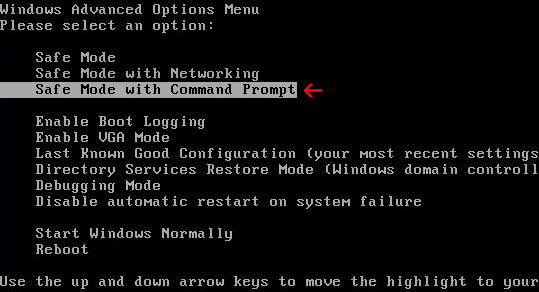
1. Unplug your network cable and manually turn your computer off. Reboot your computer is "Safe Mode with Command Prompt". As the computer is booting tap the "F8 key" continuously which should bring up the "Windows Advanced Options Menu" as shown below. Use your arrow keys to move to "Safe Mode with Command Prompt" and press Enter key.


2. Make sure you log in to an account with administrative privileges (login as admin).

3. Once the Command Prompt appears you have few seconds to type in explorer and hit Enter. If you fail to do it within 2-3 seconds, the Police Central e-crime Unit ransomware will take over and will not let you type anymore.

4. If you managed to bring up Windows Explorer you can now browse into:
  • Win XP: C:\windows\system32\restore\rstrui.exe and press Enter
  • Win Vista/Seven: C:\windows\system32\rstrui.exe and press Enter
5. Follow the steps to restore your computer into an earlier day.

6. Download recommended anti-malware software (direct download) and run a full system scan to remove the remnants of Police Central e-crime Unit virus.


Method 2: Police Central e-crime Unit virus removal instructions using System Restore in Safe Mode:

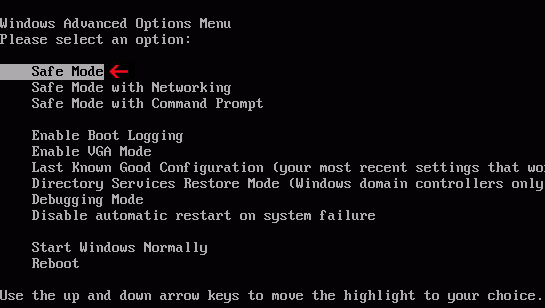
1. Power off and restart your computer. As the computer is booting tap the "F8 key" continuously which should bring up the "Windows Advanced Options Menu" as shown below. Use your arrow keys to move to "Safe Mode" and press Enter key.


NOTE: Login as the same user you were previously logged in with in the normal Windows mode.

2. Once in there, go to Start menu and search for "system restore". Or you can browse into the Windows Restore folder and run System Restore utility from there:
  • Win XP: C:\windows\system32\restore\rstrui.exe double-click or press Enter
  • Win Vista/7/8: C:\windows\system32\rstrui.exe double-click or press Enter
3. Select Restore to an earlier time or Restore system files... and continue until you get into the System Restore utility.

4. Select a restore point from well before the Police Central e-crime Unit virus appeared, two weeks should be enough.

5. Restore it. Please note, it can take a long time, so be patient.

6. Once restored, restart your computer and hopefully this time you will be able to login (Start Windows normally).

7. At this point, download recommended anti-malware software (direct download) and run a full system scan to remove the Police Central e-crime Unit virus.


Method 3: Police Central e-crime Unit virus removal instructions using MSConfig in Safe Mode:

1. Power off and restart your computer. As the computer is booting tap the "F8 key" continuously which should bring up the "Windows Advanced Options Menu" as shown below. Use your arrow keys to move to "Safe Mode" and press Enter key.


NOTE: Login as the same user you were previously logged in with in the normal Windows mode.

2. Once in there, go to Start menu and search for "msconfig". Launch the application. If you're using Windows XP, go to Start then select Run.... Type in "msconfig" and click OK.

3. Select Startup tab. Expand Command column and look for a startup entry that launches randomly named file from %AppData% or %Temp% folders using rundll32.exe. See example below:

C:\Windows\System32\rundll32.exe C:\Users\username\appdata\local\temp\regepqzf.dll,H1N1

4. Disable the malicious entry and click OK to save changes.

5. Restart your computer. This time Start Windows normally. Hopefully, you won't be prompted with a fake Police Central e-crime Unit virus screen.

6. Finally, download recommended anti-malware software (direct download) and run a full system scan to remove the Police Central e-crime Unit virus.


Method 4: Police Central e-crime Unit Ransomware removal using Kaspersky Rescue Disk:

1. Download the Kaspersky Rescue Disk iso image from the Kaspersky Lab server. (Direct download link)
Please note that this is a large downloaded, so please be patient while it downloads.

2. Record the Kaspersky Rescue Disk iso image to a CD/DVD. You can use any CD/DVD record software you like. If you don't have any, please download and install ImgBurn. Small download, great software. You won't regret it, we promise.

For demonstration purposes we will use ImgBurn.

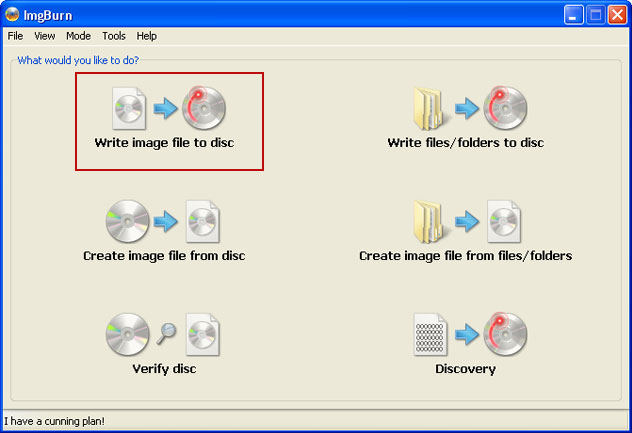
So, open up ImgBurn and choose Write image file to disc.


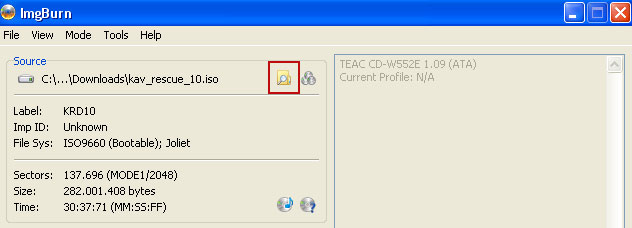
Click on the small Browse for file icon as show in the image. Browse into your download folder and select kav_rescue_10.iso as your source file.


OK, so know we are ready to burn the .iso file. Simply click the Write image file to disc button below and after a few minutes you will have a bootable Kaspersky Rescue Disk 10.


3. Configure your computer to boot from CD/DVD. Use the Delete or F2, F11 keys, to load the BIOS menu. Normally, the information how to enter the BIOS menu is displayed on the screen at the start of the OS boot.


The keys F1, F8, F10, F12 might be used for some motherboards, as well as the following key combinations:
  • Ctrl+Esc
  • Ctrl+Ins
  • Ctrl+Alt
  • Ctrl+Alt+Esc
  • Ctrl+Alt+Enter
  • Ctrl+Alt+Del
  • Ctrl+Alt+Ins
  • Ctrl+Alt+S
If you can enter Boot Menu directly then simply select your CD/DVD-ROM as your 1st boot device.

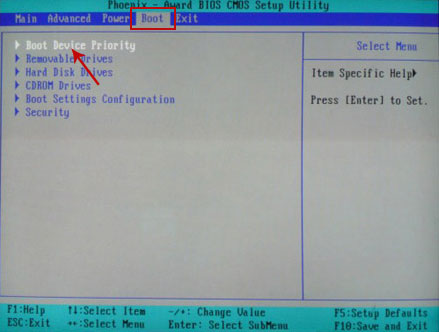
If you can't enter Boot Menu directly then simply use Delete key to enter BIOS menu. Select Boot from the main BIOS menu and then select Boot Device Priority.


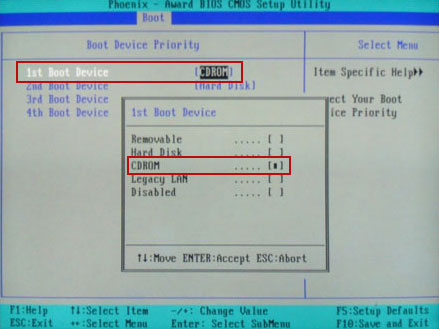
Set CD/DVD-ROM as your 1st Boot Device. Save changes and exist BIOS menu.


4. Let's boot your computer from Kaspersky Rescue Disk.

Restart your computer. After restart, a message will appear on the screen: Press any key to enter the menu. So, press Enter or any other key to load the Kaspersky Rescue Disk.


5. Select your language and press Enter to continue.


6. Press 1 to accept the End User License Agreement.


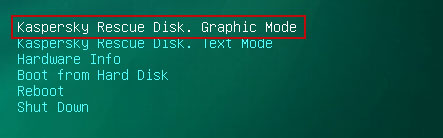
7. Select Kaspersky Rescue Disk. Graphic Mode as your startup method. Press Enter. Once the actions described above have been performed, the operating system starts.


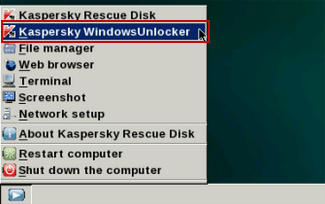
8. Click on the Start button located in the left bottom corner of the screen. Run Kaspersky WindowsUnlocker to remove Windows system and registry changes made by Police Central e-crime Unit virus. It won't take very long.


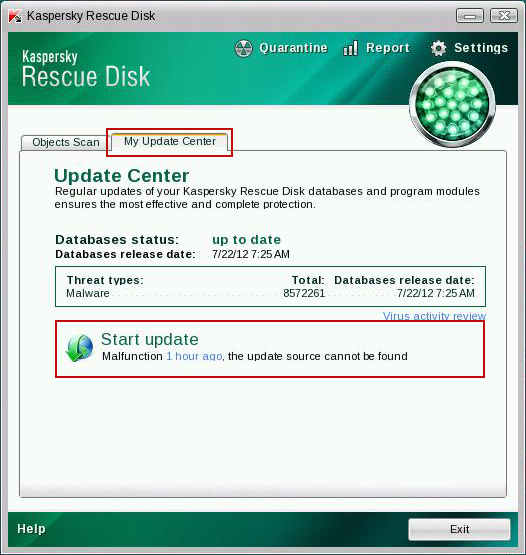
9. Click on the Start button once again and fire up the Kaspersky Rescue Disk utility. First, select My Update Center tab and press Start update to get the latest malware definitions. Don't worry if you can't download the updates. Just proceed to the next step.


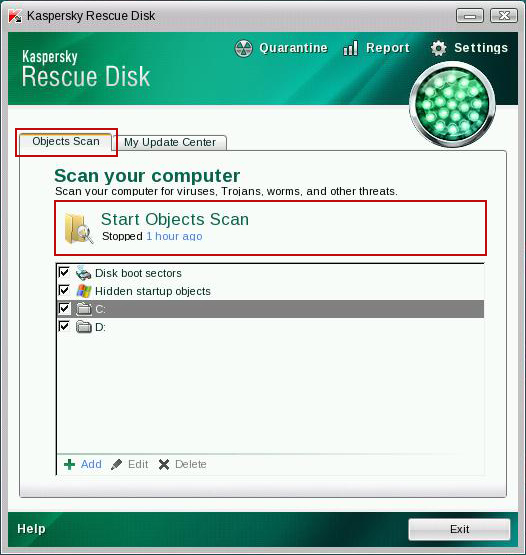
10. Select Object Scan tab. Place a check mark next to your local drive C:\. If you have two or more local drives make sure to check those as well. Then click Start Objects Scan to scan your computer for malicious software.


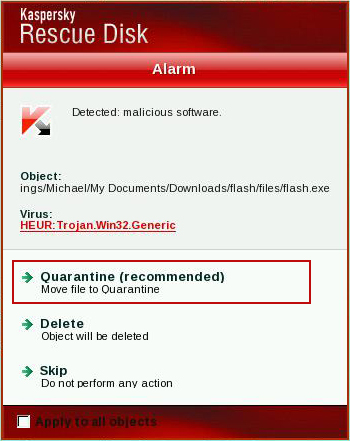
11. Quarantine (recommended) or delete every piece of malicious code detected during the system scan.


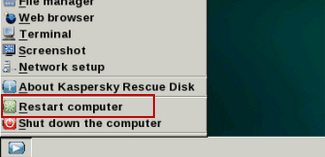
12. You can now close the Kaspersky Rescue Disk utility. Click on the Start button and select Restart computer.


13. Please restart your computer into the normal Windows mode. Download recommended anti-malware software (direct download) and run a full system scan to remove the remnants of Police Central e-crime Unit virus and to protect your computer against these types of threats in the future.

For for information about ransomware threats and possible removal methods, please read the general ransomware removal guide.

Tell your friends:

Monday, July 23, 2012

Remove International Police Association (I.P.A.) Virus (Uninstall Guide)

Don't Copy From This Blog...

Protected by Copyscape Plagiarism Detection
We ran across a new piece of ransomware that uses the branding of International Police Association (I.P.A.) to deceive you into paying a 'fine' to have your computer unlocked.

This infection is classified as a Trojan:Win32/LockScreen.CI. Ransomware applications from the LockScreen family have been targeting European internet users recently. However, the malicious code can be easily changed to target users in United States, Canada or any other country/region. Ransomware's characteristics change slightly depending on the IP address of the infected computer.

Currently, there are numerous reported infections in Austria, Belgium, Switzerland, Germany, Spain, France, Greece, Italy, Finland, Nederland, Poland, Portugal and Sweden. It's rather surprising that they decided to skip UK and U.S., at least for now. Usually, these countries are the prime targets.


When the International Police Association (I.P.A.) virus has infected your computer, it simply prevents you from accessing The Desktop and displays a fake warning claiming that the system was locked by I.P.A because you were watching and/or distributing illegal content.

Usually, cyber criminals include some scary text about child pornography and copyrighted files. We have to admit that the fake warning is incredibly realistic. We've talked with some people about similar infections and they all admitted that they were scared to death when they saw these police warnings. Few of them even paid 'fines', usually $50 or $100.

Although, there are really nasty and sophisticated ransomware applications out there, International Police Association virus is not one of them, thankfully. It doesn't encrypt files and it doesn't make complex system modifications. The scheme is very simple: once the Trojan is executed, it determines your IP address, changes numerous system settings, creates a full screen window, loads fake warning text and then downloads all the necessary graphics from remote server. For example, if you live in Spain, this virus will load Spanish warning text and download Spain flag from a remote server. And that's it.

Most of the time, victims are urged to pay a 'fine' using a UKash voucher. Surprisingly, you can choose how much you are willing to pay; it's either 50 or 100 euros. That's kind of weird. However, this is a scam. Do not transfer any money or purchase vouchers. Please also note that UKash is a legitimate firm and is not involved in this International Police Association ransomware scam.

International Police Association (I.P.A.) virus warning in different countries:

Ihr Computer wurde gesperrt
Ihr Computer wurde durch das System der automatischen Informationskontrolle gesperrt


Votre ordinateur est bloqué
Votre ordinateur a été bloqué par le système de contrôle automatique informationnel


El ordenador suyo esta bloqueado
El ordenador suyo fue bloqueado por el sistema del control informativo automatizado


O υπολογιστής σας έχει μπλοκαριστεί


.
.
.

Il suo computer è stato bloccato
il suo computer è stato bloccato da sistema di controllo d'informazione automatico

Tietokoneenne lukkiutui

Uw computer is geblokkeerd
Uw computer is geblokkeerd door het systeem van een automatische informatiecontrole

Ten komputer został zablokowany
Ten komputer został zablokowany przez system automatycznej kontroli informacyjnej

O seu computador foi bloqueado
O seu computador foi bloqueado pelo sistema do controlo automatico de informação

Datorn har blockerats
Datorn har blockerats av ett system för avtomatisk information kontroll

If you have ever tried to get rid of ransomware you may have thought its darn near impossible. The good news is that International Police Association (I.P.A.) virus isn't very aggressive unless it comes bundled with other malware. Most of the time, this ransowmare allows victims to reboot their PCs in Safe Mode with Networking and download anti-malware software. Anti-malware software removes the virus and you can happily user your computer once again. But if you were 'lucky' enough to get modified version of this ransomware then it's definitely a nuisance. In such case, you will have to use Kaspersky Rescue CD or any other Live CD to remove International Police Association virus from your computer. Both removal methods are described in details below. So, fist of all, try to reboot your computer in Safe Mod and if it doesn't work then follow the alternate removal guide.

If you have any questions are need extra help removing this ransomware from your computer, please leave comments below. Good luck!

Source: http://spywareremovalx.blogspot.com


Quick 'International Police Association' Ransomware removal instructions (System Restore, may not work for all users):

1. Reboot your computer in Safe Mode with Command Prompt. As the computer is booting tap the F8 key continuously which should bring up the "Windows Advanced Options Menu" as shown below. Use your arrow keys to move to Safe Mode with Command Promptand press Enter key.


2. Make sure you log in to an account with administrative privileges (login as admin).

3. Once the Command Prompt appears you have few seconds to type in explorer and hit Enter. If you fail to do it within 5 seconds, the 'International Police Association' ransomware will take over and will not let you type anymore.

4. If you managed to bring up Windows Explorer you can now browse into:
  • Win XP: C:\windows\system32\restore\rstrui.exe and press Enter
  • Win Vista/Seven: C:\windows\system32\rstrui.exe and press Enter
5. Follow the steps to restore your computer into an earlier day when it wasn't infected.

6. Download recommended anti-malware software (Spyware Doctor) and run a full system scan to remove the remnants of International Police Association (I.P.A.) virus and to protect your computer against these types of threats in the future.


International Police Association Ransomware removal using Kaspersky Rescue Disk:

1. Download the Kaspersky Rescue Disk iso image from the Kaspersky Lab server. (Direct download link)
Please note that this is a large downloaded, so please be patient while it downloads.

2. Record the Kaspersky Rescue Disk iso image to a CD/DVD. You can use any CD/DVD record software you like. If you don't have any, please download and install ImgBurn. Small download, great software. You won't regret it, we promise.

For demonstration purposes we will use ImgBurn.

So, open up ImgBurn and choose Write image file to disc.


Click on the small Browse for file icon as show in the image. Browse into your download folder and select kav_rescue_10.iso as your source file.


OK, so know we are ready to burn the .iso file. Simply click the Write image file to disc button below and after a few minutes you will have a bootable Kaspersky Rescue Disk 10.


3. Configure your computer to boot from CD/DVD. Use the Delete or F2, F11 keys, to load the BIOS menu. Normally, the information how to enter the BIOS menu is displayed on the screen at the start of the OS boot.


The keys F1, F8, F10, F12 might be used for some motherboards, as well as the following key combinations:
  • Ctrl+Esc
  • Ctrl+Ins
  • Ctrl+Alt
  • Ctrl+Alt+Esc
  • Ctrl+Alt+Enter
  • Ctrl+Alt+Del
  • Ctrl+Alt+Ins
  • Ctrl+Alt+S
If you can enter Boot Menu directly then simply select your CD/DVD-ROM as your 1st boot device.

If you can't enter Boot Menu directly then simply use Delete key to enter BIOS menu. Select Boot from the main BIOS menu and then select Boot Device Priority.


Set CD/DVD-ROM as your 1st Boot Device. Save changes and exist BIOS menu.


4. Let's boot your computer from Kaspersky Rescue Disk.

Restart your computer. After restart, a message will appear on the screen: Press any key to enter the menu. So, press Enter or any other key to load the Kaspersky Rescue Disk.


5. Select your language and press Enter to continue.


6. Press 1 to accept the End User License Agreement.


7. Select Kaspersky Rescue Disk. Graphic Mode as your startup method. Press Enter. Once the actions described above have been performed, the operating system starts.


8. Click on the Start button located in the left bottom corner of the screen. Run Kaspersky WindowsUnlocker to remove Windows system and registry changes made by International Police Association (I.P.A.) Virus. It won't take very long.


9. Click on the Start button once again and fire up the Kaspersky Rescue Disk utility. First, select My Update Center tab and press Start update to get the latest malware definitions. Don't worry if you can't download the updates. Just proceed to the next step.


10. Select Object Scan tab. Place a check mark next to your local drive C:\. If you have two or more local drives make sure to check those as well. Then click Start Objects Scan to scan your computer for malicious software.


11. Quarantine (recommended) or delete every piece of malicious code detected during the system scan.


12. You can now close the Kaspersky Rescue Disk utility. Click on the Start button and select Restart computer.


13. Please restart your computer into the normal Windows mode. Download recommended anti-malware software (Spyware Doctor) and run a full system scan to remove the remnants of International Police Association (I.P.A.) virus and to protect your computer against these types of threats in the future.

For for information about ransomware threats and possible removal methods, please read the general ransomware removal guide.

Tell your friends:

 
//PART 2