Searchqu is installed alongside a shareware or freeware applications that are often defined as adware or potentially unwanted software. Searchqu is not a virus or any other type of malicious software. It changes your default home page to point to searchqu.com, installs a toolbar and adds additional search engine called Web Search. Some users report that each time they type search terms in the top search/URL box they get redirected to searchqu.com or search-results.com. I you ended up with this rather annoying software, then you probably were not paying attention and clicked through the installer of freeware software (very often Bandoo Media, iLivid) without noticing that you had agreed to those changes. Usually, it's an opt-out choice and you should really pay more attention to various optional features during the install process. We have no evidence that Searchqu is being distributed through the use of Trojans or any other malware. It doesn't download/install malware either. Searchqu doesn't appear in the list of programs, so you can't easily uninstall it. We receive emails from various people who can't remove Searchqu toolbar completely or restore web browser's default settings (usually, search engine and home page). If you have the same problem, please follow Searchqu removal guide for Internet Explorer, Mozilla Firefox and Google Chrome. Good luck and be safe online!

Removal guide updates:
05/25/11 - Created
01/29/2012 - Removal video
Searchqu removal instructions:1. First of all, download recommended anti-malware software and run a full system scan. It will detect and remove this infection from your computer. You may then follow the manual removal instructions below to remove the leftover traces of this browser hijacker. Hopefully you won't have to do that.
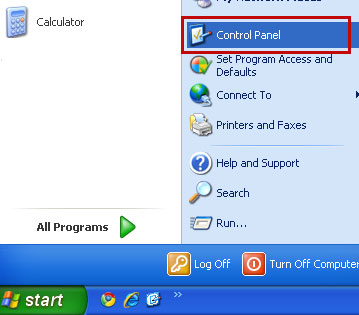
2. Go to the
Start Menu. Select
Control Panel →
Add/Remove Programs.
If you are using Windows Vista or Windows 7, select
Control Panel →
Uninstall a Program.
3. Search for
Searchqu Toolbar and
iLivid in the list. Select the program(s) and click
Remove button.
If you are using Windows Vista/7, click
Uninstall up near the top of that window.

Remove Searchqu Toolbar in Internet Explorer:1. Open Internet Explorer. Go to
Tools →
Manage Add-ons.

2. Select
Toolbars and Extensions. Uninstall/disable everything related to Searchqu from the list: Searchqu toolbar, UrlHelper Class, Bandoo Media, iLivid, etc.

3. Select
Search Providers. First of all, choose
Bing search engine and make it your default search provider. Then select
Web Search and click
Disable suggestions to disable it.

4. Go to
Tools →
Internet Options. Select
General tab and click Use default button or enter your own website, e.g. google.com instead of searchqu.com. Click OK to save the changes. And that's about it.

Remove Searchqu Toolbar in Mozilla Firefox:1. Open Mozilla Firefox. Go to
Tools →
Add-ons.

2. Select
Extensions. Choose Searchqu Toolbar, Bandoo Media, iLivid (if found) and click
Uninstall button.

3. Go to
Tools →
Options. Under the
General tab reset the startup homepage or change it to google.com, etc. That's it.

4. In the location bar, type
about:config and hit Enter.
In the filter at the top, type:
keyword.URLDouble click it and remove searchqu.com and replace it with http://www.google.com.
It's possible that Searchqu will add itself to more than one place in about:config. To find other possible locations, please watch this Searchqu removal video:
Remove Searchqu in Google Chrome:1. Click on
Customize and control Google Chrome icon and select
Options.

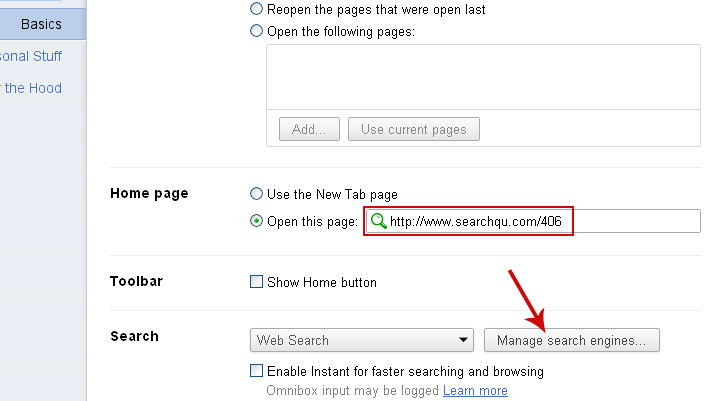
2. Choose
Basic Options. Change Google Chrome homepage to google.com or any other and click the
Manage search engines... button.
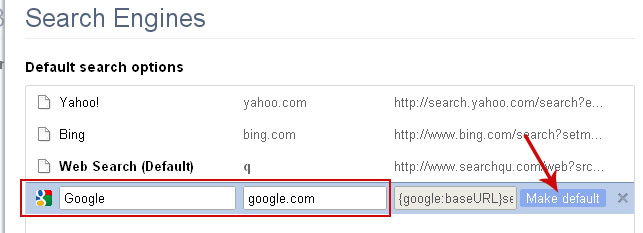
3. Select
Google from the list and make it your default search engine.
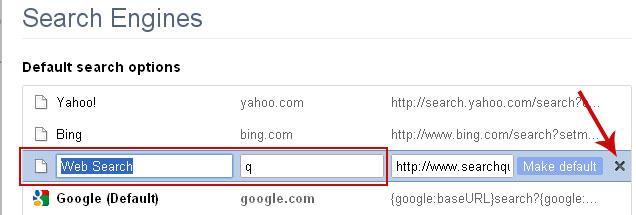
4. Select
Web Search from the list remove it by clicking the "
X" mark as shown in the image below. That's it.
Remove Searchqu files and associated registry values manually (Optional)Searchqu Toolbar resides in
%AppData% folder.
%AppData% refers to:
C:\Documents and Settings\[UserName]\Application Data (in Windows 2000/XP)
C:\Users\[UserName]\AppData\Roaming (in Windows Vista & Windows 7)
Example in Windows XP:

Registry values are given below.
Associated Searchqu files and registry values:Files:
- %AppData%\searchqutoolbar\coupons\categories.xml
- %AppData%\searchqutoolbar\coupons\merchants.xml
- %AppData%\searchqutoolbar\coupons\merchants2.xml
- %AppData%\searchqutoolbar\dtx.ini
- %AppData%\searchqutoolbar\guid.dat
- %AppData%\searchqutoolbar\log.txt
- %AppData%\searchqutoolbar\preferences.dat
- %AppData%\searchqutoolbar\stat.log
- %AppData%\searchqutoolbar\stats.dat
- %AppData%\searchqutoolbar\uninstallIE.dat
- %AppData%\searchqutoolbar\uninstallStatIE.dat
- %AppData%\searchqutoolbar\version.xml
- %AppData%\searchqutoolbar\
- %Temp%\searchqutoolbar-manifest.xml
%AppData% refers to:
C:\Documents and Settings\[UserName]\Application Data (in Windows 2000/XP)
C:\Users\[UserName]\AppData\Roaming (in Windows Vista & Windows 7)
Registry values:
- HKEY_LOCAL_MACHINE\SOFTWARE\Classes\CLSID\{99079a25-328f-4bd4-be04-00955acaa0a7}\InprocServer32 "C:\PROGRA~1\WINDOW~4\ToolBar\searchqudtx.dll"
- HKEY_LOCAL_MACHINE\SOFTWARE\Classes\CLSID\{99079a25-328f-4bd4-be04-00955acaa0a7} "Searchqu Toolbar"
- HKEY_LOCAL_MACHINE\SOFTWARE\Classes\CLSID\{A40DC6C5-79D0-4ca8-A185-8FF989AF1115}\VersionIndependentProgID "SearchQUIEHelper.UrlHelper"
- HKEY_LOCAL_MACHINE\SOFTWARE\Classes\CLSID\{A40DC6C5-79D0-4ca8-A185-8FF989AF1115}\ProgID "SearchQUIEHelper.UrlHelper.1"
- HKEY_LOCAL_MACHINE\SOFTWARE\Classes\CLSID\{A40DC6C5-79D0-4ca8-A185-8FF989AF1115} "UrlHelper Class"
- HKEY_LOCAL_MACHINE\SOFTWARE\Classes\SearchQUIEHelper.DNSGuard\CurVer
- HKEY_LOCAL_MACHINE\SOFTWARE\Classes\SearchQUIEHelper.DNSGuard\CLSID
- HKEY_LOCAL_MACHINE\SOFTWARE\Classes\SearchQUIEHelper.DNSGuard
- HKEY_LOCAL_MACHINE\SOFTWARE\Classes\SearchQUIEHelper.DNSGuard.1
- HKEY_LOCAL_MACHINE\SOFTWARE\Microsoft\Internet Explorer\Toolbar "Searchqu Toolbar"
- HKEY_LOCAL_MACHINE\SOFTWARE\Microsoft\Windows\CurrentVersion\Explorer\Browser Helper Objects\{99079a25-328f-4bd4-be04-00955acaa0a7} "Searchqu Toolbar"
Share the knowledge:


