Wednesday, January 11, 2012

Remove Audio Ads Virus (Uninstall Guide)

Don't Copy From This Blog...

Protected by Copyscape Plagiarism Detection
Malware which plays audio advertisements is nothing new. We constantly receive emails from our readers reporting that their PCs were producing unusual sounds and playing audio/sound ads even with no programs open or running at the time. Audio ads usually last 10-20 seconds and blast at random times or regularly two to five times an hour. It could be 30 seconds of music or clips of commercials and even repeated insults like 'you are fool' and other impolite noises. Generally, PC users call it the 'audio ads virus'. However, this really isn't a correct classification because a computer virus, by strict definition, is a program which spreads by attaching copies of itself to executable objects. Ads, including audio advertisements, are very often caused by adware, Trojan horses and rootkits.

Despite scanning compromised computers several times with anti-virus software, the audio ads virus escaped detection although it continues to play ads. What is more, malware which plays these annoying audio of advertisements, may redirect users to spam or infected websites and even disconnect from the Internet. This clearly indicates malware present. Unfortunately, not all antivirus companies detect or remove this deceptive software because it is different from malware. Besides, sometimes it could be a browser helper object (BHO) or a browser extension that cause audio advertisements and redirects. So, it's not necessarily because of the malware infection. If you hear audio ads on certain websites only, it could be that webmasters use Pay Per Play marketing method to earn some cash.

It's not too hard to imagine why the 'Audio Ads Virus' problem is very annoying and persistent. There's simply not way to fix it using a single utility. The following removal procedure has been created to help you to remove malware which plays audio advertisements. Please follow the steps bellow very carefully. Good luck and be safe online!


Audio Ads Virus removal instructions:

1. Manage Internet Explorer add-ons. Remove or disable unknown/suspicious add-ons and browser extensions. Open Internet Explorer. In Internet Explorer go to: Tools->Manage Add-ons. Uninstall unknown or suspicious Toolbars.


You should remove potentially harmful add-ons in all web browsers.

2. Scan your computer with TDSSKiller and ZeroAccess removal utility to remove rootkits from your computer (if exist).

TDSSKiller: http://support.kaspersky.com/downloads/utils/tdsskiller.exe
ZeroAccess removal utility: http://anywhere.webrootcloudav.com/antizeroaccess.exe

Wait for the scan and disinfection process to be over. It might be necessary to reboot your computer after the disinfection is over.

3. Run a thorough check for malware.download recommended anti-malware software and run a full system scan to remove this audio ads virus from your computer.


4. Use CCleaner to remove unnecessary system/temp files and browser cache. CCleaner is a freeware system optimization. It’s always a good idea to get rid of unnecessary internet/system files or corrupter Windows registry values that may cause various problems to your computer. Downlaod CCleaner.

If neither anti-malware software or self help did resolve the issue, you can leave a comment below and ask for help or start a new tread in computer tech and malware removal forums.

Share this information with your friends:

Tuesday, January 10, 2012

Msdcsc.exe Process Information

Don't Copy From This Blog...

Protected by Copyscape Plagiarism Detection
Msdcsc.exe is a backdoor Trojan that allows remote access to the infected computer. This file has been identified as a threat and should be removed from the infected computer immediately. In short, msdcsc.exe is usually detected as Backdoor.Agent and Trojan.Agent. It runs every time Windows starts.

Once installed, this Trojan creates the following files in Windows:
  • C:\Users\[UserName]\Documents\MSDCSC\msdcsc.exe
  • C:\Users\[UserName]\My Documents\MSDCSC\msdcsc.exe
This Trojan modifies Windows registry as well:
  • HKEY_CURRENT_USER\Software\Microsoft\Windows\CurrentVersion\Run "C:\Users\[UserName]\Documents\MSDCSC\msdcsc.exe"
Msdcsc.exe may block access to the security related websites. There are no genuine software associated with this file/process.

This is a harmful program. To remove msdcsc.exe, please scan your computer with anti-malware software.

Security Rating: Dangerous

Share this information with your friends:

Friday, January 6, 2012

Remove EoRezo Adware/PUP (Uninstall Guide)

Don't Copy From This Blog...

Protected by Copyscape Plagiarism Detection
EoRezo is a small desktop weather program. The company behind EoRezo product line says this program provides 6-day forecast for over 20K cities worldwide. At the time I ran this program it failed to show New York weather forecast for the next 6 days. Maybe the service was down or something. It seems to be relatively legitimate software, although it displays targeted advertising on your computer while browsing the Internet.


It is considered adware since it is ad-supported and detected as potentially unwanted program by Microsoft, Sophos, ESET and some other anti-virus companies. It's not classified as spyware because the advertising is based on downloaded pre-configured information. EoRezo sends http requests to ads.eorezo.com and then displays a pop-up window with ads. Usually, it advertises dating websites, video/audio pleayers, online shops and games. EoRezo adware may come bundled with other applications, usually freeware and shareware. However, it's very unlikely that it got installed into your computer without your knowledge. You should be able to uninstall Eorezo using Add/Remove in Control Panel. If the ads keep popping up on your computer even though you uninstalled EoRezo, please scan your computer with anti-malware software or delete associated files manually. Follow the removal guide below.


EoRezo removal instructions:

1. First of all, download recommended anti-malware software and run a full system scan. It will detect and remove this infection from your computer. You may then follow the manual removal instructions below to remove the leftover traces of this browser hijacker. Hopefully you won't have to do that.


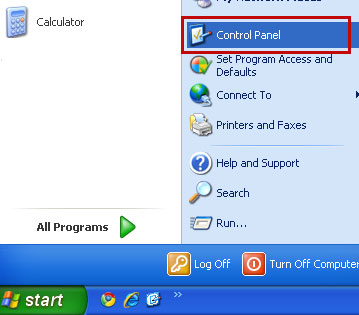
2. Go to the Start Menu. Select Control Panel → Add/Remove Programs.
If you are using Windows Vista or Windows 7, select Control Panel → Uninstall a Program.


3. Search for eoEngine 13.1, SoftwareUpdate 1.0 and eoRezo 15.0 in the list. Select these programs and click Remove button.
If you are using Windows Vista/7, click Uninstall up near the top of that window.


4. Restart your computer. EoRezo should be gone. If it is still on your computer, please scan your computer with anti-malware software or remove associated files manually.


Associated EoRezo files and registry values:

Files:
  • C:\Program Files\eoRezo\eoRezo.exe
  • C:\Program Files\eoRezo\EoEngine.exe
  • C:\Documents and Settings\[User]\Application Data\EoRezo\SoftwareUpdateHP.exe
Registry values:
  • HKLM\SOFTWARE\Classes\AppID\EoEngineBHO.DLL
  • HKCU\Software\Microsoft\Windows\CurrentVersion\Internet Settings\5.0\Cache\Extensible Cache\MSHist012011101220111013
Share this information with your friends:
Wednesday, January 4, 2012

Remove BasicScan (Uninstall Guide)

Don't Copy From This Blog...

Protected by Copyscape Plagiarism Detection
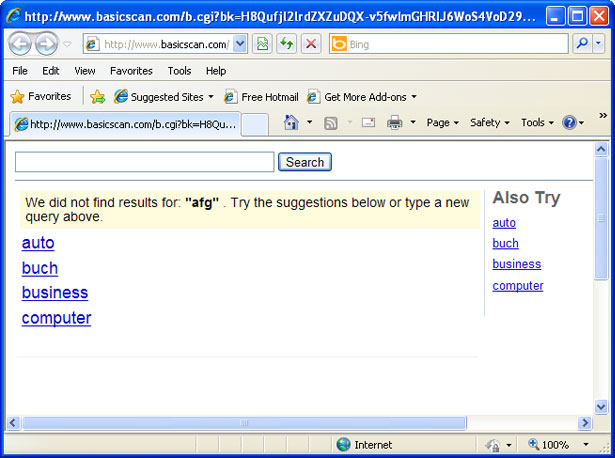
BasicScan is an address bar search provider that overrides existing search settings and changes the default search providers in Internet Explorer, Mozilla Firefox and Google Chrome. Normally, if you enter a website's address correctly, you will go directly to the requested website. However, if you enter a wrong or incomplete address, you will automatically launch a search using the currently selected search engine. You can also search directly from the address bar cutting the time spent typing in web site address and then typing in your search query. Most users prefer Google Search or Bing and it's truly annoying when another search provider takes over the search function and returns irrelevant, limited and very often sponsored search results from http://www.basicscan.com.


Searching the internet shows many people are having problems with BasicScan. Most of the time users complain that they get redirected to another search engine called basicscan.com and no matter how many times they run anti-virus software, BasicScan pop-ups with sponsored search results. Others noticed that their computers have become quite slow and search results are taking a long time to show up. Although, many users think BasicScan is a virus, antivirus software do not see it as a threat. BasicScan address bar search provider comes bundled with freeware, video players, converters, etc. Some of those tools can be classified as adware or spyware by some anti-virus companies but the the BasicScan itself. Quote from BasicScan's Search Terms and Conditions page:
BasicScan Domains does not collect any personally identifiable information from you.
You can uninstall all of the components of BasicScan Search Desktop at any time by using the standard Add/Remove Programs function provided in the Windows operating system.
BasicScan Search Desktop runs in the background of your computer so that it can always provide you with the functions listed above, but it will not impact the performance of your computer.
However, we know that this quote isn't true all the time. People are having issues with BasicScan. They can't uninstall it properly and restore default web browser settings. That's why we wrote and easy to follow (we hope) BasicScan removal guide for Internet Explorer, Mozilla Firefox and Google Chrome. If you need help removing BasicScan, please leave a comment below. If you would like to share your experiences with our readers, don't hesitate and drop a line. Good luck and be safe online!


BasicScan removal instructions:

1. First of all, download recommended anti-malware software and run a full system scan. It will detect and remove this infection from your computer. You may then follow the manual removal instructions below to remove the leftover traces of this browser hijacker. Hopefully you won't have to do that.


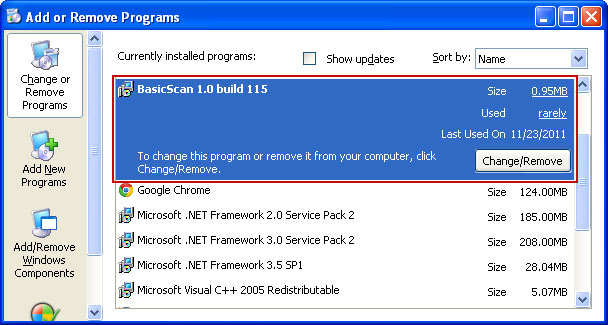
2. Go to the Start Menu. Select Control Panel → Add/Remove Programs.
If you are using Windows Vista or Windows 7, select Control Panel → Uninstall a Program.


3. Search for BasicScan 1.0 build 115 in the list. Select the program and click Remove button.
If you are using Windows Vista/7, click Uninstall up near the top of that window.


4. Restart your computer. If BasicScan is still on your computer, please follow the removal instructions bellow to remove the remains of this search provider.


Remove BasicScan in Internet Explorer:

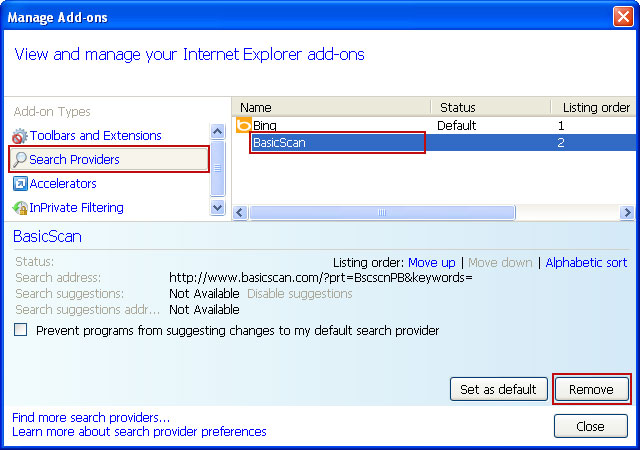
1. Open Internet Explorer. Go to Tools → Manage Add-ons.


2. Select Search Providers. First of all, choose Bing search engine and make it your default search provider. Then select BasicScan and click Remove button to uninstall it (lower right corner of the window).


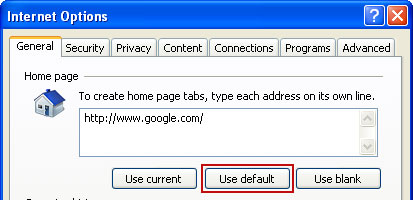
3. Go to Tools → Internet Options. Select General tab and click Use default button or enter your own website, e.g. gooogle.com instead of basicscan.com. Click OK to save the changes.


Remove BasicScan in Mozilla Firefox:

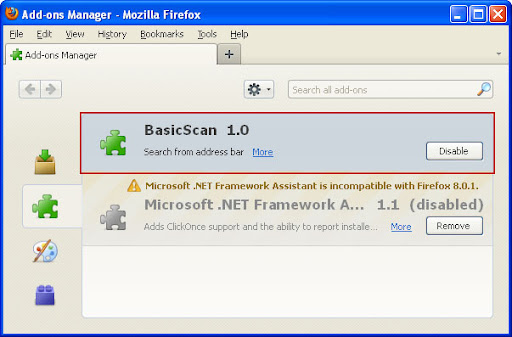
1. Open Mozilla Firefox. Go to Tools → Add-ons.


2. Select Extensions. Choose BasicScan 1.0 and click Uninstall button then Uninstall.


3. Go to Tools → Options. Under the General tab reset the startup homepage. That's it.


Remove BasicScan in Google Chrome:

1. Click on Customize and control Google Chrome icon and select Options.


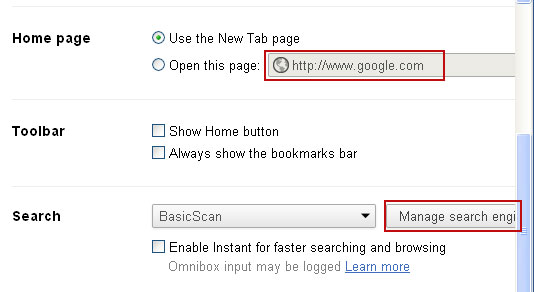
2. Change Google Chrome homepage to google.com or any other and click the Manage search engines... button.


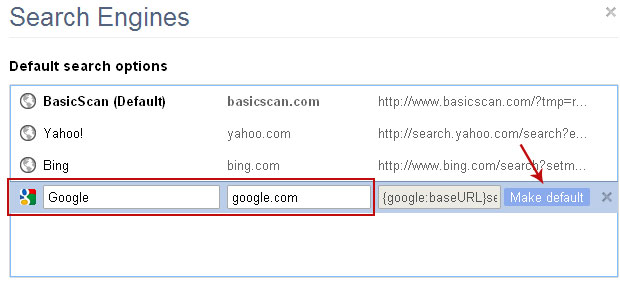
3. Select Google from the list and make it your default search engine.


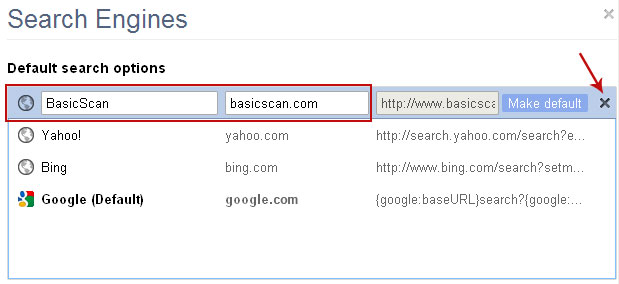
4. Select BasicScan from the list remove it by clicking the "X" mark as shown in the image below. That's it.


    Share this information with your friends:

    Monday, January 2, 2012

    Be A Guest Writer

    Don't Copy From This Blog...

    Protected by Copyscape Plagiarism Detection
    People spend so much time communicating on social networks, writing their own opinions and experiences. So, we thought, wouldn't it be nice if our readers could add their own views to topics covered on this website? After some deliberations we decided to open up this blog for our readers and the tech community.

    We are interested in articles relating to:
    • Malicious software (spyware, adware, Trojan horses, etc.)
    • "How to..." guides or solutions to common computer problems
    • Security programs you think others would be interested in
    • Social media/online security
    • Any other topics related to PC security (we are open to suggestions)
    General guidelines:
    • Unique content that you haven't published elsewhere (English submissions only)
    • Minimum of 800 words (can be less if it's a "How To..." guide)
    • 1 external hyperlink (non affiliate, Google PR is taken into consideration)
    • We review every submission manually. Submitting an article does not guarantee that we publish it.
    If you want to submit an article, please contact me through kaur.michael@gmail.com. Include the completed article, a link to your website, or the company you represent, if any. We are looking forward to your submissions. If you have any questions, don't hesitate to contact us at the above email address.

     
    //PART 2