Monday, January 2, 2012

Be A Guest Writer

Don't Copy From This Blog...

Protected by Copyscape Plagiarism Detection
People spend so much time communicating on social networks, writing their own opinions and experiences. So, we thought, wouldn't it be nice if our readers could add their own views to topics covered on this website? After some deliberations we decided to open up this blog for our readers and the tech community.

We are interested in articles relating to:
  • Malicious software (spyware, adware, Trojan horses, etc.)
  • "How to..." guides or solutions to common computer problems
  • Security programs you think others would be interested in
  • Social media/online security
  • Any other topics related to PC security (we are open to suggestions)
General guidelines:
  • Unique content that you haven't published elsewhere (English submissions only)
  • Minimum of 800 words (can be less if it's a "How To..." guide)
  • 1 external hyperlink (non affiliate, Google PR is taken into consideration)
  • We review every submission manually. Submitting an article does not guarantee that we publish it.
If you want to submit an article, please contact me through kaur.michael@gmail.com. Include the completed article, a link to your website, or the company you represent, if any. We are looking forward to your submissions. If you have any questions, don't hesitate to contact us at the above email address.

Sunday, January 1, 2012

Remove Tidserv Activity 2 (Uninstall Guide)

Don't Copy From This Blog...

Protected by Copyscape Plagiarism Detection
Tidserv Activity 2 is Norton's IPS signature designed to inform you about the network activities initiated by a Trojan horse called Backdoor.Tidserv (alias Alureon, TDSS, TDL) and to prevent further damage from happening. IPS (Intrusion Prevention System) protects your computer from exploits that attempt to install malicious software, in this case Backdoor.Tidserv, via known software vulnerabilities. It's a very sophisticated malicious code and a serious security threat. It uses an advanced rootkit that can intercept system functions to hide itself and bypass antivirus detection. This Trojan/rootkit combination redirects search results, displays advertisements and leaves your computer wide open to web attacks. Your anti-virus software or Windows system utilities may also report high memory and CPU usage for ping.exe. Ping.exe write-up.

Norton does a good job of protecting people, however, certain intrusion attempts and malicous code require manual removal. If you see an alert saying "Threat requiring manual removal detected: System infected: Tidserv Activity 2", it means your computer is infected by Backdoor.Tidserv and you need to use additional utility that allows removing sophisticated combination of backdoor Trojan horse and rootkits. Norton has developed the Backdoor.Tidserv Removal Tool. Kaspersky Lab has the TDSSKiller utility. Both tools can be used to remove Backdoor.Tidserv infection and to stop an intrusion attempt message Tidserv Activity 2 triggered by this malware. To remove this malware from your computer, please follow the removal instructions below. Good luck and be safe online!


Tidserv Activity 2 / Backdoor.Tidserv removal instructions:

1. Download Backdoor.Tidserv Removal Tool.

2. Close all running programs. Double-click the FixTDSS.exe file to start the removal tool.

3. Click Start to begin the process, and then allow the tool to run. Remove found malware and close the program. That's it!

4. Then download and execute TDSSKiller. Press the button Start scan for the utility to start scanning. It will detect and cure found malware automatically. A reboot might require after disinfection.

5. Finally, scan your computer with anti-malware software to make sure that your computer is virus free.

Share this information with your friends:

Saturday, December 31, 2011

Remove "System Check" (Uninstall Guide)

Don't Copy From This Blog...

Protected by Copyscape Plagiarism Detection
System Check is malicious software posing as Windows system utility. Although, it may look like a real thing, it isn't! You are actually dealing with scareware and the newest TDL rootkit. Once installed, this fake system utility starts throwing lots of bogus error messages, blocks Task Manager and other programs (including antivirus software), hides all icons and program shortcuts. It does the same thing in safe mode too. As you can tell already, it's a nasty virus. In a previous writeup, we analyzed another rogue program called System Fix. It's pretty much the same type of infection. The two most important things to remember when removing this virus: do not purchase it and do not delete temporary Windows files stored in %Temp% folder using CCleaner or similar software. To remove System Check malware from your computer, please follow the removal instructions below.
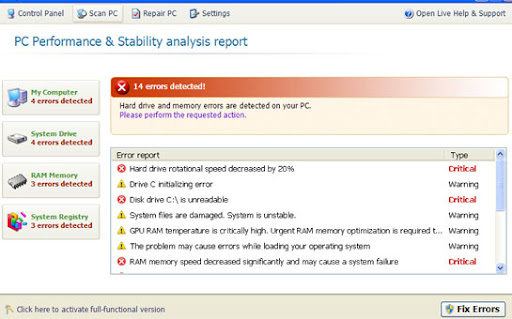


Common symptoms of System Check infection:
  • false error messages, "Hard drive clusters are partly damaged" and similar
  • all icons and shortcuts are gone
  • Task Manager and other system utilities are blocked
  • can't run anti-virus software
  • search results page got redirected to irrelevant and infected websites. Happens in Internet Explorer and Mozilla Firefox.
The following websites where requested from the remote web server while our computer was infected with System Check scareware:
  • rosedalolandou.com
  • ushbrenerw.net
Here's and example of a fake system error:


Don't blame yourself if you fell for this scam. Call your credit card company and dispute the charges. Then follow the steps in the removal guide below to remove System Check and associated malware from your computer. If you have any questions, please leave a comment below. Good luck and be safe online!


Quick removal:


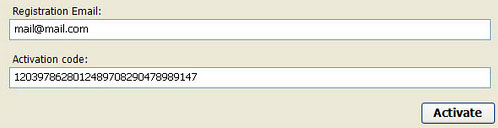
1. Use debugged registration key and fake email to register System Check malware. This will allow you to download and run any malware removal tool you like and restore hidden files and shortcuts. Choose to activate "System Check" manually and enter the following email and activation code:

mail@mail.com
15801587234612645205224631045976 (new code!)

mail@mail.com
1203978628012489708290478989147 (old code, may not work anymore)


2. Download TDSSKiller and run a system scan. Remove found rootkits as shown in the image below. Reboot your computer if required.

3. Download recommended anti-malware software (Spyware Doctor) and run a full system scan to remove this virus from your computer.


Alternate System Check removal instructions:

1. Open Internet Explorer. If the shortcut is hidden, pelase Select Run... from the Start Menu or just hit the key combination CTRL+R on your keyboard. In the Open: field, enter iexplore.exe and hit Enter or click OK.


2. Download and run this utility to restore missing icons and shortcuts.

3. Now, please download TDSSKiller and run a system scan. Remove found rootkits as shown in the image below. Reboot your computer if required.


Please note that your computer might be rootkit free, not all version of System Check comes bundled with rootkits. Don't worry if TDSSKiller didn't find a rootkit.

4. Finally, download recommended anti-malware software (Spyware Doctor) and run a full system scan to remove this virus from your computer.

5. System Check virus should be gone. If certain icons and shortcuts are still missing, please use restoresm.zip.


Associated System Check files and registry values:

Files:

Windows XP:
  • %AllUsersProfile%\Application Data\[SET OF RANDOM CHARACTERS]
  • %AllUsersProfile%\Application Data\[SET OF RANDOM CHARACTERS].exe
  • %UsersProfile%\Start Menu\Programs\System Check\
%AllUsersProfile% refers to: C:\Documents and Settings\All Users
%UserProfile% refers to: C:\Documents and Settings\[User Name]

Windows Vista/7:
  • %AllUsersProfile%\[SET OF RANDOM CHARACTERS]
  • %AllUsersProfile%\[SET OF RANDOM CHARACTERS].exe
  • %UsersProfile%\Start Menu\Programs\System Check\
%AllUsersProfile% refers to: C:\ProgramData
%UserProfile% refers to: C:\Users\[User Name]

Registry values:
  • HKEY_CURRENT_USER\Software\Microsoft\Windows\CurrentVersion\Run "[SET OF RANDOM CHARACTERS].exe"
  • HKEY_CURRENT_USER\Software\Microsoft\Windows\CurrentVersion\Policies\Attachments "SaveZoneInformation" = '1'
  • HKEY_CURRENT_USER\Software\Microsoft\Internet Explorer\Main "Use FormSuggest" = 'yes'
Share this information with your friends:

Tuesday, December 27, 2011

Theworld.exe Process Information

Don't Copy From This Blog...

Protected by Copyscape Plagiarism Detection
theworld.exe is a user invoked program called TheWorld Browser. It's a free web browser developed by Phoenix Studio. It has not been identified as a threat. The file is located in a subfolder of C:\Program Files.
  • C:\Program Files\theworld 2.0\theworld.exe
  • C:\Program Files\theworld 3\theworld.exe
theworld.exe runs at star-up. You can open up the System Configuration Utility in Windows, go to Startup tab and uncheck theworld.exe. It won't pop-up anymore. Some users find it difficult to completely uninstall TheWorld Browser, but normally you should be able to uninstall theworld.exe without any problems using an uninstall program or using the Add/Remove Programs control panel.

Security Rating: Safe

However, if the file 'theworld.exe' runs from %WinDir% or %Temp% then there is a great chance that it's actually malware posing as legit program. Across all our reports the file theworld.exe has sometimes been a threat. So, if you didn't install TheWorld Browser but the process is running, your computer is probably infected with malicious software. It could be Trojan-Dropper, Generic.PWStealer or similar infection. In such case, you should scan your computer with anti-malware software.
  • %System%\theworld.exe
  • %Temp%\theworld.exe
Security Rating: Dangerous


%System% is a variable that refers to the Windows folder in the short path form.
  • C:\Windows\system32\
%Temp% is a variable that refers to the temporary folder in the short path form.
  • C:\Documents and Settings\[UserName]\Local Settings\Temp\ (Windows 2000/NT/XP)
  • C:\Users\[UserName]\AppData\Local\Temp\ (Windows 7)

Share this information with your friends:
Remove Trojan Ramage (Uninstall Guide)

Don't Copy From This Blog...

Protected by Copyscape Plagiarism Detection
Trojan.Ramage, aliases Win32/Ontonphu and Win32/Flooder.Ramagedos, is a Trojan that servers as a back door. It is downloaded and dropped by other malicious programs and can be controlled remotely. This Trojan targets Windows OS. Although, it's not the most sophisticated piece of malicious code, Trojan Ramage may perform a distributed denial-of-service attack (DoS/DDoS) and collect certain information on the compromised computer. It then sends gathered information (operating system version and volume serial number) to a remote server.

When executed, the trojan usually copies itself into the 'Application Data' folder. However, it may drop additional files in Windows system folders as well. Trojan.Ramage creates the following files:
  • %UserProfile%\Application Data\ODBC.exe
  • %UserProfile%\Application Data\Intel.exe
  • %UserProfile%\Application Data\Netscape.exe
  • %UserProfile%\Application Data\Intel.exe
  • %UserProfile%\Application Data\Sysinternals.exe
  • %UserProfile%\Application Data\WinRAR.exe%
  • UserProfile%\Application Data\Policies.exe
  • %Windir%\Sxc\svchost.exe
  • %System%\drivers\svclock.exe
The Trojan adds various keys to Windows registry to runs automatically after a system reboot. Trojan Ramage adds itself to the Windows firewall authorized applications list to avoid anti-virus software detection and by-pass Windows firewall. To remove Trojan Ramage, please scan your computer with anti-malware software. If you need help removing this Trojan, please leave a comment below. Good luck and be safe online!

Share this information with your friends:
 
//PART 2