Saturday, October 8, 2011

Steve Jobs Alive! Spam, Win32/Waledac.C Trojan and Spambot

Don't Copy From This Blog...

Protected by Copyscape Plagiarism Detection
Steve Jobs' death is an enormous loss for all of us. Sadly, there are some people who exploited the death of Steve Jobs. They took the advantage of those shocked and moved by such a sad bit of news. Cyber criminals behind a botnet (Waledac?) mostly involved in e-mail spam were sending sending spam emails and distributing Trojan downloaders. The spam email has one of the following subjects:
  • Steve Jobs Alive!
  • Steve Jobs: Not Dead Yet!
  • Is Steve Jobs Really Dead?
  • Steve Jobs Not Dead!
Here's what the spam email looks like:


As you can see, scammers claim that Steve Jobs is alive and highly suggest you check it out. Clicking on the link provided will take you to a malicious website which distributes TrojanDownloader:Win32/Waledac.C [Microsoft]. Once installed, the Trojan downloader will request other malicious files from the Internet and eventually will turn your computer to another spamming machine (Spambot). Currently the detection rate is very low. Please think carefully about the links that you click on. Good luck and be safe online!

Share this information with your friends:

Thursday, October 6, 2011

Use Priv3 to Prevent Being Tracked by Social Networks

Don't Copy From This Blog...

Protected by Copyscape Plagiarism Detection
I use Facebook almost daily and I'm sure that for most of us it would be rather frustrating to have that taken away. Privacy is a major concern for lots of members. And we all know how Facebook grapples with privacy issues. I believe there will be even more privacy issues in the feature. However, I didn't know that Facebook can track your visits to other websites that have implemented "Like" or "Follow" buttons. Of course, it's possible only when you are logged into your Facebook account but you don't even have to click on either of these buttons. How rude!

All my favorites websites are integrated with Facebook, including this blog. The same can be said for websites like Twitter, Google Plus or LinkedIn. They can track your visits to other websites too. By the way, Google's +1 is becoming increasingly popular button as well.

So, if you're concerned about privacy, I highly recommend this installation. What it does is protect you from being tracked by social networks. It's a small but very useful Mozilla Firefox extension called Priv3. The best part is that Priv3 doesn't completely block social networking features. There won't be any negative impact on your interaction with social networks. It's funded by the National Science Foundation and developed by folks at Berkeley university. If you want to learn more about the Priv3 project, please visit the official website.


A screenshot of Priv3

You should also read our previous article Facebook Security and Privacy Best Practices to learn more about Facebook privacy settings and how to avoid Facebook scams. We also created a short guide on how to install Priv3 extension in Mozilla Firefox web browser. Please follow the steps in our installation guide below. Surf the Web with improved privacy. Good luck!

NOTE: before installing Priv3, please update your web browser but this extension is not compatible with older versions of Mozilla Firefox.


How to install Priv3

1. Go to http://priv3.icsi.berkeley.edu. Click on Install button.


2. Mozilla Firefox will display a notification as show in the image below. Please click Allow button to continue.


3. Click on Install Now button to install Priv3 extension.


4. Priv3 will be installed after you restart Firefox. Click on Restart Now button or just close your web browser. To view Priv3 icon, please enable Addon bar.


How to uninstall Priv3

1. Open Mozilla Firefox. Go to Tools → Add-ons.


2. Select Extensions. Choose Priv3 and click on Remove button.


Share this information with your friends:

How to Remove AV Guard Online (Uninstall Guide)

Don't Copy From This Blog...

Protected by Copyscape Plagiarism Detection
AV Guard Online is a fake anti-virus program that displays annoying pop-up messages claiming that viruses, Trojans, and other malicious software have been found, and offering to sell you a worthless solution. You should really beware of fake anti-virus software. Celebrity gossip, rumors, stolen tapes, infected adult websites and similar stuff usually lead users to malicious websites. We were actually very happy because of a significant drop in fake antivirus distribution activity. The authorities had taken down two distinct scam networks, there were only a few rogue anti-virus incidents during the last few weeks in your organization. Unfortunately, it's far too early to celebrate because cyber crooks came back with some fresh ideas and new viruses. On the other hand, rootkits and other more sophisticated malware took the lead and I'm not really sure what is worse. I've see a lot of posts out there about AV Guard Online already but only a few of them were created solely to help you to remove AV Guard Online malware without actually asking you to pay for commercial anti-malware software. I'm going to pass on a few words of wisdom, and while this may read like another "how to remove/get rid of", I'll show you some tricks that can make removal procedure a lot easier. To remove AV Guard Online from your computer, please follow the removal instructions below.


Before we continue, let's have a look at some of the fake security alerts and pop-ups designed to scare you into thinking that your computer is infected by Trojans and similar stuff. The graphical users interface is rather professional, but you can still tell it's a fake anti-virus program because genuine security products usually do not flash like very one or two minutes and do not block Windows system utilities. AV Guard Online reports the same infections on every infected computer, six threats including Trojan.VBS.Qhost, Trojan-Downloaded.JS.Remora and some others.

Here's an interesting fake security alerts claiming that your computer is infected by Keylogger Zeus malware.
Warning! Infection found
Unwanted software (malware) or tracking cookies have been found during last scan. It is highly recommended to remove it from your computer.
Keylogger Zeus was detected and put in quarantine.
Keylogger Zeus is a very dangerous software used by criminals to steal personal data such as credit card information, access to banking accounts, passwords to social networks and e-mails.


Nice, isn't it. There are some regular misleading pop-ups too.
Warning!
The file "taskmgr.exe" is infected. Running of application is impossible.
Please activate your antivirus software.

Security Warning
There are critical system files on your computer that were modified by malicious software.
It may cause permanent data loss.
Click here to remove malicious software.


And here's the whole list of supposedly infected items.


AV Guard Online is good at hiding from anti-virus programs. You're going to need to do a few things to make the system usable again. We wrote three different removal guides: manual removal guide, manual activation and the regular one using free anti-malware software. It is also worth mentioning that AV Guard Online can not delete your files and steal your sensitive information unless it comes bundled with more sophisticated malware. Most of the time it doesn't so do not worry. Oh, and one more thing, do not reboot your computer multiple times letting the infection dig deeper and deeper. Just follow the removal instructions below and you should be able to remove AV Guard Online without any problems. As always, if you have any questions, please leave comments below or just email us. Good luck and be safe online!

http://spywareremovalx.blogspot.com

AV Guard Online removal instructions:

1. Reboot your computer is "Safe Mode with Networking". As the computer is booting tap the "F8 key" continuously which should bring up the "Windows Advanced Options Menu" as shown below. Use your arrow keys to move to "Safe Mode with Networking" and press Enter key. Read more detailed instructions here: http://www.computerhope.com/issues/chsafe.htm


NOTE: Login as the same user you were previously logged in with in the normal Windows mode.

2. Download free anti-malware software from the list below and run a full system scan.
NOTE: in some cases the rogue program may block anti-malware software. Before saving the selected program onto your computer, you may have to rename the installer to iexplore.exe or winlogon.exe With all of these tools, if running Windows 7 or Vista they MUST be run as administrator. Launch the program and follow the prompts. Don't forget to update the installed program before scanning.


Manual AV Guard Online removal guide:

1. Right-click on AV Guard Online icon and select Properties. Then select Shortcut tab.


The location of the malware is in the Target box.


2. In our case the malicious file was located in C:\Windows\System32 folder. Select the malicious file, rename it and change a file name extension.

Original file: TcS22bF3nGaQWKf.exe


Renamed file: TcS22bF3nGaQWKf.vir
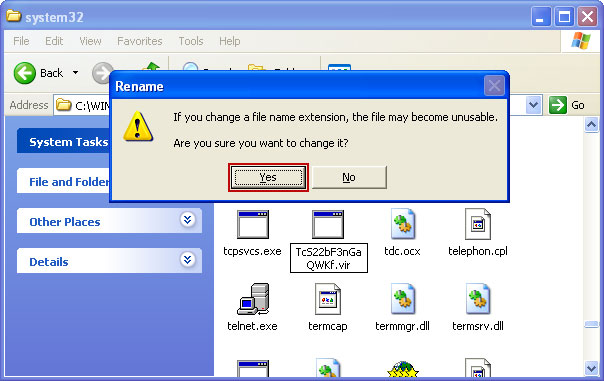


3. Restart your computer. After a reboot, download free anti-malware software from the list below and run a full system scan.
NOTE: in some cases the rogue program may block anti-malware software. Before saving the selected program onto your computer, you may have to rename the installer to iexplore.exe or winlogon.exe With all of these tools, if running Windows 7 or Vista they MUST be run as administrator. Launch the program and follow the prompts. Don't forget to update the installed program before scanning.


Manual activation and AV Guard Online removal:

1. Choose to remove threats and manually activate the rogue program. Enter one of the following codes to activate AV Guard Online.

9992665263
1148762586
1171249582
1186796371
1196121858
1225242171
1354156739
1579859198
1789847197
1835437232
1837663686
1961232582


2. Download free anti-malware software from the list below and run a full system scan.
NOTE: in some cases the rogue program may block anti-malware software. Before saving the selected program onto your computer, you may have to rename the installer to iexplore.exe or winlogon.exe With all of these tools, if running Windows 7 or Vista they MUST be run as administrator. Launch the program and follow the prompts. Don't forget to update the installed program before scanning.


Associated AV Guard Online files and registry values:

Files:

  • C:\WINDOWS\system32\[SET OF RANDOM CHARACTERS].exe
  • C:\Documents and Settings\[UserName]\Application Data\conhost.exe
  • C:\Documents and Settings\[UserName]\Application Data\csrss.exe
  • C:\Documents and Settings\[UserName]\Application Data\[SET OF RANDOM CHARACTERS].1B6
  • C:\Documents and Settings\[UserName]\Application Data\ldr.ini
  • C:\Documents and Settings\[UserName]\Application Data\zA0uvS2ib3m5Q6EAV Guard Online.ico
  • C:\Documents and Settings\[UserName]\Application Data\Microsoft\csrss.exe
  • C:\Documents and Settings\[UserName]\Desktop\AV Guard Online.lnk
  • C:\Documents and Settings\[UserName]\Local Settings\Temp\[SET OF RANDOM CHARACTERS].tmp
  • C:\Documents and Settings\[UserName]\Local Settings\Temp\[SET OF RANDOM CHARACTERS].tmp
  • C:\Documents and Settings\[UserName]\Start Menu\Programs\AV Guard Online\AV Guard Online.lnk

Registry values:
  • HKEY_LOCAL_MACHINE\SOFTWARE\Microsoft\Windows\CurrentVersion\Run "[SET OF RANDOM CHARACTERS]"
Share this information with your friends:

Tuesday, October 4, 2011

Volmgr.exe, volmgr.dll: Trojan.Plongo and Google/Bing Redirects

Don't Copy From This Blog...

Protected by Copyscape Plagiarism Detection
Badvertisement and highly efficient click-fraud attacks have increased dramatically over the last year, especially during the Summer months. Web search engines are the primary method for most Internet users to find information on a particular topic. Cyber crooks who operate large groupings of hacked PCs can effectively monetize botnets redirecting Google, Bing and Yahoo! search results to completely irrelevant web pages full of advertisements or even adware. You can find multiple forum threads about this issue, commonly addressed as the Google redirect virus or just search redirect virus. Malware from the TDSS (TDL3 and TDL4) and ZeroAccess/Serifef families were involved in nearly all cases of those annoying redirects. However, yesterday we found another Trojan horse that may cause redirects too and may even replace the ZeroAccess/Serifef. Some of the hacked websites that were previously installing the ZeroAccess/Serifef Trojans and rootkits now distributed Trojan.Plongo, Trojan.Win32.Generic [Kaspersky]. It uses DLL injection and drops two files in %AppData% folder: volmgr.exe and volmgr.dll. Malware uses rootkit techniques to hide its presence from the victim and security products. However, GMER detects the hidden file without any problems.


What is more, Trojan.Plongo modifies Windows hosts file and DNS settings. It deletes default values and adds the following lines:
  • 95.64.61.155 www.google.com
  • 95.64.61.156 www.bing.com


A quick trace root 95.64.61.155 reveals that the server is physically located in Romania. Google may ask you if you would like to change your default search page to google.ro. However, cyber crooks can easily change servers and rebuild malware, so you may be redirected to other servers as well, not necessarily 95.64.61.155. Unfortunately, only ten security vendors out of forty three are able to detect this malware. Even less can effectively remove it from the infected computer. Thankfully, Norton Power Eraser does a great job of deleting Trojan.Plongo malware. The following removal guide has been created to help you to remove volmgr.exe, volmgr.dll and associated malware from your computer. If you have any questions, please leave a comment below. Good luck and be safe online!


Removal instructions:

1. Download Norton Power Eraser. Download link: http://security.symantec.com/nbrt/npe.aspx?

2. Double-click on the NPE.exe to run the utility. Please read the end user license agreement carefully and if you agree, click on the Accept button.


3. Click on the Scan button.


4. Rootkit scan is important this time, so click on the Restart button. Windows will now restart. You don't have to do anything. After a reboot it will continue to scan your computer for malicious software.


5. When Norton Power Eraser has finished, it will list all malicious files found on your computer. Important: select olmgr.dll to be fix too. Then click on the Fix button and then choose Restart. It will automatically reboot your computer again.


6. After a reboot, Norton Power Eraser will show you removal results. That's about it for the Trojan.Plongo malware. You can now close Norton Power Eraser.


Associated files and registry values:

Files:
  • %AppData%\volmgr.dll
  • %AppData%\volmgr.exe
Registry values:
  • HKEY_LOCAL_MACHINE\SOFTWARE\Microsoft\Windows\CurrentVersion\Run volmgr = "%AppData%\volmgr.exe"
Share this information with other people:

How to Remove Security Guard 2012 (Uninstall Guide)

Don't Copy From This Blog...

Protected by Copyscape Plagiarism Detection
Security Guard 2012 is a scareware that tries to defraud less savvy computer users by scaring them into paying for a fake security product. In our previous write-up, we analyzed pretty much the same malware. Both programs are categorized as rogue/fraud software. This time, cyber crooks decided to use even more generic name to confuse more users into thinking that it's a legitimate computer optimization and repair program by Microsoft. Unfortunately, it isn't. Do not pay for it. Security Guard 2012 and its scareware model closely reflects the affiliate marketing model. Although, the number of incidents have risen dramatically in the past few years, Security Guard 2012 and similar malware are preventable by users being internet savvy and keeping their computers protected. If your computer is infected with Security Guard 2012, please follow the general malware removal steps outlined below. Victims' complaints are usually ignored and if you have already purchased this rogue program you should at least contact your credit card company and dispute the charges. Some users do not even realise they have been victimised. You should always check twice before paying for software that claims to be from Microsoft of other well-known companies. Especially, if it pop-ups on your computer screen like from no where or you wasn't looking to install it in the first place. If you have any further information about Security Guard 2012, please leave a comment below. We are currently investigating this threat and will provide more information as it becomes available. The following information was submitted by our readers:
  • Windows was configured to use a proxy.
  • Blocks legitimate security products and system tools
  • Displays misleading security alerts
  • Asks to purchase the program
  • Runs on system start-up
  • Drops a rootkit
Associated Security Guard 2012 files and registry values:

Files:
  • %WINDIR%\System32\[SET OF RANDOM CHARACTERS].exe
  • %Userprofile%\Application Data\dwm.exe
  • %Userprofile%\Application Data\Microsoft\conhost.exe
  • %Temp%\csrss.exe
Registry values:
  • HKLM\SOFTWARE\Microsoft\Windows\CurrentVersion\Run "[SET OF RANDOM CHARACTERS].exe"
Trojan downloader: http://vms.drweb.com/virus/?i=1477261

Quick tip: run Windows Configuration Utilities. Type MSCONFIG in the search box and press enter. Select Startup tab and unchecked any program that was just a bunch of characters, usually a bunch of random numbers. Then follow the removal instructions below.


Security Guard 2012 removal instructions:

1. Reboot your computer is "Safe Mode with Networking". As the computer is booting tap the "F8 key" continuously which should bring up the "Windows Advanced Options Menu" as shown below. Use your arrow keys to move to "Safe Mode with Networking" and press Enter key. Read more detailed instructions here: http://www.computerhope.com/issues/chsafe.htm


NOTE: Login as the same user you were previously logged in with in the normal Windows mode.

2. Launch Internet Explorer. In Internet Explorer go to: Tools → Internet Options → Connections tab. Click Lan Settings button and uncheck the checkbox labeled Use a proxy server for your LAN. Click OK. You may have to repeat steps 1-2 if you will have problems downloading malware removal programs.


3. Download free anti-malware software from the list below and run a full system scan.
NOTE: in some cases the rogue program may block anti-malware software. Before saving the selected program onto your computer, you may have to rename the installer to iexplore.exe or winlogon.exe With all of these tools, if running Windows 7 or Vista they MUST be run as administrator. Launch the program and follow the prompts. Don't forget to update the installed program before scanning.

4. Go back to Normal Mode and follow the TDSS, Alureon, Tidserv, TDL3 removal instructions to remove the rootkit from your computer.

Share this information with your friends:

 
//PART 2