
Don't Copy From This Blog...

System Repair is a rogue computer optimization and repair program that misleads users into buying doubtful value and unknown origin software by making you think your computer is infected or has some critical hard drive or system registry errors. Most of the time, users get infected when they click on a malicious link or fake pop-up messages which are really well made copies of Windows Security Center or other screens in Windows operating systems. Cyber crooks also use various social engineering tricks and fake online virus scanners in order to convince users to clean supposedly infected machines immediately with the offered tool. Some varieties of rogue computer security and optimization programs may get installed on your computer just by you visiting a website with a malicious advertisement or code, and you might never know you've been impacted. In such case, System Repair pop-ups on your computer screen like from nowhere and begins to scan your computer for viruses and system errors. If your computer is infected by this rogue applications, you should stop work and get rid of it immediately. To remove System Repair and associated malware from your computer, please follow the steps in the removal instructions below.
New graphical user interface (03/2013). The new one looks much better, has clean interface. Scammers are clearly following the latest software trends.

The fake scanner which was used previously by scammers to scare users into thinking that their computers have serious performance and stability issues. This scanner may still be downloaded from previously infected websites.

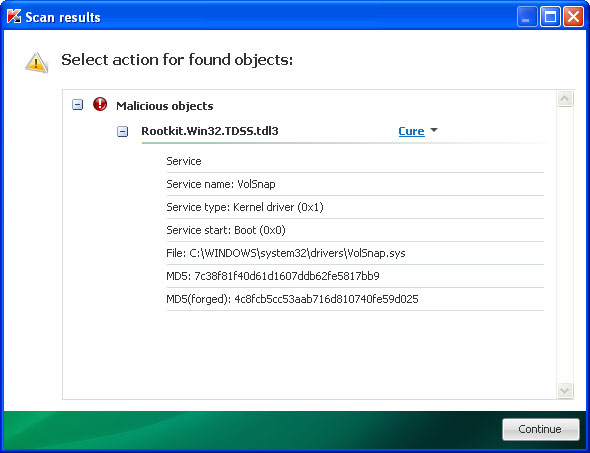
Once installed, System Repair performs a fake system scan for viruses and system/registry errors. After the fake scan, this rogue application reports eleven critical hard drive and system errors and immediately prompts you to pay for a full version of the program to fix found problems which actually do not even exist. What is more, System Repair hides certain files or copies them to Windows temporary folder (Temp). It makes your desktop background black and pretty much empty just to make you think that those falsely detected hard drive and registry errors truly exist. Furthermore, System Repair may drop a rootkit from the TDSS (TDL3 or TDL4) family which hides its presence from the user and may download other malware on your computer or re-install System Repair scareware if it was successfully removed from the system. You should use TDSSKiller and Backdoor.Tidserv removal tool before or after the removal of System Repair to make sure your PC is not infected by a rootkit from a TDSS family. Otherwise, System Repair might be re-downloaded to computer computer.
Here are some examples of a warning pop-up windows from this rogue program:


Additionally, you can activate the rogue program by entering one of the following registration codes and fake email as shown in the removal instructions below.
Once this is done, you are free to install anti-malware software and remove the rogue anti-virus program from your computer properly. Most importantly, don't be fooled and do not pay for this phony system optimization and repair program. If you have already purchased it, please contact your credit card company and dispute the charges. Unlike viruses, rogue applications do not self-replicate and can not delete your files, so you shouldn't worry about that. If you have any further questions, please leave a comment below. Good luck and be safe online!
Update: Monday, March 18, 2013
I've found a new variant of System repair virus with a slightly modified graphical user interface (see the image above). This only confirms that the rogue application is being actively repacked and distributed. At its core, rogue application remains pretty much the same. Removal instructions that were written for previous versions of this malware works perfectly fine too. If you think that some parts of the removal instructions are not accurate, please leave a comment below or simply email me.
Method 1: System Repair virus removal using debugged activation keys:
1. Use the activation keys given below to activate your copy of System Repair virus. This will allow you to download and run recommended anti-malware software and automatically restore hidden files and shortcuts. Don't worry, you're not doing anything illegal and it won't make the situation worse.
Use fake email and the following activation key:
08467206738602987934024759008355
56723489134092874867245789235982

2. Download recommended anti-malware software (direct download) and run a full system scan to remove this virus from your computer.
Method 2: System Repair removal instructions:
1. First of all, you need to unhide the files and folders. Select Run... from the Start Menu or just hit the key combination CTRL+R on your keyboard. In the Open: field, enter cmd and hit Enter or click OK.

At the command prompt, enter attrib -h /s /d and hit Enter. Now, you should see all your files and folders. NOTE: you may have to repeat this step because the malware may hide your files again.

If you still can't see any of your files, Select Run... from the Start Menu or just hit the key combination CTRL+R on your keyboard. In the Open: field, enter explorer and hit Enter or click OK.

2. Open Internet Explorer. Select Run... from the Start Menu or just hit the key combination CTRL+R on your keyboard. In the Open: field, enter iexplore.exe and hit Enter or click OK.
Download recommended anti-malware software (direct download) and run a full system scan.
NOTE: in some cases the rogue program may block anti-malware software. Before saving the selected program onto your computer, you may have to rename the installer to iexplore.exe or winlogon.exe. Don't forget to update the installed program before scanning.
3. Open Internet Explorer and download TDSSKiller or Backdoor.Tidserv Removal Tool. This malware usually (but not always) comes bundled with TDSS rootkit. Removing this rootkit from your computer is very important (if exists). Run TDSSKiller or Backdoor.Tidserv Removal Tool to remove the rootkit.
Method 3: Manual System Repair removal instructions:
1. First of all, you need to unhide the files and folders. Select Run... from the Start Menu or just hit the key combination CTRL+R on your keyboard. In the Open: field, enter cmd and hit Enter or click OK.
At the command prompt, enter attrib -h /s /d and hit Enter. Now, you should see all your files and folders. NOTE: you may have to repeat this step because the malware may hide your files again.
2. The rogue application places an icon or your desktop. Right click on the icon, click Properties in the drop-down menu, then click the Shortcut tab.

The location of the malware is in the Target box.

On computers running Windows XP, malware hides in:
C:\Documents and Settings\All Users\Application Data\
NOTE: by default, Application Data folder is hidden. Malware files are hidden as well. To see hidden files and folders, please read Show Hidden Files and Folders in Windows.
Under the Hidden files and folders section, click Show hidden files and folders, and remove the checkmark from the checkbox labeled:
- Hide extensions for known file types
- Hide protected operating system files
Click OK to save the changes. Now you will be able to see all files and folders in the Application Data directory.
On computers running Windows Vista/7, malware hides in:
C:\ProgramData\
3. Look for suspect ".exe" files in the given directories depending on the Windows version you have.
Example Windows XP:
C:\Documents and Settings\All Users\Application Data\16441124.exe
C:\Documents and Settings\All Users\Application Data\fWpYMRQgdRYv.exe
Example Windows Vista/7:
C:\ProgramData\16441124.exe
C:\ProgramData\fWpYMRQgdRYv.exe
Basically, there will be a couple of ".exe" file named with a series of numbers or letters.

Rename those files to 16441124.vir, fWpYMRQgdRYv.vir etc. For example:

It should be: C:\Documents and Settings\All Users\Application Data\16441124.vir
Instead of: C:\Documents and Settings\All Users\Application Data\16441124.exe
4. Restart your computer. The malware should be inactive after the restart.
5. Download recommended anti-malware software (direct download) and run a full system scan.
NOTE: in some cases the rogue program may block anti-malware software. Before saving the selected program onto your computer, you may have to rename the installer to iexplore.exe or winlogon.exe. Don't forget to update the installed program before scanning.
6. Open Internet Explorer and download TDSSKiller or Backdoor.Tidserv Removal Tool. This malware usually (but not always) comes bundled with TDSS rootkit. Removing this rootkit from your computer is very important (if exists). Run TDSSKiller and remove the rootkit.
Associated System Repair files and registry values:
Files:
Windows XP:
%UserProfile% refers to: C:\Documents and Settings\[User Name]
Windows Vista/7:
%UserProfile% refers to: C:\Users\[User Name]
Registry values:
New graphical user interface (03/2013). The new one looks much better, has clean interface. Scammers are clearly following the latest software trends.
The fake scanner which was used previously by scammers to scare users into thinking that their computers have serious performance and stability issues. This scanner may still be downloaded from previously infected websites.
Once installed, System Repair performs a fake system scan for viruses and system/registry errors. After the fake scan, this rogue application reports eleven critical hard drive and system errors and immediately prompts you to pay for a full version of the program to fix found problems which actually do not even exist. What is more, System Repair hides certain files or copies them to Windows temporary folder (Temp). It makes your desktop background black and pretty much empty just to make you think that those falsely detected hard drive and registry errors truly exist. Furthermore, System Repair may drop a rootkit from the TDSS (TDL3 or TDL4) family which hides its presence from the user and may download other malware on your computer or re-install System Repair scareware if it was successfully removed from the system. You should use TDSSKiller and Backdoor.Tidserv removal tool before or after the removal of System Repair to make sure your PC is not infected by a rootkit from a TDSS family. Otherwise, System Repair might be re-downloaded to computer computer.
Here are some examples of a warning pop-up windows from this rogue program:
Additionally, you can activate the rogue program by entering one of the following registration codes and fake email as shown in the removal instructions below.
Once this is done, you are free to install anti-malware software and remove the rogue anti-virus program from your computer properly. Most importantly, don't be fooled and do not pay for this phony system optimization and repair program. If you have already purchased it, please contact your credit card company and dispute the charges. Unlike viruses, rogue applications do not self-replicate and can not delete your files, so you shouldn't worry about that. If you have any further questions, please leave a comment below. Good luck and be safe online!
Update: Monday, March 18, 2013
I've found a new variant of System repair virus with a slightly modified graphical user interface (see the image above). This only confirms that the rogue application is being actively repacked and distributed. At its core, rogue application remains pretty much the same. Removal instructions that were written for previous versions of this malware works perfectly fine too. If you think that some parts of the removal instructions are not accurate, please leave a comment below or simply email me.
Method 1: System Repair virus removal using debugged activation keys:
1. Use the activation keys given below to activate your copy of System Repair virus. This will allow you to download and run recommended anti-malware software and automatically restore hidden files and shortcuts. Don't worry, you're not doing anything illegal and it won't make the situation worse.
Use fake email and the following activation key:
08467206738602987934024759008355
56723489134092874867245789235982
2. Download recommended anti-malware software (direct download) and run a full system scan to remove this virus from your computer.
Method 2: System Repair removal instructions:
1. First of all, you need to unhide the files and folders. Select Run... from the Start Menu or just hit the key combination CTRL+R on your keyboard. In the Open: field, enter cmd and hit Enter or click OK.
At the command prompt, enter attrib -h /s /d and hit Enter. Now, you should see all your files and folders. NOTE: you may have to repeat this step because the malware may hide your files again.
If you still can't see any of your files, Select Run... from the Start Menu or just hit the key combination CTRL+R on your keyboard. In the Open: field, enter explorer and hit Enter or click OK.
2. Open Internet Explorer. Select Run... from the Start Menu or just hit the key combination CTRL+R on your keyboard. In the Open: field, enter iexplore.exe and hit Enter or click OK.
Download recommended anti-malware software (direct download) and run a full system scan.
NOTE: in some cases the rogue program may block anti-malware software. Before saving the selected program onto your computer, you may have to rename the installer to iexplore.exe or winlogon.exe. Don't forget to update the installed program before scanning.
3. Open Internet Explorer and download TDSSKiller or Backdoor.Tidserv Removal Tool. This malware usually (but not always) comes bundled with TDSS rootkit. Removing this rootkit from your computer is very important (if exists). Run TDSSKiller or Backdoor.Tidserv Removal Tool to remove the rootkit.
Method 3: Manual System Repair removal instructions:
1. First of all, you need to unhide the files and folders. Select Run... from the Start Menu or just hit the key combination CTRL+R on your keyboard. In the Open: field, enter cmd and hit Enter or click OK.
At the command prompt, enter attrib -h /s /d and hit Enter. Now, you should see all your files and folders. NOTE: you may have to repeat this step because the malware may hide your files again.
2. The rogue application places an icon or your desktop. Right click on the icon, click Properties in the drop-down menu, then click the Shortcut tab.
The location of the malware is in the Target box.
On computers running Windows XP, malware hides in:
C:\Documents and Settings\All Users\Application Data\
NOTE: by default, Application Data folder is hidden. Malware files are hidden as well. To see hidden files and folders, please read Show Hidden Files and Folders in Windows.
Under the Hidden files and folders section, click Show hidden files and folders, and remove the checkmark from the checkbox labeled:
- Hide extensions for known file types
- Hide protected operating system files
Click OK to save the changes. Now you will be able to see all files and folders in the Application Data directory.
On computers running Windows Vista/7, malware hides in:
C:\ProgramData\
3. Look for suspect ".exe" files in the given directories depending on the Windows version you have.
Example Windows XP:
C:\Documents and Settings\All Users\Application Data\16441124.exe
C:\Documents and Settings\All Users\Application Data\fWpYMRQgdRYv.exe
Example Windows Vista/7:
C:\ProgramData\16441124.exe
C:\ProgramData\fWpYMRQgdRYv.exe
Basically, there will be a couple of ".exe" file named with a series of numbers or letters.
Rename those files to 16441124.vir, fWpYMRQgdRYv.vir etc. For example:
It should be: C:\Documents and Settings\All Users\Application Data\16441124.vir
Instead of: C:\Documents and Settings\All Users\Application Data\16441124.exe
4. Restart your computer. The malware should be inactive after the restart.
5. Download recommended anti-malware software (direct download) and run a full system scan.
NOTE: in some cases the rogue program may block anti-malware software. Before saving the selected program onto your computer, you may have to rename the installer to iexplore.exe or winlogon.exe. Don't forget to update the installed program before scanning.
6. Open Internet Explorer and download TDSSKiller or Backdoor.Tidserv Removal Tool. This malware usually (but not always) comes bundled with TDSS rootkit. Removing this rootkit from your computer is very important (if exists). Run TDSSKiller and remove the rootkit.
Associated System Repair files and registry values:
Files:
Windows XP:
- %AllUsersProfile%\Application Data\[SET OF RANDOM CHARACTERS]
- %AllUsersProfile%\Application Data\[SET OF RANDOM CHARACTERS].exe
- %UsersProfile%\Desktop\System Repair.lnk
- %UsersProfile%\Start Menu\Programs\System Repair\
- %UsersProfile%\Start Menu\Programs\System Repair\System Repair.lnk
- %UsersProfile%\Start Menu\Programs\System Repair\Uninstall System Repair.lnk
%UserProfile% refers to: C:\Documents and Settings\[User Name]
Windows Vista/7:
- %AllUsersProfile%\[SET OF RANDOM CHARACTERS]
- %AllUsersProfile%\[SET OF RANDOM CHARACTERS].exe
- %UsersProfile%\Desktop\System Repair.lnk
- %UsersProfile%\Start Menu\Programs\System Repair\
- %UsersProfile%\Start Menu\Programs\System Repair\System Repair.lnk
- %UsersProfile%\Start Menu\Programs\System Repair\Uninstall System Repair.lnk
%UserProfile% refers to: C:\Users\[User Name]
Registry values:
- HKEY_CURRENT_USER\Software\Microsoft\Windows\CurrentVersion\Run "[SET OF RANDOM CHARACTERS].exe"
- HKEY_CURRENT_USER\Software\Microsoft\Windows\CurrentVersion\Run "[SET OF RANDOM CHARACTERS]"
- HKEY_CURRENT_USER\Software\Microsoft\Windows\CurrentVersion\Policies\Associations "LowRiskFileTypes" = '/{hq:/s`s:/ogn:/uyu:/dyd:/c`u:/bnl:/ble:/sdf:/lrh:/iul:/iulm:/fhg:/clq:/kqf:/`wh:/lqf:/lqdf:/lnw:/lq2:/l2t:/v`w:/rbs:'
- HKEY_CURRENT_USER\Software\Microsoft\Windows\CurrentVersion\Policies\Attachments "SaveZoneInformation" = '1'
- HKEY_CURRENT_USER\Software\Microsoft\Internet Explorer\Download "CheckExeSignatures" = 'no'
- HKEY_CURRENT_USER\Software\Microsoft\Internet Explorer\Main "Use FormSuggest" = 'yes'





