Friday, December 24, 2010

How to Remove Scanner and Win Scanner (Uninstall Guide)

Don't Copy From This Blog...

Protected by Copyscape Plagiarism Detection
Scanner and Win Scanner are another two different names of a fake disk defragmenter from the same family as Disk Repair and HDD Tools. Basically, it's a trojan that pretends to be computer optimization and hard drive repair software. It reports fake system errors and infections to make you think that there is something wrong with your computer. Scanner or Win Scanner, no matter what it's called, displays 11 errors, mainly hard drive and Windows registry problems. It doesn't even matter if it's a new laptop or a new desktop, the rogue program will report the same infections without even scanning your computer. It goes without saying that you shouldn't install such programs on your computer. Besides, you can tell if it's fake right away, because it shows up on the computer screen like from nowhere and begins its fake scan. If you have this rogue program on your computer then please follow the removal instructions below to remove Scanner and Win Scanner from your computer for free.


Win Scanner rogue is annoying as hell. It displays fake error messages and blocks other programs on the computer. It disables task manager, registry editor and other system tools to protect itself from being removed. You will have to use other tools to remove Win Scanner and Scanner from your computer. For more information, please follow the removal instructions below. By the way, sometimes system restore in safe mode does the trick but usually you need to use multiple malware removal programs to completely remove this fake scanner from your computer. Last, but not least, if you have already purchased it then please contact your credit card provider and dispute the charges. If you have any questions ot need help removing Scanner or Win Scanner, please leave a comment. Good luck and be sage online!


Scanner and Win Scanner removal instructions:

1. Open Task Manager (Ctrl+Alt+Delete) or use Process Explorer.
2. Click on the Processes tab.
3. End Scanner or Win Scanner processes, e.g. 136824587.exe and xKhdrGldGe.exe.



4. Download TDSSKiller (free utility from Kaspersky Lab) and run it. Remove TDSS rootkit if exist.


5. Download free anti-malware software from the list below and run a full system scan.
NOTE: in some cases the rogue program may block anti-malware software. Before saving the selected program onto your computer, you may have to rename the installer to iexplore.exe or winlogon.exe With all of these tools, if running Windows 7 or Vista they MUST be run as administrator. Launch the program and follow the prompts. Don't forget to update the installed program before scanning.

6. New threats appear every day. In order to protect your PC from such (new) infections we strongly recommend you to use ESET Smart Security.


Scanner and Win Scanner removal instructions (in Safe Mode with Networking):

1. Reboot your computer is "Safe Mode with Networking". As the computer is booting tap the "F8 key" continuously which should bring up the "Windows Advanced Options Menu" as shown below. Use your arrow keys to move to "Safe Mode with Networking" and press Enter key. Read more detailed instructions here: http://www.computerhope.com/issues/chsafe.htm


NOTE: Login as the same user you were previously logged in with in the normal Windows mode.

2. Download free anti-malware software from the list below and run a full system scan.
NOTE: in some cases the rogue program may block anti-malware software. Before saving the selected program onto your computer, you may have to rename the installer to iexplore.exe or winlogon.exe With all of these tools, if running Windows 7 or Vista they MUST be run as administrator. Launch the program and follow the prompts. Don't forget to update the installed program before scanning.

3. New threats appear every day. In order to protect your PC from such (new) infections we strongly recommend you to use ESET Smart Security.


Scanner associated files and registry values:

Files:
  • C:\Documents and Settings\All Users\Application Data\[SET OF RANDOM CHARACTERS].exe
  • C:\Documents and Settings\All Users\Application Data\dfrg
  • C:\Documents and Settings\All Users\Application Data\dfrgr
  • C:\Documents and Settings\All Users\Application Data\[SET OF RANDOM CHARACTERS
  • C:\Documents and Settings\All Users\Application Data\[SET OF RANDOM CHARACTERS.exe
  • C:\Documents and Settings\All Users\Application Data\[SET OF RANDOM CHARACTERS.dll
  • %UserProfile%\Desktop\Scanner.lnk
  • %UserProfile%\Start Menu\Programs\Scanner\
  • %UserProfile%\Start Menu\Programs\Scanner\Scanner.lnk
  • %UserProfile%\Start Menu\Programs\Scanner\Uninstall Scanner.lnk
%UserProfile% refers to:
C:\Documents and Settings\[UserName]\ (in Windows 2000/XP)
C:\Users\[UserName]\ (in Windows Vista & Windows 7)
Registry values:
  • HKEY_CURRENT_USER\Software\Microsoft\Windows\CurrentVersion\Run "[SET OF RANDOM CHARACTERS.exe"
  • HKEY_CURRENT_USER\Software\Microsoft\Windows\CurrentVersion\Run "[SET OF RANDOM CHARACTERS"
Share this information with other people:

How to Remove Windows Optimization Center (Uninstall Guide)

Don't Copy From This Blog...

Protected by Copyscape Plagiarism Detection
Windows Optimization Center is a rogue security and system optimization program that performs a fake scan on your computer and reports false threats. It pretends to check your system security, privacy, utilities, and media tools for viruses and errors. After the fake scan it reports imaginary infections and critical system errors. It states that you can make you computer run faster and remove dangerous viruses using Windows Optimization Center software. In order to fix your computer you will be prompted to purchase a license of this bogus program. In reality, though, it won't fix anything. This program is a scam. It detects malicious software and system errors on newly purchased computers. If you got hit with this dreaded program, please follow the removal instructions below to remove Windows Optimization Center and any related malware from your computer for free using legitimate anti-malware programs.


This rogue is from the same family as Privacy Corrector.
Windows Optimization Center malware installs itself on the computer with the help of trojan downloader that impersonates Microsoft Security Essentials alert. Once installed, the trojan display a fake warning and states that your computer is infected with unknown trojan.


Then it displays another fake alert and prompts to install malware tool and restart your computer.


After reboot, you will see Windows Optimization Center installation wizard.


And finally, the fake Windows Optimization Center scanner will show up. As a typical rip-off rogue program, it displays fake security warnings and notifications. The fake program blocks other programs on the computer. You will lose around $80 if you choose to purchase this bogus programs. What is more, you will give your credit card details to scammers. If you were scammed by this scareware then please contact your credit card provider and dispute the charges. You can remove Windows Optimization Center manually but we recommend you to use anti-malware software because this virus may come bundled with rootkits and other malware. For more information, please follow Windows Optimization Center removal steps below. And, of course, if you need help removing this malware from your computer, please leave a comment. Good luck and be safe online!


Windows Optimization Center removal instructions:

1. Click Start → Run (or WinKey+R).
2. Type in: cmd and click OK. Command prompt window will show up.
3. Type in: taskkill /f /im protect.exe and click Enter. This will stop Windows Optimization Center.
4. Download shell-fix.reg. Double-click to run it. Click "Yes" when it asks if you want to add the information to the registry. This file will fix the Windows Shell entry.
5. Download free anti-malware software from the list below and run a full system scan.
NOTE: in some cases the rogue program may block anti-malware software. Before saving the selected program onto your computer, you may have to rename the installer to iexplore.exe or winlogon.exe With all of these tools, if running Windows 7 or Vista they MUST be run as administrator. Launch the program and follow the prompts. Don't forget to update the installed program before scanning.

6. New threats appear every day. In order to protect your PC from such (new) infections we strongly recommend you to use ESET Smart Security.


Alternate Windows Optimization Center removal instructions (in Safe Mode with Networking):

1. Reboot your computer is "Safe Mode with Networking". As the computer is booting tap the "F8 key" continuously which should bring up the "Windows Advanced Options Menu" as shown below. Use your arrow keys to move to "Safe Mode with Networking" and press Enter key. Read more detailed instructions here: http://www.computerhope.com/issues/chsafe.htm


NOTE: Login as the same user you were previously logged in with in the normal Windows mode.

2. Download free anti-malware software from the list below and run a full system scan.
NOTE: in some cases the rogue program may block anti-malware software. Before saving the selected program onto your computer, you may have to rename the installer to iexplore.exe or winlogon.exe With all of these tools, if running Windows 7 or Vista they MUST be run as administrator. Launch the program and follow the prompts. Don't forget to update the installed program before scanning.

3. New threats appear every day. In order to protect your PC from such (new) infections we strongly recommend you to use ESET Smart Security.


Windows Optimization Center associated files and registry values:

Files:
  • %UserProfile%\Application Data\protect.exe
  • C:\Documents and Settings\All Users\Start Menu\Programs\Windows Optimization Center\
  • C:\WINDOWS\Tasks\At1.job
%UserProfile% refers to:
C:\Documents and Settings\ for Windows XP,
C:\Users\ for Windows Vista and Windows 7
Registry values:
  • HKEY_CURRENT_USER\Software\Microsoft\Windows NT\CurrentVersion\Winlogon "Shell" = "%UserProfile%\Application Data\protect.exe"
  • HKEY_LOCAL_MACHINE\Software\Microsoft\Windows\CurrentVersion\policies\system
  • EnableLUA = 0x00000000 ConsentPromptBehaviorAdmin = 0x00000000 ConsentPromptBehaviorUser = 0x00000000
Share this information with other people:

Wednesday, December 22, 2010

How to Remove HDD Doctor (Uninstall Guide)

Don't Copy From This Blog...

Protected by Copyscape Plagiarism Detection
HDD Doctor is a piece of malware that displays fake hard drive error messages and blocks other programs on the computer. This rogue program may report a large number of non-existent critical errors that cannot be fixes unless you have a full version of HDD Doctor with a low-level access module. As you might guess, you won't get this fake low-level access module for free. You have to buy it. And if you have already purchased this rogue program then I'm afraid you did a mistake. If so, please contact your credit card provider and dispute the charges. Then, please follow the removal instructions below to remove HDD Doctor from your computer for free using legitimate anti-malware software.


HDDoctor is promoted mainly through the use of trojans and other similar malware. Once you have a trojan downloaded on your computer, it will display numerous fake warnings about disk errors and other system problems. It may state some of the programs could not be accessed because your hard drive contains a lot of critical errors.
Disk Error
Can not find file: C:\Program Files\Internet Explorer\iexplore.exe
File may be deleted or corrupt.
It is strongly recommended to check the disk for errors.

Confirmation
The system disk contains a large number of critical errors.
Windows could not fix most of them.
You can install install trial version of the third party software "HDD doctor" to fix found bugs.
Install "HDD doctor" now?


Then you will see another fake warning that may force your computer to restart.


And finally, you will see this fake HDD Doctor program on your computer screen. In order to remove this rogue program you will have to restart your computer. Once the HDD Doctor window comes up, press Ctrl+Alt+Delete or Ctrl+Shift+Escape. Click on the Processes tab. Then click to highlight hdddoctor.exe and click End Task. If you can't see your desktop and icons, click the File -> "New Task (Run...)" in Task Manager. Type in explorer.exe and click OK. Your desktop and icons should start up as normal. Then install anti-malware software and run a full system scan. For more information, please follow the removal guide below. Please leave a comment if you have any problems removing HDD Doctor from your computer. Good luck and be safe online!


HDD Doctor removal instructions:

1. Open Command prompt (cmd).

In Windows XP: Click Start → Run (or WinKey+R). Type in: cmd and click OK.
In Windows Vista/7:  Type cmd, in the Start Search dialog box. Run a command prompt as Administrator.

2. Type in: taskkill /f /im hdddoctor.exe and press Enter. This will stop HDD Doctor scanner. Close the Command prompt window.


3. Download free anti-malware software from the list below and run a full system scan.
NOTE: in some cases the rogue program may block anti-malware software. Before saving the selected program onto your computer, you may have to rename the installer to iexplore.exe or winlogon.exe With all of these tools, if running Windows 7 or Vista they MUST be run as administrator. Launch the program and follow the prompts. Don't forget to update the installed program before scanning.

4. New threats appear every day. In order to protect your PC from such (new) infections we strongly recommend you to use ESET Smart Security.


HDD Doctor removal instructions (in Safe Mode with Networking):

1. Reboot your computer is "Safe Mode with Networking". As the computer is booting tap the "F8 key" continuously which should bring up the "Windows Advanced Options Menu" as shown below. Use your arrow keys to move to "Safe Mode with Networking" and press Enter key. Read more detailed instructions here: http://www.computerhope.com/issues/chsafe.htm


NOTE: Login as the same user you were previously logged in with in the normal Windows mode.

2. Download free anti-malware software from the list below and run a full system scan.
NOTE: in some cases the rogue program may block anti-malware software. Before saving the selected program onto your computer, you may have to rename the installer to iexplore.exe or winlogon.exe With all of these tools, if running Windows 7 or Vista they MUST be run as administrator. Launch the program and follow the prompts. Don't forget to update the installed program before scanning.

3. New threats appear every day. In order to protect your PC from such (new) infections we strongly recommend you to use ESET Smart Security.


HDD Doctor associated files and registry values:

Files:

In Windows XP:
  • C:\Documents and Settings\[User Name]\Application Data\hdddoctor.exe
  • C:\Documents and Settings\[User Name]\Application Data\install_hdd
  • C:\Documents and Settings\[User Name]\Desktop\HDD Doctor.lnk
  • C:\Documents and Settings\[User Name]\Start Menu\Programs\HDD Doctor.lnk
  • C:\WINDOWS\Tasks\At1.job
In Windows Vista & Windows 7
  • C:\Users\[User Name]\AppData\hdddoctor.exe
  • C:\Users\[User Name]\AppData\install_hdd
  • C:\Users\[User Name]\Desktop\HDD Doctor.lnk
  • C:\Users\[User Name]\Start Menu\Programs\HDD Doctor.lnk
  • C:\WINDOWS\Tasks\At1.job
Registry values:
  • HKEY_CURRENT_USER\Software\Microsoft\Windows\CurrentVersion\Internet Settings "WarnonBadCertRecving" = '0'
  • HKEY_CURRENT_USER\Software\Microsoft\Windows\CurrentVersion\Internet Settings "WarnOnPostRedirect" = '0'
  • HKEY_CURRENT_USER\Software\Microsoft\Windows NT\CurrentVersion\Winlogon "Shell" = '%UserProfile%\Application Data\hdddoctor.exe'
  • HKEY_CURRENT_USER\Software\Microsoft\Windows\CurrentVersion\Internet Settings "WarnOnPost"='0'
  • HKLM\Software\Microsoft\Windows NT\CurrentVersion\Winlogon /V "Shell" = '%UserProfile%\Application Data\hdddoctor.exe'
Share this information with other people:

Tuesday, December 21, 2010

How to Remove Disk Repair (Uninstall Guide)

Don't Copy From This Blog...

Protected by Copyscape Plagiarism Detection
Disk Repair is a fake disk defragmenter that blocks other programs on the computer, displays fake error messages, and reports fake hard drive problems. It's a clone of HDD Tools. The rogue program is promoted via trojans, fake online scanners, and other malicious software. Disk Repair displays fake scan results and prompts the user to fix his hard drive using a built-in disk defragmenter which is of course useless and doesn't do anything. In order to fix critical hard drive and Windows registry errors the user is then prompted to buy a license of Disk Repair. Do not fall victim to this rogue program. It just tries to rip people off asking money. If you have this fake defragmenter on your computer, then please follow the removal instructions below to remove Disk Repair and any related malware for free. Also, if you have already purchased it, then you should contact your credit card provider to dispute the charges. It finds non-existent errors on clean computers, so obviously it can't be any good. Last, but not least, if you encounter any problems when removing Disk Repair, please leave a comment and I will to help you. If you have any additional information about this rogue program, please leave a comment too. Good luck and be safe online!


Disk Repair removal instructions:

1. Open Task Manager (Ctrl+Alt+Delete) or use Process Explorer.
2. Click on the Processes tab.
3. End Disk Repair processes, e.g. 13745923.exe and xGjdeMdfe.exe.


4. Download TDSSKiller (free utility from Kaspersky Lab) and run it. Remove TDSS rootkit if exist.


5. Download free anti-malware software from the list below and run a full system scan.
NOTE: in some cases the rogue program may block anti-malware software. Before saving the selected program onto your computer, you may have to rename the installer to iexplore.exe or winlogon.exe With all of these tools, if running Windows 7 or Vista they MUST be run as administrator. Launch the program and follow the prompts. Don't forget to update the installed program before scanning.

6. New threats appear every day. In order to protect your PC from such (new) infections we strongly recommend you to use ESET Smart Security.


Disk Repair removal instructions (in Safe Mode with Networking):

1. Reboot your computer is "Safe Mode with Networking". As the computer is booting tap the "F8 key" continuously which should bring up the "Windows Advanced Options Menu" as shown below. Use your arrow keys to move to "Safe Mode with Networking" and press Enter key. Read more detailed instructions here: http://www.computerhope.com/issues/chsafe.htm


NOTE: Login as the same user you were previously logged in with in the normal Windows mode.

2. Download free anti-malware software from the list below and run a full system scan.
NOTE: in some cases the rogue program may block anti-malware software. Before saving the selected program onto your computer, you may have to rename the installer to iexplore.exe or winlogon.exe With all of these tools, if running Windows 7 or Vista they MUST be run as administrator. Launch the program and follow the prompts. Don't forget to update the installed program before scanning.

3. New threats appear every day. In order to protect your PC from such (new) infections we strongly recommend you to use ESET Smart Security.


Disk Repair associated files and registry values:

Files:
  • %Temp%\[SET OF RANDOM NUMBERS]
  • %Temp%\[SET OF RANDOM NUMBERS].exe
  • %Temp%\[SET OF RANDOM CHARACTERS].exe
  • %Temp%\dfrg
  • %Temp%\dfrgr
  • %Temp%\[SET OF RANDOM CHARACTERS].dll
  • %UserProfile%\[SET OF RANDOM CHARACTERS].DAT
  • C:\WINDOWS\nwcacm.dll
  • %UserProfile%\Desktop\Disk Repair.lnk
  • %UserProfile%\Start Menu\Programs\Disk Repair\
  • %UserProfile%\Start Menu\Programs\Disk Repair\Disk Repair.lnk
  • %UserProfile%\Start Menu\Programs\Disk Repair\Uninstall Disk Repair.lnk
%Temp% refers to:
C:\Documents and Settings\[UserName]\Local Settings\Temp (in Windows 2000/XP)
C:\Users\[UserName]\AppData\Local\Temp (in Windows Vista & Windows 7)

%UserProfile% refers to:
C:\Documents and Settings\[UserName]\ (in Windows 2000/XP)
C:\Users\[UserName]\ (in Windows Vista & Windows 7)

Registry values:
  • HKEY_CURRENT_USER\Software\Microsoft\Windows\CurrentVersion\Run "[SET OF RANDOM NUMBERS]"
  • HKEY_CURRENT_USER\Software\Microsoft\Windows\CurrentVersion\Run "[SET OF RANDOM NUMBERS].exe"
Share this information with other people:

Sunday, December 19, 2010

How to Remove Internet Security 2011 (Uninstall Guide)

Don't Copy From This Blog...

Protected by Copyscape Plagiarism Detection
Internet Security 2011 is a fake anti-virus program that purposely reports false system security threats to make you think that your computer is infected with trojans, spyware and other malicious software. It pretends to scan your computer for malware and flags legitimate Windows system files as malcode, e.g. Worm.Win32.Kido, Trojan.Rootkit.drv, AdWare.Redirect.xt. Internet Security 2011 will prompt you to pay for a full version of the program to remove the threats. First of all, do not purchase it. It's a scam. Secondly, do not attempt to remove supposedly found viruses manually. Otherwise, you may delete important system files. This may cause windows to become unstable. If you have this rogue security program on your computer then please follow the removal instructions below to remove Internet Security 2011 and any related malware for free.

Windows XP


Windows Vista & Windows 7


Internet Security 2011 is from the same family as Antivirus 2010. Usually, such rogue programs have to be manually installed but they may come bundled with other malicious software or through software vulnerabilities as well. The scammers use fake online scanners and misleading social engineering methods to distribute such dreaded security programs as Internet Security 2011. Once installed, this rogue program displays fake security alerts and fake error messages saying that certain programs are infected with Trojan BNK.Keylogger.gen or that someone is making unauthorized copies of your files.
Attention! Network attack detected!
Your computer is being attacked from remote host. Attack has been classified as Remote code execution attempt.

Attention! Threat detected!
[program_name].exe is infected with Trojan-BNK.Keylogger.gen
Private data can be stolen by third parties including card details and passwords.
It is strongly recommended to perform threat removal on your system.


What is more, Internet Security 2011 denies access to nearly all programs on your computer stating that you may not have permission to access them. The fake error message contains the following text:
Windows cannot access the specified device, path, or file. You may not have the appropriate permissions to access the item.


In order to regain access to the program you will have to open a Command Prompt and use the following command to give the Everyone group permission to the file:

cacls [full path to the program] /G Everyone:F

Example:
cacls "c:\program files\SUPERAntiSpyware\SUPERAntiSpyware.exe" /G Everyone:F

NOTE: If you are using Windows Vista or Windows 7 then you will have to run Command Prompt as administrator.

Unfortunately, if the Internet Security 2011 comes bundled with other malware, usually, rootkits, then it will be very difficult to remove the rogue program from your computer manually. First of all, you will have to remove rootkits and then the rogue program with related malware. So, I'm afraid you won't find any "one-click-fix" solution to this problem. Thankfully, we've got the removal instructions to help you to remove Internet Security 2011 from the system using legitimate tools and anti-malware programs. Please follow the removal instructions below. Also, if you have already purchased Internet Security 2011 then please contact your credit card provider and dispute the charges. If you have any questions regarding to Internet Security 2011 removal, please leave a message using the contact form below. Good luck and be safe online!


Internet Security 2011 removal instructions:

1. Open C:\Windows\System32 in Windows Explorer. There will be two userinit.exe files in this directory. The legit one is the usual generic executable file icon. The fake one has a shield icon like an antivirus product would or a globe icon as shown in the image below.

Rename the fake userinit.exe extension to userinit.vxe

NOTE: configure Windows to show extensions of known file types in order to correctly change the extension of the fake userinit.exe file. For more information, please read Show File Extension in Windows XP and Show File Extension in Windows Vista and Windows 7.

2. Open Device Manager. How do I get into Windows Device Manager?
Expand "System Devices".
Right click "[cmz vmkd] Virtual Bus", choose "Disable".


Click "Yes" when it asks if you would like to disable it.

3. Open C:\windows\WinSxS\x86_Microsoft.Windows.Shell.HWEventDetector_6595b64144ccf1df_5.2.2.3_x-ww_5390e909\ in Windows Explorer.


Rename shsvcs.dll to shsvcs.dl_


4. Open Windows Registry Editor (regedit.exe).


Browse to HKLM\System\CurrentControlSet\Services\vbma[random characters].

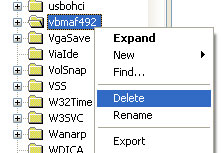
Right click the vbma[random characters] key (e.g. vbmaf492 ) and click "Permissions".


Click "Advanced".


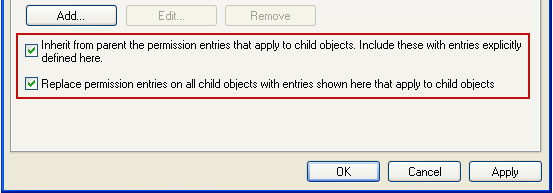
Check both "Inherit from parent...." and "Replace permission entries....". Click "OK". Click "Yes" when it asks if you wish to continue.


Double click the "Start" value


Change the value from "3" to "4" to disable the service. Click "OK".


Browse to HKLM\System\CurrentControlSet\Services\Userinit


Double click the "Start" value.
Change the value from "3" to "4" to disable the service.

5. Restart your computer.

6. Create a folder on the desktop labeled "Malware".
Move the following files to your malware folder on the desktop:
  • c:\windows\system32\Userinit.vxe (the fake one)
  • c:\windows\WinSxS\x86_Microsoft.Windows.Shell.HWEventDetector_6595b64144ccf1df_5.2.2.3_x-ww_5390e909\shsvcs.dl_
  • c:\windows\System32\Drivers\vbma[random characters].sys (e.g. vbmaf492.sys)


7. Delete the following keys from the registry:
  • HKLM\System\CurrentControlSet\Services\vbma[random characters]
  • HKLM\System\CurrentControlSet\Services\Userinit


8. Open Device Manager.
Expand "System Devices"
Right click "[cmz vmkd] Virtual Bus" choose "Uninstall". Click "OK" to confirm device removal.


9. Download TDSSKiller. Double-click to launch it. Scan your computer and remove found rootkits (if exist).
10. Download and scan your computer with recommend anti-malware software (STOPzilla) to remove the leftovers of this virus from your computer.

It's possible that an infection is blocking STOPzilla from properly installing. Before saving the selected program onto your computer, you may have to rename the installer to iexplore.exe or winlogon.exe. Don't forget to update the installed program before scanning.

11. New threats appear every day. In order to protect your PC from such (new) infections we strongly recommend you to use ESET Smart Security.


Internet Security 2011 associated files and registry values:

Files:
  • C:\Documents and Settings\All Users\Application Data\.wtav
  • C:\WINDOWS\WinSxS\x86_Microsoft.Windows.Shell.HWEventDetector_6595b64144ccf1df_5.2.2.3_x-ww_5390e909\
  • C:\windows\WinSxS\x86_Microsoft.Windows.Shell.HWEventDetector_6595b64144ccf1df_5.2.2.3_x-ww_5390e909\shsvcs.dll
  • C:\WINDOWS\assembly\GAC\__AssemblyInfo__.ini
  • C:\WINDOWS\system32\exefile.exe
  • C:\WINDOWS\system32\mswmqnei.dll
  • C:\WINDOWS\system32\us?rinit.exe (not userinit.exe file which is in the same folder)
  • C:\WINDOWS\system32\drivers\vbma22b4.sys
Registry values:
  • HKEY_LOCAL_MACHINE\SOFTWARE\Microsoft\Windows\CurrentVersion\Uninstall\{9CB00F85-D96F-1C82-F5A4-A31D57D6528D}
  • HKEY_LOCAL_MACHINE\SYSTEM\CurrentControlSet\Services\userinit
  • HKEY_LOCAL_MACHINE\SYSTEM\CurrentControlSet\Services\vbma22b4
  • HKEY_LOCAL_MACHINE\SOFTWARE\Microsoft\Security Center "AntiSpywareOverride" = '1'
Share this information with other people:

 
//PART 2