Don't Copy From This Blog...

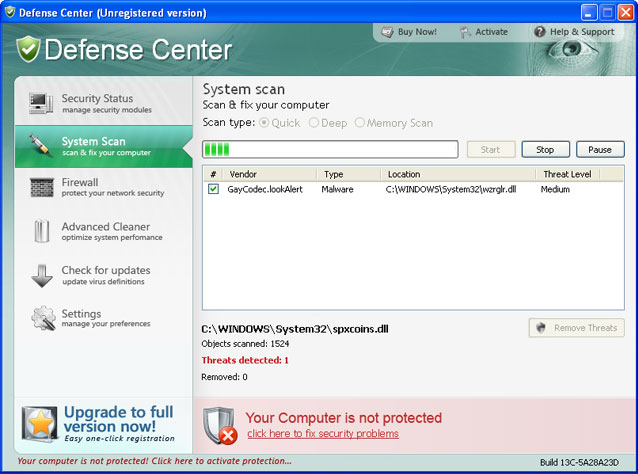
AntivirusGT is one of many fake anti-virus programs that report fake viruses and prompt you to pay for a full version of the program to remove the infections or viruses which don't even exist. This fake program prevents users from doing most things. It blocks Task Manager, Registry editor, legitimate anti-virus and anti-malware programs or other useful system utilities. AntivirusGT also gives you loads of fake security warnings and pop-ups. Those fake warnings claim that your computer is infected with spyware, adware, Trojans, computer worms and other viruses. Antivirus GT performs a very quick scan and displays a list of non-existent infections. If you are reading this article, then your computer is probably infected with this virus and you're looking for removal help. Thankfully, we've got free AntivirusGT removal instructions to help you get rid of this malicious software.

Please note that such fake programs usually come from fake anti-malware scanners, misleading online video websites and other bogus pages. AntivirusGT virus may come bundled with other malware as well. In some cases the rogue program has to be manually installed, but it usually pretends to be a legitimate program such as flash player, video codec or any other application. While running, the rogue program blocks nearly all legit programs and displays an error message with the following text (process name may vary):
AntivirusGT Resident Shield: Virus Detected
Warning! Active virus detected!
Threat Detected: Trojan.Injector.BZ
Infected File: C:\Windows\System32\rundll32.exe

What is more, AntivirusGT hijacks Internet Explorer and Mozilla Firefox, adds malicious browser helper object and displays fake security warning every time you attempt to visit security related websites. The text of this alert is:
Attention! Your web page request has been cancelled.
This web site refused your connection as it was reported as a malicious request. This can be caused by Viruses, Trojans or Malware installed on your computer.

Antivirus GT is from the same family as Antivirus 7 malware. It goes without saying that AntivirusGT is needless and potentially harmful software. Also, note that malware authors constantly changes code of such rogue programs to avoid detection and to maximize their return of investment. Most importantly, don't purchase this rogue program. If you have already paid for it then you should contact your credit card company and dispute the charges. Finally, please follow the removal instructions below to remove AntivirusGT from your computer for free using legitimate anti-malware programs. And last, but not least, if you have any questions or additional information about this malware, please don't hesitate and leave a comment. Good luck and be safe!
AntivirusGT removal instructions (method #1):
1. (Proceed to step 2 if you your web browser is not hijacked) Open Internet Explorer. Go to: Tools->Manage Add-ons. Find and select UpdateCheck.dll from the list of add-ons. Click "Disable" button and close Manager Add-ons windows. Close Internet Explorer and run it once again.
2. Right click on Windows Task Bar, select Task Manager (or press Ctrl+Shift+Esc at the same time). Look for antivirusGT.exe process and terminate it (click End Process button).
3. Download one of the following legitimate anti-malware applications and run a quick system scan. Don’t forget to update it first. All programs a free.
NOTE1: If you can't run any of the above programs you must rename the installer of selected program before saving it on your PC. For example: if you choose MalwareBytes then you have to rename mbam-setup.exe to iexplore.exe, explorer.exe or any random name like test123.exe before saving it. With all of these tools, if running Windows 7 or Vista they MUST be run as administrator.
NOTE2: if you still can't run the renamed file then you need to change file extension too not only the name.
1. Go to "My Computer".
2. Select "Tools" from menu and click "Folder Options".
3. Select "View" tab and uncheck the checkbox labeled "Hide file extensions for known file types". Click OK.
4. Rename mbam-setup.exe to either test123.com or test123.pif
5. Double-click to run renamed file.
Removing AntivirusGT in Safe Mode with Networking (method #2):
1. Reboot your computer is "Safe Mode with Networking". As the computer is booting tap the "F8 key" continuously which should bring up the "Windows Advanced Options Menu" as shown below. Use your arrow keys to move to "Safe Mode with Networking" and press Enter key. Read more detailed instructions here: http://www.computerhope.com/issues/chsafe.htm

NOTE: Login as the same user you were previously logged in with in the normal Windows mode.
2.Download one of the following legitimate anti-malware applications and run a quick system scan. Don’t forget to update it first. All programs a free.
AntivirusGT files and registry values:
Files:
Please note that such fake programs usually come from fake anti-malware scanners, misleading online video websites and other bogus pages. AntivirusGT virus may come bundled with other malware as well. In some cases the rogue program has to be manually installed, but it usually pretends to be a legitimate program such as flash player, video codec or any other application. While running, the rogue program blocks nearly all legit programs and displays an error message with the following text (process name may vary):
AntivirusGT Resident Shield: Virus Detected
Warning! Active virus detected!
Threat Detected: Trojan.Injector.BZ
Infected File: C:\Windows\System32\rundll32.exe
What is more, AntivirusGT hijacks Internet Explorer and Mozilla Firefox, adds malicious browser helper object and displays fake security warning every time you attempt to visit security related websites. The text of this alert is:
Attention! Your web page request has been cancelled.
This web site refused your connection as it was reported as a malicious request. This can be caused by Viruses, Trojans or Malware installed on your computer.
Antivirus GT is from the same family as Antivirus 7 malware. It goes without saying that AntivirusGT is needless and potentially harmful software. Also, note that malware authors constantly changes code of such rogue programs to avoid detection and to maximize their return of investment. Most importantly, don't purchase this rogue program. If you have already paid for it then you should contact your credit card company and dispute the charges. Finally, please follow the removal instructions below to remove AntivirusGT from your computer for free using legitimate anti-malware programs. And last, but not least, if you have any questions or additional information about this malware, please don't hesitate and leave a comment. Good luck and be safe!
AntivirusGT removal instructions (method #1):
1. (Proceed to step 2 if you your web browser is not hijacked) Open Internet Explorer. Go to: Tools->Manage Add-ons. Find and select UpdateCheck.dll from the list of add-ons. Click "Disable" button and close Manager Add-ons windows. Close Internet Explorer and run it once again.
2. Right click on Windows Task Bar, select Task Manager (or press Ctrl+Shift+Esc at the same time). Look for antivirusGT.exe process and terminate it (click End Process button).
3. Download one of the following legitimate anti-malware applications and run a quick system scan. Don’t forget to update it first. All programs a free.
NOTE1: If you can't run any of the above programs you must rename the installer of selected program before saving it on your PC. For example: if you choose MalwareBytes then you have to rename mbam-setup.exe to iexplore.exe, explorer.exe or any random name like test123.exe before saving it. With all of these tools, if running Windows 7 or Vista they MUST be run as administrator.
NOTE2: if you still can't run the renamed file then you need to change file extension too not only the name.
1. Go to "My Computer".
2. Select "Tools" from menu and click "Folder Options".
3. Select "View" tab and uncheck the checkbox labeled "Hide file extensions for known file types". Click OK.
4. Rename mbam-setup.exe to either test123.com or test123.pif
5. Double-click to run renamed file.
Removing AntivirusGT in Safe Mode with Networking (method #2):
1. Reboot your computer is "Safe Mode with Networking". As the computer is booting tap the "F8 key" continuously which should bring up the "Windows Advanced Options Menu" as shown below. Use your arrow keys to move to "Safe Mode with Networking" and press Enter key. Read more detailed instructions here: http://www.computerhope.com/issues/chsafe.htm
NOTE: Login as the same user you were previously logged in with in the normal Windows mode.
2.Download one of the following legitimate anti-malware applications and run a quick system scan. Don’t forget to update it first. All programs a free.
AntivirusGT files and registry values:
Files:
- C:\Documents and Settings\All Users\Start Menu\AVGT\
- C:\Program Files\AVGT\
- C:\Program Files\AVGT\antivirusGT.exe
- %Temp%\MICROS~1.DLL
- HKEY_CURRENT_USER\Software\EVA246
- HKEY_CURRENT_USER\Software\WinFD
- HKEY_CLASSES_ROOT\CLSID\{3304F17F-732C-4AC6-BF67-DBDC8B88C11F}
- HKEY_LOCAL_MACHINE\SOFTWARE\Microsoft\Windows\CurrentVersion\Explorer\Browser Helper Objects\{3304F17F-732C-4AC6-BF67-DBDC8B88C11F}
- HKEY_CURRENT_USER\Software\Microsoft\Windows\CurrentVersion\Run "AVGT"
- HKEY_LOCAL_MACHINE\SOFTWARE\Microsoft\Windows\CurrentVersion\Internet Settings\5.0\User Agent\Post Platform "WinNT-EVI 05.07.2010"