Saturday, February 6, 2010

Beware of bestantispyware2010.com and livesoftcore.com scam (Removal instructions)

Don't Copy From This Blog...

Protected by Copyscape Plagiarism Detection
Bestantispyware2010.com and Livesoftcore.com are two new malicious websites that promote the rogue anti-spyware program called Antivirus Soft. Previously I wrote about Newsoftspot.com which was the first site that promoted Antivirus Soft scareware. Also note that those three domains may show up in a different format on the infected computer. The rogue program can modify Windows Hosts file so that you see those websites in such format:
  • Bestantispyware2010.microsoft.com
  • Livesoftcore.microsoft.com  
  • Newsoftspot.com.microsoft.com 
Of course, Microsoft is not related with Antivirus Soft scam and those websites in any way. That's an old trick used by cyber criminals to make the whole scam look more realistic and reliable. Bestantispyware2010.com and Livesoftcore.com are full of false information and fake reviews. You can be inadvertently redirected to one of those website while surfing the Web. If that happens, please leave that website immediately. However, if you are constantly redirected to those websites then probably your computer is infected with Trojans or Antivirus Soft malware. Please read how to remove Anitivirus Soft and related malware from your PC for free.

Screenshot of Bestantispyware2010.com and Livesoftcore.com:


Thursday, February 4, 2010

Remove Google redirect virus

Don't Copy From This Blog...

Protected by Copyscape Plagiarism Detection
In this article you will find recommendations how to remove Search Engine Redirect virus or Google Redirect virus. Most of the time it’s called Google redirect problem but please note that the redirect virus affects Yahoo and Bing search results too. This problem is very frustrating and unfortunately there is no one-click solution for it. Google redirecting virus is usually a by-product of malicious software. Many people say that this problem remains after removing rogue security software or Trojans. In some cases anti-virus and anti-spyware programs remove Trojans, but unfortunately can’t detect changes made by the virus. Anyhow, below is a list of things that you should do or check in order to remove Google Redirect virus or fix Search Engine Redirect problem.
  • Check Local Area Network (LAN) settings
  • Make sure that DNS settings are not changed
  • Check Windows HOSTS file
  • Manage Internet Explorer add-ons. Remove unknown or suspicious add-ons
  • Use TDSSKiller tool to remove malware belonging to the family Rootkit.Win32.TDSS
  • Scan your computer with legitimate anti-malware software (ComboFix)
  • Use CCleaner to remove unnecessary system/temp files and browser cache
  • Reset your Router back to the factory default settings

1. Check Local Area Network (LAN) settings
a) Open Internet Explorer. In Internet Explorer go to: Tools->Internet Options.
b) Click on “Connections” tab, then click “LAN settings” button.


c) Uncheck the checkbox under “Proxy server” option and click OK.


2. Make sure that DNS settings are not changed
a) Open Control Panel (Start->Control Panel).
b) Double-click “Network Connections” icon to open it.
c) Right click on “Local Area Connection” icon and select “Properties”.


d) Select “Internet Protocol (TCP/IP)” and click “Properties” button.


e) Choose “Obtain DNS server address automatically” and click OK.


3. Check Windows HOSTS file
a) Go to: C:\WINDOWS\system32\drivers\etc.
b) Double-click “hosts” file to open it. Choose to open with Notepad.


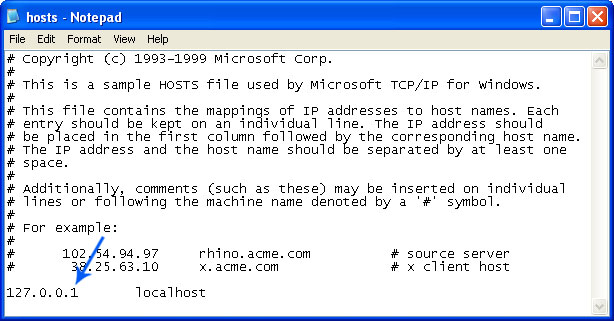
c) The “hosts” file should look the same as in the image below. There should be only one line: 127.0.0.1 localhost in Windows XP and 127.0.0.1 localhost ::1 in Windows Vista. If there are more, then remove them and save changes. Read more about Windows Hosts file here: http://support.microsoft.com/kb/972034


4. Manage Internet Explorer add-ons. Remove unknown or suspicious add-ons
a) Open Internet Explorer. In Internet Explorer go to: Tools->Manage Add-ons.
b) Uninstall unknown or suspicious Toolbars or Search Providers.


5. Scan your computer with legitimate anti-malware software.
Download at least one anti-malware software from the list below and scan your computer. Don’t forget to update it before scanning.

Download recommended anti-malware software and run a full system scan to remove this virus from your computer.


It's possible that an infection is blocking anti-malware software from properly installing. Before saving the selected program onto your computer, you may have to rename the installer to iexplore.exe or winlogon.exe. Don't forget to update the installed program before scanning.

Alternate malware removal tools can be used in case recommended anti-malware software has missed a threat:
6. Use TDSSKiller tool to remove malware belonging to the family Rootkit.Win32.TDSS
a) Download the file TDSSKiller.exe
b) Execute the file TDSSKiller.exe.
c) Wait for the scan and disinfection process to be over.
More detailed TDSSKiller tutorial: http://support.kaspersky.com/viruses/solutions?qid=208280684


7. Use CCleaner to remove unnecessary system/temp files and browser cache
CCleaner is a freeware system optimization. It’s not a malware removal tool. However, it’s always a good idea to get rid of unnecessary internet/system files or corrupter Windows registry values that may cause various problems to your computer. Downlaod CCleaner.

8. Reset your Router back to the factory default settings
This step is optional and should be completed only if you have followed all the above recommendations and you still have the redirect virus on your computer. First of all, please follow this guide: How to Reset a Router Back to the Factory Default Settings. Then you should flush DNS cache:

1. Go to Start->Run (or WinKey+R) and type in "cmd" without quotes.


2. In a new window please type "ipconfig /flushdns" without quotes and hit Enter. And that's it!


These recommendations shouldn’t be too complicated. I hope this article was helpful. If you have any questions don’t hesitate and ask. Comments are always welcome.

Share this information with other people: 

Wednesday, February 3, 2010

Remove "Your PC Protector" virus (Uninstall guide)

Don't Copy From This Blog...

Protected by Copyscape Plagiarism Detection
"Your PC Protector" is a fake antivirus program (a false system scanner) that reports false or grossly exaggerated threats to make you think that you are infected. It’s classified as rogue security software, but actually it’s a Trojan virus. Your PC Protector is a clone of Windows Antivirus Pro and Windows Police Pro scareware. All three programs use the same graphical user interface and display premeditated computer threats/infections. Usually, this fake software comes from fake online anti-malware sacanners, misleading websites, via Facebook or MySpace and you may even get a bogus message in IM or Skype. Be very careful and don’t click on any ads or links that look suspicious or comes from people you don’t know. If you are infected with this virus, please read further to find out how to remove Your PC Protector from the system for free using legitimate anti-malware software.


"Your PC Protector" video: (thanks to rogueamp)


While Your PC Protector is running, you will see many fake security alerts and notifications stating that your computer is infected, under attack or seriously compromised. The funny thing is that cyber criminals didn’t even bother to create new alerts. They use the old ones that were displayed by Windows Antivirus Pro and Windows Police. The fake warnings read:

Security Warning
Your computer continues to be infected with harmful viruses.
In order to prevent permanent loss your information and
credit card data theft please activate your antivirus software.
Click here to enable protection.

Internet attack attempt detected:
Somebody is trying to attack your PC:
This can result in loss of your personal information and
infection other computers connected to your network.
Click here to prevent attack


Of course, there are more such warnings. Just ignore them. Now, false scan results and fake alerts are not the biggest problems. The worst thing is that Your PC Protector blocks legitimate antivirus and antispyware software. The rogue program will display a fake error message that states:

Warning
Running of application is impossible.
The file [file location goes here] is infected.
Please activate your antivirus program.

It also impersonates Windows Security Center. Also note that YourPCProtector may come bundled with TDSS trojan-rootkit. It usually redirects search results in Google, Yahoo, MSN and blocks an access to security related websites. As you can see, this rogue program is a total scam. Please don’t purchase it! If you already did that, then contact your credit card company and dispute the charges. Then read the removal instructions below and get rid of Your PC Protector as soon as possible.


Your PC Protector removal instructions:


Method #1
1. Go to Start->Run or press WinKey+R. Type in "command" and press Enter key.


2. In the command prompt window type "notepad". Notepad will come up.


3. Copy all the text in blue color below and paste into Notepad.

Windows Registry Editor Version 5.00
[HKEY_CLASSES_ROOT\exefile\shell\open\command]
@="\"%1\" %*"

4. Save file as fix.reg to your Desktop. NOTE: (Save as type: All files)


5. Double-click on fix.reg file to run it. Click "Yes" for Registry Editor prompt window. Then click OK.
6. Reboot your computer.
7. Download the file TDSSKiller.zip and extract it into a folder. Execute the file TDSSKiller.exe. Wait for the scan and disinfection process to be over. Close all programs and press "Y" key.
8. Download one of the following anti-malware applications:
9. Install the selected application, update it an run a system scan.

Method #2
1. Reboot your computer is "Safe Mode with Networking". As the computer is booting tap the "F8 key" continuously which should bring up the "Windows Advanced Options Menu" as shown below. Use your arrow keys to move to "Safe Mode with Networking" and press Enter key. Read more detailed instructions here: http://www.computerhope.com/issues/chsafe.htm


NOTE: Login as the same user you were previously logged in with in the normal Windows mode.
2. Download one of the following anti-malware applications:
3. Reboot your PC back to Normal Mode and run a system scan again.


Your PC Protector associated files and registry values:

Files:
  • C:\Program Files\Your PC Protector
  • C:\Program Files\Your PC Protector\Your PC Protector.exe
  • C:\Program Files\wpp.exe
  • C:\Program Files\adc32.dll
  • C:\Program Files\alggui.exe
  • C:\Program Files\nuar.old
  • C:\Program Files\wp3.dat
  • C:\Program Files\wp4.dat
  • C:\Program Files\svchost.exe
Registry:
  • HKEY_CLASSES_ROOT\CLSID\{77dc0baa-3235-4ba9-8be8-aa9eb678fa02}
  • HKEY_CURRENT_USER\SOFTWARE\Microsoft\Windows\CurrentVersion\Ext\Stats\{77dc0baa-3235-4ba9-8be8-aa9eb678fa02}
  • HKEY_LOCAL_MACHINE\SOFTWARE\Microsoft\Windows\CurrentVersion\Explorer\Browser Helper Objects\{77dc0baa-3235-4ba9-8be8-aa9eb678fa02}
  • HKEY_LOCAL_MACHINE\SYSTEM\CurrentControlSet\Services\AdbUpd
  • HKEY_LOCAL_MACHINE\SYSTEM\CurrentControlSet\Enum\Root\LEGACY_ADBUPD
  • HKEY_CURRENT_USER\SOFTWARE\Your PC Protector

Share this information with other people:

Tuesday, February 2, 2010

Remove fake “Internet Explorer alert” by XP Guardian and Vista Guardian

Don't Copy From This Blog...

Protected by Copyscape Plagiarism Detection
“Internet Explorer alert. Visiting this site may pose a security threat to your system!” is a misleading security alert that appears in Internet Explorer when you are infected with XP Guardian or Vista Guardian virus. This fake security alert claims that a particular website that you are about to open is dangerous and hosts harmful files. Then it will give you three options: install XP Guardian or Vista Guardian, scan your computer with anti-malware software or continue surfing without any security measures. Actually, no matter what you decide you will be prompted to buy the rogue security software. Don’t do that. This is nothing more but a scam. Instead, please read how to remove XP Guardian or how to get rid of Vista Guardian from your computer for free.

Monday, February 1, 2010

How to remove Antimalware Defender? (Uninstall guide)

Don't Copy From This Blog...

Protected by Copyscape Plagiarism Detection
Antimalware Defender is a fake security program that claims to scan your computer for malware, but in reality it just displays premeditated threats on absolutely clean computer. As you can see it looks just like Windows Defender from Microsoft. This is not the first time when cyber criminals release fake programs that are exact copies of well know and legitimate software.


Antimalware Defender is promoted and installed through the use of Trojans that come from fake online anti-malware scanners and similar bogus web sites. Once installed, Trojan virus display fake “System Security Update” window and claims that you AntimalwareDefender is a very important security update. The fake security update reads:

Antimalware security update for Windows XP (KB961118)
Size: 433KB
This critical update will install System Security Update 2010.01.023 (Antimalware Defender Upgrade; KB648759)


I’ve search for an update with code name KB961118 and guess what? Such update doesn’t exist. Once the rogue program is installed, it runs a fake system scan and reports a variety of infections and security issues just to make you think that your computer is infected. Please note, that AntimalwareDefender reports real infections, I mean it uses real names and descriptions of existing threats to make it look more reliable in case someone would search for then on the Internet. The most important thing is to realize that your computer is free of those infections; the only real infection is Antimalware Defender. After the fake scan, this virus claims that you should purchase the program in order to remove the infections and to protect yourself. Well, that’s nothing new. All scamware does that. Just don’t trust it and don’t buy this bogus software.
Antimalware Defender associated files can be found in several different folders. Most of its files are randomly named. The rogue is linked with rundll32.exe process so probably it will block any attempt to remove the malicious files manually unless you end the main process. Also, this scareware adds a Browser Helper Object (BHO) in Internet Explorer. Your search results will likely be hijacked.


Antimalware Defender removal instructions:
1. Download an anti-malware application from the list:
2. Install selected anti-malware application, update it and run a full system scan.

NOTE: the rogue program may block legitimate security software. If you can't install any of the malware removal tools listed above, please reboot your computer is Safe Mode with Networking" and re-download the chosen anti-malware application.

How to reboot your computer is Safe Mode with Networking? As the computer is booting tap the "F8 key" continuously which should bring up the "Windows Advanced Options Menu" as shown below. Use your arrow keys to move to "Safe Mode with Networking" and press Enter key. Read more detailed instructions here: http://www.computerhope.com/issues/chsafe.htm


Antimalware Defender associated files and registry values:

Files:
  • C:\Program Files\Antimalware Defender
  • C:\Program Files\Antimalware Defender\Antimalware Defender.dll
  • C:\Documents and Settings\All Users\Application Data\ca84c702-c758-4421-974e-b02662e76d7c_6.avi
  • C:\Documents and Settings\All Users\Application Data\ca84c702-c758-4421-974e-b02662e76d7c_6.ico
  • C:\Documents and Settings\All Users\Application Data\ca84c702-c758-4421-974e-b02662e76d7c_6.mkv
  • C:\WINDOWS\system32\ca84c702-c758-4421-974e-b02662e76d7c_6.avi
  • C:\WINDOWS\system32\ca84c702-c758-4421-974e-b02662e76d7c_6.ico
  • %UserProfile%\Application Data\ca84c702-c758-4421-974e-b02662e76d7c_6.avi
  • %UserProfile%\Application Data\ca84c702-c758-4421-974e-b02662e76d7c_6.ico
  • %UserProfile%\Application Data\ca84c702-c758-4421-974e-b02662e76d7c_6.mkv
  • %UserProfile%\Local Settings\Application Data\ca84c702-c758-4421-974e-b02662e76d7c_6.avi
  • %UserProfile%\Local Settings\Application Data\ca84c702-c758-4421-974e-b02662e76d7c_6.ico
  • %UserProfile%\Local Settings\Application Data\ca84c702-c758-4421-974e-b02662e76d7c_6.mkv

Registry values:
  • HKEY_CLASSES_ROOT\CLSID\{ca84c702-c758-4421-974e-b02662e76d7c}
  • HKEY_LOCAL_MACHINE\SOFTWARE\Microsoft\Windows\CurrentVersion\Explorer\Browser Helper Objects\{ca84c702-c758-4421-974e-b02662e76d7c}
  • HKEY_CURRENT_USER\Software\Microsoft\Windows\CurrentVersion\Run "ca84c702-c758-4421-974e-b02662e76d7c_6"

If you have any questions, please leave a comment.

Share this information with other people: 

 
//PART 2
